AlgoWay Blog
Guides, manuals and platform references.
Core
- All articles
- FAQ
- PineConnector alternative
- TradersPost alternative
- Automate TradingView alerts
- Automate Telegram signals
- AlgoWay CopyTrader
- cTrader Copier
- TrendSpider with AlgoWay
- How to Automate a TradingView Indicator with Dynamic SL/TP and 1% Risk on MT5
JSON & Alerts
- JSON schema
- Manual alerts
- TradingView without paid subscription
- AlgoWay Strategy Integration in Pine Script
- Python Trading Bot Webhook Integration
- TRALADAL - TradingView Alert Adapter
- TradingView Order Action Alert
- How to use Clone Mode
MT5 / Expert Advisors
Errors
Integrations
- MetaTrader 5
- Tradovate
- TradeLocker
- cTrader
- Match-Trader
- DXtrade
- Capital.Com
- Binance
- Bybit
- MEXC
- OKX
- Bitget
- Hyperliquid
- BingX
- Alpaca
- Interactive Brokers
- Gate.io
- Coinbase
- TooBit
- WEEX
- ProjectX
- Rithmic
Other Publications
- MT5 EA Webhook JSON Reference
- OANDA MT5 with AlgoWay
- Buy Webhook via Buy Me a Coffee
- AlgoWay vs PineConnector
- Compare AlgoWay with other trading automation tools
- AlgoWay Red News Filter
- Why Paid Trading Indicators Avoid Verifiable Backtests
- How Trade Automation Tools Mislead You
- utomating a Prop-Firm Eval End to End:
- ATP Premium Indicator Testing Bot
- Why TradingView Backtests Win but Live Trades Lose
- Best Prop Firms for Trading Automation and Telegram Signal Copy in 2026
- Four AIs, One Trader, and the Strange Case of TradingView to Alpaca
- TradingView Automation
AlgoWay Strategy Lab
TradeReview Trading Journal: Reviewing Trades, Setups and Results
Published: 2026-10-09 • Guest contribution
Most trading journals fail in the same way. You log the trades, the equity curve (your profit chart over time) looks complete, and then you never open the file again. People stop because the journal is hard to use, not because they lack discipline. It helps to know what a journal is for before you look at TradeReview.
What is a trading journal?
A trading journal records your decisions, not only your balance. Your broker statement already shows what you made or lost. A journal adds the part the statement leaves out: which setup you traded, what your plan was, where your stop was, whether you followed your rules, and what you were thinking when you clicked.
A useful entry usually has three parts:
- The trade — market, buy or sell, size, entry and exit, fees, and the profit or loss (P&L). Many traders also write the result in R, which is how many times your planned risk you made or lost. That makes trades of different sizes easy to compare.
- The label — which strategy or setup this was, plus short tags for what else happened: a broken rule, a news event, an early exit, or a revenge trade (a new trade you take because you are upset about a loss).
- The note — one or two lines in your own words. People often skip this part, and it is the part that makes the record worth reading later.
You can import the first part, the second takes a few seconds, and the third is the real journal. For the full field list and a short example, see what to put in a trading journal.
Why traders keep a trading journal
Traders keep a journal because memory changes the story. Everyone remembers the big, recent trades, and almost nobody remembers a run of small losses in the same hour. That is often where an account slowly loses money. A written record turns a guess — "I think I trade too much on Fridays" — into something you can check in about 30 seconds, and then stop doing.
A journal gives you three things that a P&L chart cannot:
- You can separate luck from process. A profitable week where you broke your size rule twice is not a good week. It is a warning that happened to make money, and only a record with tags can show the difference.
- Numbers for each setup. If you trade three setups in one account, the account average hides the losing setup inside the winners. Split the results by strategy, and the setup you should stop becomes clear.
- One clear decision at the end of the week. A review is there so you know whether to keep a setup, pause it, or change it — and why.
You do not need an app for this. A notebook and a spreadsheet can do the job, and many good traders have used them for years. An app removes extra work: trades can come in on their own, the review can finish, and the reports are already built. If you are choosing between journal apps, the trading journal comparisons show how TradeReview sits next to other tools.
What TradeReview is
TradeReview is a trading journal app for stocks, options, futures, forex, and crypto. You can use it on the web, or in the iPhone and Android apps. You add trades by hand on the free plan, use the first broker file import free, continue importing files on Basic, or sync a supported broker on Pro. Current prices are on the pricing page. What sets it apart is the review: a short list you can finish in about five minutes.
Review Sessions: why you open the journal again
A Review Session opens one trade you have not reviewed yet. You see the chart, the tags, and the note you wrote. You mark the trade as reviewed, the next trade appears, and when the list is empty the session ends on its own.
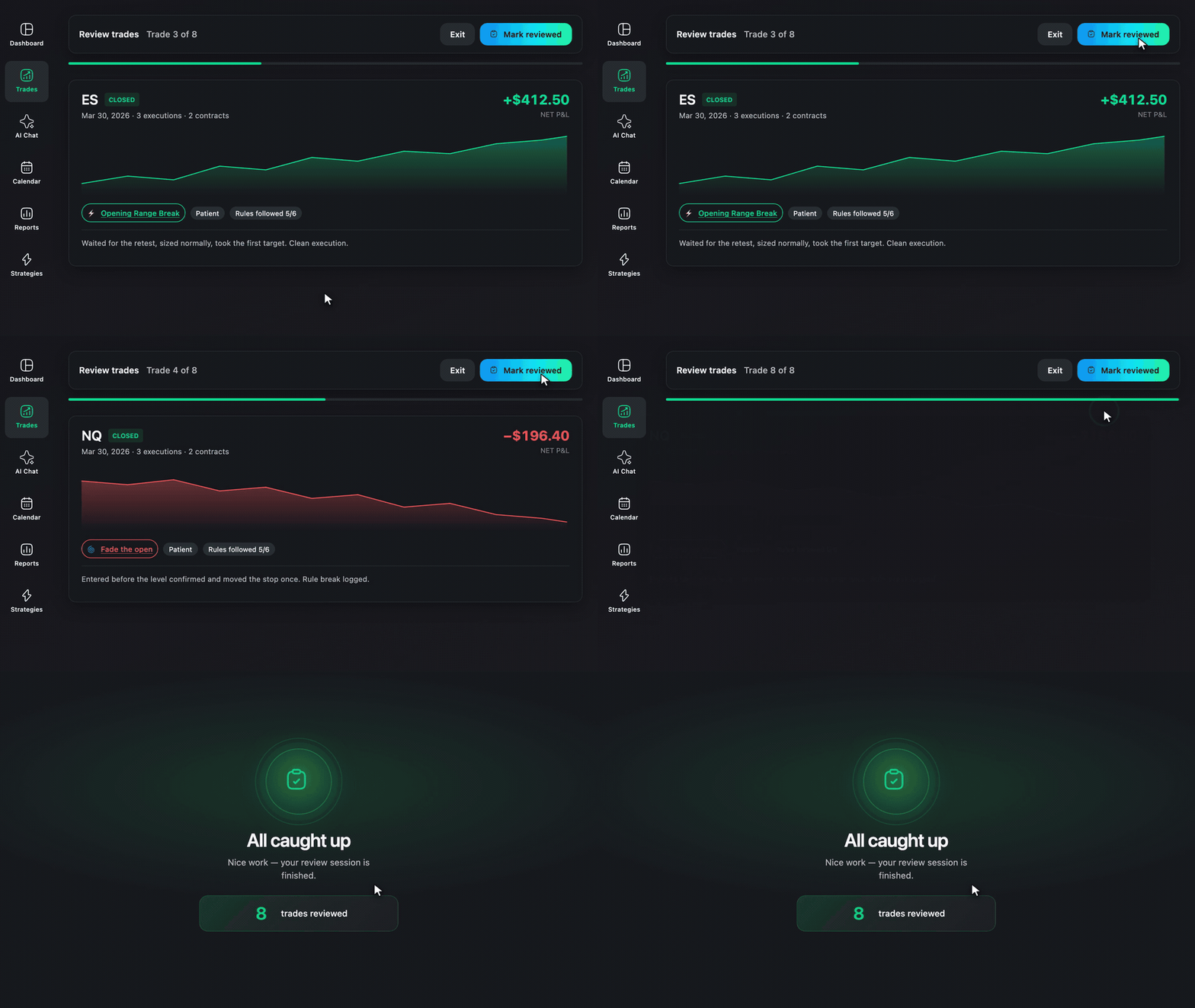
The review is short enough to finish. It takes about five minutes after the market closes, so you do not spend the evening rebuilding a spreadsheet. Because the list is short, you reach the end. That is the difference between a journal you keep and a dashboard full of trades you have never opened.
Start with the last few days, not a whole year. Most people get further that way. Open one trade, write a note if something went wrong, mark it done, and move to the next one. You stop because the work is finished, not because you got bored.
TradeReview does not place trades for you, hold your money, or send buy and sell signals. You record the trades that already happened, you review them, and you keep the record.
Three ways to add trades to the journal
The review works the same way each time. Only the way trades arrive is different: manual entry on Free, a first complimentary file import, further CSV uploads on Basic, and auto-sync on Pro.
Type them in when you want to write why you took the trade while you still remember it clearly.
Upload a file when a CSV or a broker statement can add a week of trades without typing each one. The first file import is free; ongoing imports require Basic or Pro. If a platform does not sync, you can still import it with a normal CSV file.
Sync the account on the Pro plan by connecting MetaTrader 5, cTrader, TradeLocker, Alpaca, or Interactive Brokers once. New trades then arrive on their own, and you can sync again with one click. MetaTrader connects through the trading terminal. A read-only password is enough, so your broker does not have to be on a special list. That password lets the journal see trades, and it cannot place orders.
The method for each platform is on supported brokers. The current supported-broker list contains more than 450 broker and platform entries, including Interactive Brokers, NinjaTrader, and Webull; the available import method varies by platform. Check that list before you assume you must type every trade.
Dashboard and reports: win rate, R, and time of day
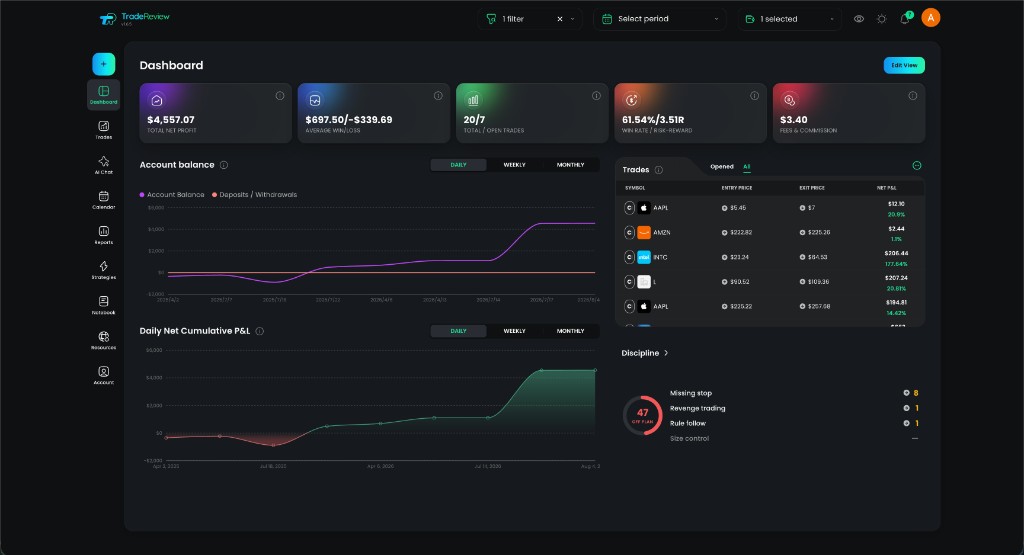
The dashboard shows the main numbers above the equity curve: net profit, win rate, number of trades, average win, average loss, and fees. You can change the layout. There are more than ten widgets, and you choose which ones stay on the screen. You can also switch the dates to one day, one week, or one month without leaving the page.
Read the numbers after the review. A green week where you broke your size rule is not the same as a red week of losses you planned, and the chart alone cannot tell you which one you had. The Review Session can, because you tagged each trade before you looked at the total.
Two reports are useful once the tags exist. The day and time report splits results by when you traded, which is where "my strategy stopped working" often comes from. A setup that works at the open and loses money at lunch looks average if you only look at the whole account. The tags report ranks the labels you used, so a setup that slowly loses money no longer hides inside that average.
This is also the difference between a trading journal and a spreadsheet. A spreadsheet can store the trades, but it will not rank your tags by expectancy (the average result per trade) or split your win rate by hour unless you build that report yourself every month.
Strategies and tags: one name for each setup
Give each setup its own strategy name, then link the trades to that name. The setup steps are in creating and managing strategies. When you open a strategy, you see its own numbers: net profit, win rate, and average R. You also see the trades linked to it, the rules you said you would follow, and a note for the setup itself, not for one single trade.
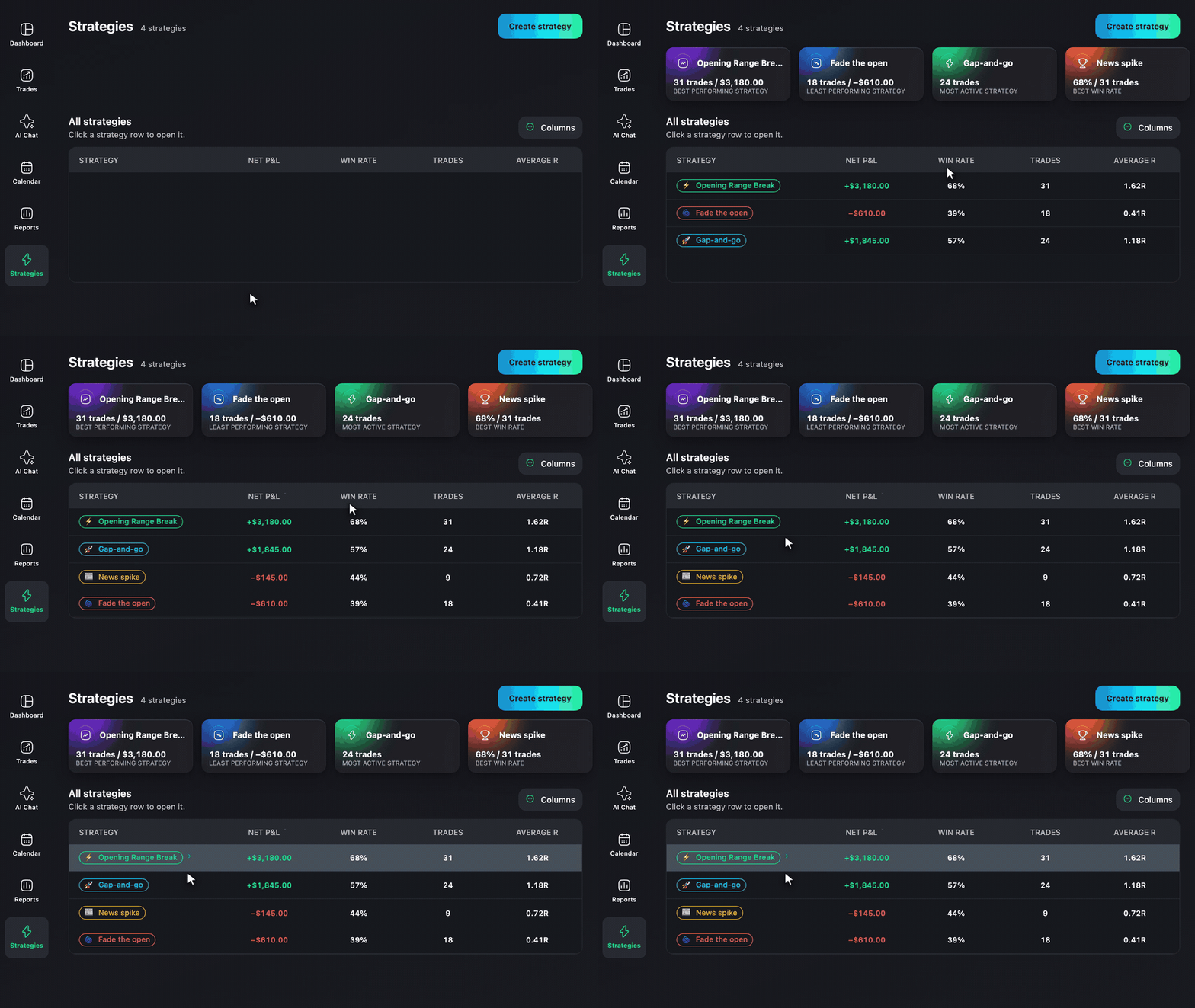
When the rules change, change the name. A new stop, a new time filter, or a new market is a new strategy. If both versions share one name, the better version lifts the win rate of the worse one, and you may think the strategy improved when you never separated the new rules from the old ones.
Tags cover what the strategy name does not, such as a mistake, a skipped news trade, or an early exit. A short tag list works better than a long one, because you will still use it on a tired day. Tag winning trades as well as losing trades. A report built only from the trades you felt like labeling tells you less than it seems to.
Keep different books in different accounts. If you have more than one login, or you trade the same strategy in two markets, use the same strategy name on both accounts so you can compare them fairly. A mixed chart hides that difference, and so does averaging a stock account with a futures account. The free plan includes one account, Basic includes five, and Pro includes twenty.
Calendar and Notebook: notes around the trades
Two other screens hold what the trade list does not show. The calendar puts each day's result on the month, with the week total beside it, so after a big win you can see if the next day was careless before you blame the setup. The Notebook keeps the note you wrote before the market opened, so you can read it again before you increase your position size. It stays separate from any single trade.
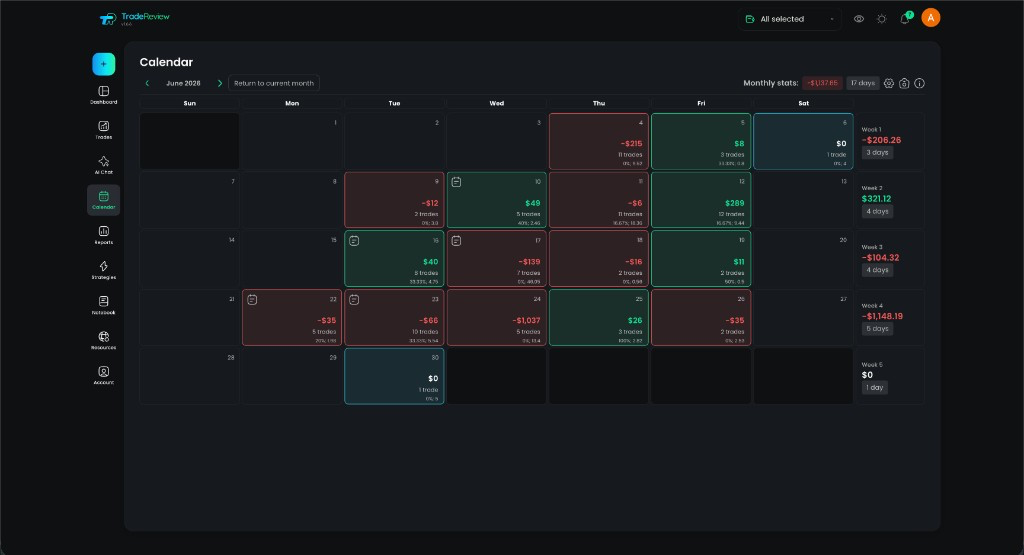
Open these screens when you want to see the whole month, or when you want the note you wrote before the open.
AI Chat: ask questions about your own trades
AI Chat answers in plain language, using your journal. You can ask, "Which strategy made money this month, and what was my average R?" The reply includes the number and the list of trades it used, so you can check the math yourself. It cannot see another person's journal, and it does not tell you what to buy.
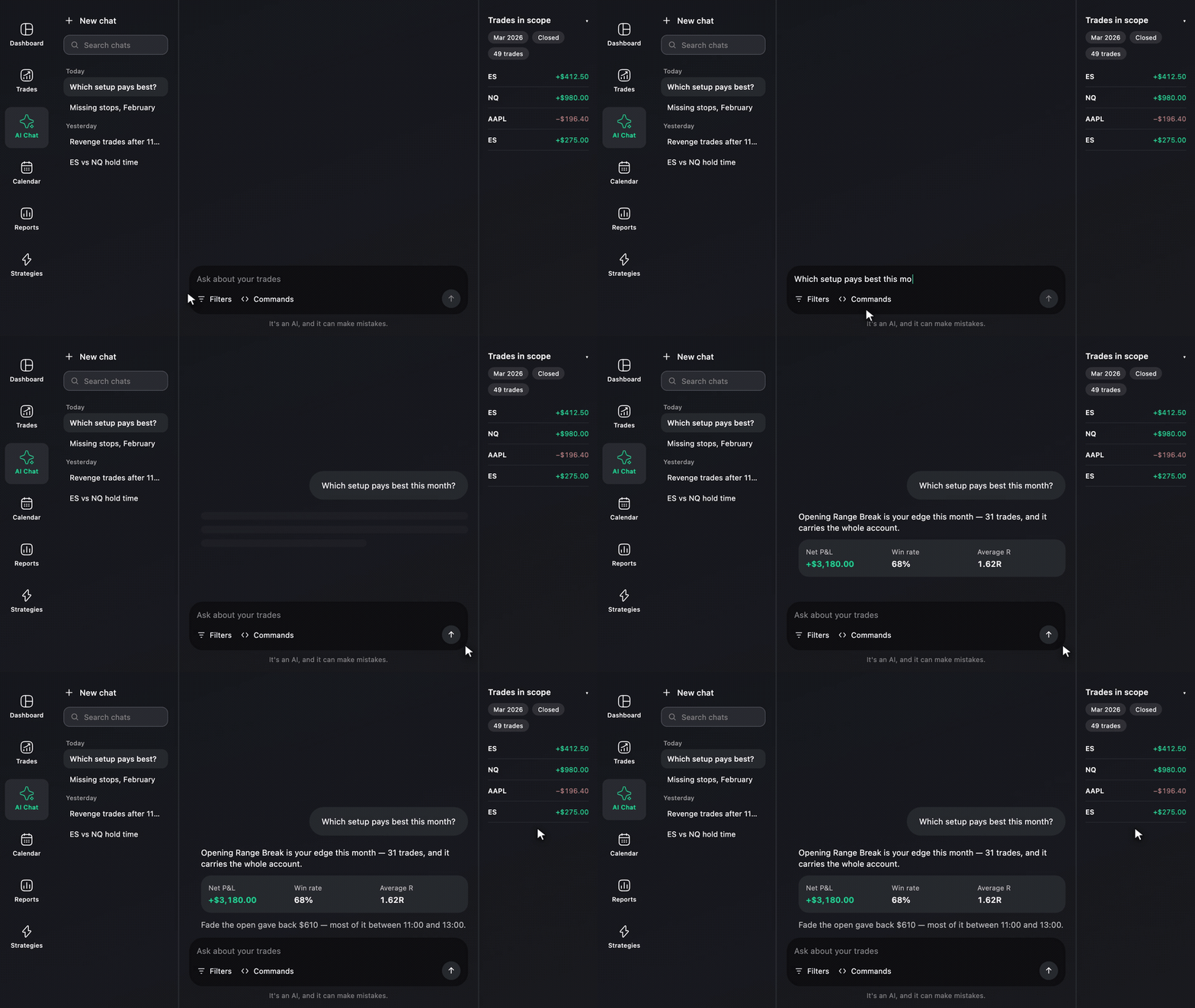
Use AI Chat after a Review Session. The question has a real answer once the trades are tagged and the strategies exist. If you ask before that, the answer is only a guess.
Your first week with TradeReview
You do not need every report on day one. The first week checklist is short on purpose: add trades, check the dashboard, open one trade, and run one report.
In practice, do this:
- Create an account.
- Add trades from one login only. Type them, upload a file, or sync the account.
- Create one strategy name and use it on every trade from that setup.
- Run a Review Session on those trades. Write a note when something went wrong, and keep good trades short.
- Read net profit, win rate, and average R for that strategy, then decide one thing: keep it, pause it, or give a new name to the rules you just changed.
After that, leave it there. Next time, review only the trades you have not reviewed yet. Repeating that short review is the habit. TradeReview is a trading journal you open again because the list is short enough to finish.
FAQ
What is TradeReview? TradeReview is a trading journal app for the web, iPhone, and Android. You add your trades, tag them, and review them one by one in a Review Session. You can then read results by strategy, by tag, and by time of day. It does not place orders, hold your money, or send trade signals.
Does TradeReview connect to my broker? Auto-sync on the Pro plan works with MetaTrader 5, cTrader, TradeLocker, Alpaca, and Interactive Brokers. MetaTrader connects through the terminal with a read-only password, so your broker does not need to be on a special list. The first file import is free; additional imports require Basic or Pro. Other platforms can be recorded manually on the free plan. Together that covers more than 450 brokers and platforms, and the current list is on supported brokers.
Which markets does TradeReview support? Stocks, options, futures, forex, and crypto. Trades from all of them can sit in the same journal, but keep separate strategies in separate accounts before you compare them.
Can I use the trading journal on my phone? Yes, the iPhone and Android apps include the same Review Session, so you can review trades away from your desk.
What happens to my trade data? Your journal belongs to you. AI Chat answers only from your own trades, shows which trades it used, and cannot see another trader's journal. The privacy policy explains how your data is stored.