AlgoWay Blog
Guides, manuals and platform references.
Core
- All articles
- FAQ
- PineConnector alternative
- TradersPost alternative
- Automate TradingView alerts
- Automate Telegram signals
- AlgoWay CopyTrader
- cTrader Copier
- TrendSpider with AlgoWay
- How to Automate a TradingView Indicator with Dynamic SL/TP and 1% Risk on MT5
JSON & Alerts
- JSON schema
- Manual alerts
- TradingView without paid subscription
- AlgoWay Strategy Integration in Pine Script
- Python Trading Bot Webhook Integration
- TRALADAL - TradingView Alert Adapter
- TradingView Order Action Alert
MT5 / Expert Advisors
Errors
Integrations
- MetaTrader 5
- Tradovate
- TradeLocker
- Match-Trader
- DXtrade
- Capital.Com
- Binance
- Bybit
- MEXC
- OKX
- Bitget
- Hyperliquid
- BingX
- Alpaca
- Interactive Brokers
- Gate.io
- Coinbase
- TooBit
- WEEX
- ProjectX
- Rithmic
- cTrader logic
Other Publications
- MT5 EA Webhook JSON Reference
- OANDA MT5 with AlgoWay
- Buy Webhook via Buy Me a Coffee
- AlgoWay vs PineConnector
- Compare AlgoWay with other trading automation tools
- AlgoWay Red News Filter
- Why Paid Trading Indicators Avoid Verifiable Backtests
- How Trade Automation Tools Mislead You
- utomating a Prop-Firm Eval End to End:
- ATP Premium Indicator Testing Bot
- Why TradingView Backtests Win but Live Trades Lose
- Best Prop Firms for Trading Automation and Telegram Signal Copy in 2026
- Four AIs, One Trader, and the Strange Case of TradingView to Alpaca
- TradingView Automation
AlgoWay Strategy Lab
How to Copy TradingView Alerts to Multiple Accounts with AlgoWay Trade Copier
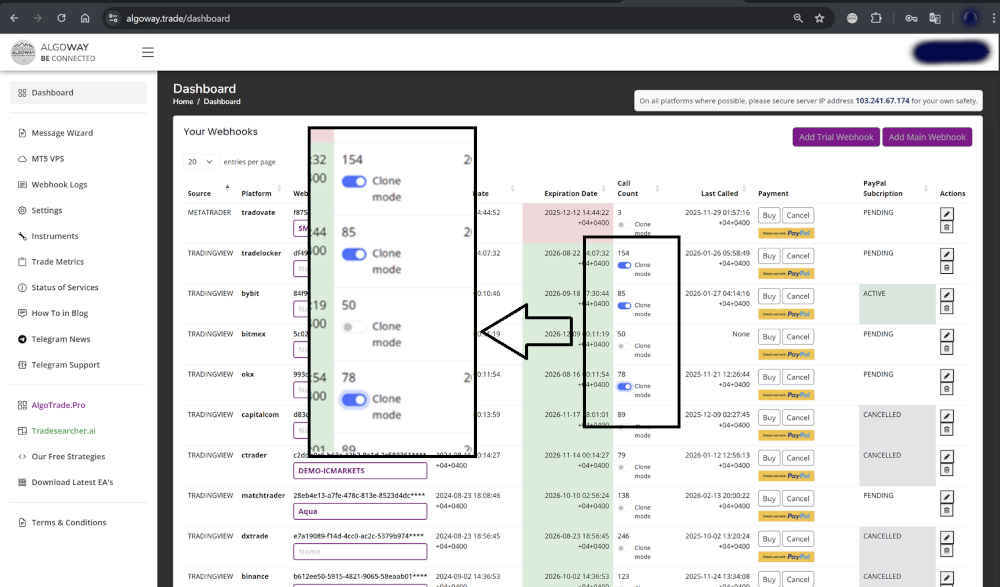
AlgoWay Trade Copier lets you copy one TradingView alert to multiple accounts, brokers, prop platforms and crypto exchanges through Clone Mode. Instead of creating separate alerts for every destination, you create one main webhook, enable Clone Mode for additional webhooks, and let AlgoWay distribute the same trading command across several execution venues.
This guide explains how AlgoWay Clone Mode distributes one TradingView alert across multiple accounts, brokers, prop platforms and exchanges while keeping each destination independently configured.
The practical flow is:
TradingView alert -> AlgoWay main webhook -> AlgoWay Clone Mode -> multiple trading platformsThe goal is not to promise better profits. The goal is to reduce manual duplication, test execution across different venues, keep multiple accounts synchronized, and avoid depending on only one broker or exchange.
Last updated: 2026-05-12 • Author: AlgoWay
Quick Answer: What AlgoWay Trade Copier Does
AlgoWay Trade Copier uses Clone Mode to duplicate a received webhook alert to additional AlgoWay webhooks. You still send one TradingView alert, but AlgoWay can execute the same action on multiple destinations.
| Element | Meaning |
|---|---|
| Main webhook | The primary AlgoWay webhook that receives the TradingView alert. |
| Clone webhook | An additional webhook that receives the copied signal from the main webhook. |
| Clone Mode | The AlgoWay setting that copies the alert to additional webhooks. |
| TradingView alert | The original webhook signal generated by your strategy, indicator or manual alert. |
Why Use a TradingView Trade Copier
TradingView can generate alerts, but traders often need those alerts to reach more than one account. A single strategy may need to execute on:
- a prop firm account;
- a personal broker account;
- a MetaTrader 5 account;
- a TradeLocker or MatchTrader account;
- a crypto exchange such as Binance, Bybit, OKX or Gate.io;
- a futures platform such as Tradovate;
- multiple accounts with different risk sizes.
Without a trade copier, the trader must create separate alerts, maintain separate JSON messages, and manually keep account logic in sync. AlgoWay Clone Mode is designed to solve this workflow from the webhook layer.
Execution Diversification: More Than Symbol Diversification
Most traders think diversification means trading different symbols. That is only one dimension. Another dimension is execution diversification: running the same strategy signal across different execution venues.
Even when the TradingView signal is identical, real execution can differ because every venue has its own:
- bid/ask spread;
- liquidity depth;
- symbol specification;
- margin rules;
- order matching behavior;
- API response time;
- broker or exchange restrictions;
- slippage during volatility.
Cloning the same signal does not guarantee better results. It gives you a structured way to compare execution under the same signal conditions and reduce dependency on one venue.
How AlgoWay Clone Mode Works
AlgoWay Clone Mode is based on multiple webhooks inside your AlgoWay account.
Typical structure:
- 1 main webhook — receives the TradingView alert directly.
- Up to 2 clone webhooks — receive a cloned copy of the same alert.
- Up to 3 total destinations — one main platform plus two clone platforms.
When TradingView fires an alert, AlgoWay:
- receives the alert on the main webhook;
- validates the webhook message;
- executes the signal on the main platform;
- duplicates the same signal to enabled Clone Mode webhooks;
- executes the cloned command on additional platforms;
- shows the results in webhook logs.
From TradingView's side, it is still one alert and one webhook URL. AlgoWay handles the distribution.
Example: One TradingView Alert to TradeLocker, Bybit and MT5
Assume a strategy sends one TradingView alert when a long signal appears.
AlgoWay setup:
- Main webhook -> TradeLocker prop account;
- Clone webhook 1 -> Bybit personal crypto account;
- Clone webhook 2 -> MetaTrader 5 broker account through AlgoWayWS-MT5 EA.
Result:
- TradingView sends one alert;
- AlgoWay executes it on TradeLocker;
- AlgoWay clones it to Bybit;
- AlgoWay clones it to MetaTrader 5;
- you can compare execution, fills, spreads, logs and account behavior.
This is useful when you want one strategy to run across a prop account and a personal account at the same time, or when you want to compare broker/exchange execution without changing the TradingView strategy.
Example JSON for a Cloned TradingView Alert
The cloned alert should use a valid AlgoWay JSON message. A basic TradingView strategy alert can look like this:
{
  "platform_name": "tradelocker",
  "ticker": "{{ticker}}",
  "order_contracts": "{{strategy.order.contracts}}",
  "order_action": "{{strategy.market_position}}",
  "price": "{{close}}"
}
Important: the main webhook and clone webhooks can point to different platforms. The JSON must be compatible with the way you configured those webhooks. If a destination needs symbol mapping, size conversion, or platform-specific settings, configure that in the webhook/platform setup before using Clone Mode.
When Clone Mode Makes Sense
AlgoWay Trade Copier is practical for several workflows.
Prop Firm plus Personal Account
A trader can execute the same signal on a prop firm platform and a personal account. This helps compare challenge performance, broker conditions and personal execution under the same strategy logic.
Broker Comparison
Run the same signal on two or three venues and compare spread, slippage, fill quality, rejections and latency.
Multi-Account Management
Use one TradingView alert to manage several accounts instead of duplicating every alert manually.
Crypto plus CFD Execution
A strategy may trade a related symbol on a broker and a crypto exchange. Clone Mode helps test whether both venues behave acceptably under the same alert logic.
Failover Research
Clone Mode can help study what happens when one venue rejects an order while another accepts it. It is not automatic failover, but it gives useful execution data.
When Clone Mode Is Not the Right Tool
Do not use trade copying blindly. Clone Mode is not a magic risk reducer.
- If every cloned account uses the same oversized risk, losses are cloned too.
- If symbols are not mapped correctly, one destination may reject orders.
- If one platform supports hedging and another uses netting, results may differ.
- If the strategy depends on very precise execution, venue differences can matter.
- If account rules differ between prop firms, the same signal may violate one account while remaining valid on another.
Clone Mode should be used with clear sizing rules, platform-specific configuration, and careful testing.
How to Enable Clone Mode in AlgoWay
Clone Mode is configured inside the AlgoWay dashboard.
- Create your main webhook.
- Create additional webhooks for the platforms you want to clone into.
- Open the main webhook settings.
- Enable Clone Mode for the additional webhook destinations.
- Save the configuration.
- Send a test alert before using live trading size.
Dashboard path:
Dashboard >> Your Webhooks >> Clone ModeOnly enable clones after each individual webhook works correctly on its own.
Supported Platform Categories
AlgoWay supports more than one type of trading destination. Clone Mode can be useful across platform groups such as:
- MetaTrader 5 through AlgoWayWS-MT5 EA;
- prop and CFD platforms such as TradeLocker, MatchTrader, DxTrade and cTrader;
- crypto exchanges such as Binance, Bybit, OKX, BitMEX, KuCoin, Gate.io and Hyperliquid;
- futures platforms such as Tradovate;
- stock/API brokers such as Alpaca.
The exact behavior depends on each platform's API, symbols, market rules and AlgoWay webhook configuration.
Risk and Size Control in Trade Copying
Copying an alert does not mean every destination should use the same lot size. Each platform may need its own size logic.
Before cloning, check:
- account size;
- maximum daily loss rule;
- maximum drawdown rule;
- symbol contract size;
- minimum lot or quantity;
- leverage and margin;
- risk mode or quantity multiplier;
- whether SL/TP values are valid for that destination.
A safe Clone Mode setup usually tests each destination independently first, then enables cloning with small size, then increases size only after reviewing logs.
Latency, Slippage and Execution Differences
Different platforms will not always fill the same alert at the same price. A cloned alert can reveal execution differences that are invisible during backtesting.
| Difference | Why it matters |
|---|---|
| Spread | A wider spread changes the real entry and exit cost. |
| Liquidity | Thin liquidity can increase slippage. |
| API latency | Different platforms acknowledge and process requests at different speeds. |
| Order rules | Minimum size, filling modes, leverage and account rules can differ. |
| Symbol format | The same market can have different ticker names on each platform. |
Common Trade Copier Mistakes
Mistake 1: Cloning Before Testing Each Webhook
Test each webhook alone first. If a destination cannot execute a single test alert correctly, cloning will only multiply the problem.
Mistake 2: Using the Same Size Everywhere
A size that is safe on one account can be too large, too small, or invalid on another platform.
Mistake 3: Ignoring Symbol Mapping
TradingView may send one ticker while a broker or exchange expects another. Fix symbol mapping before enabling Clone Mode.
Mistake 4: Assuming All Platforms Support the Same Order Logic
One platform may support hedging, another may use one-way mode, and another may have different close or reduce-only behavior.
Mistake 5: Thinking Diversification Eliminates Risk
Execution diversification does not remove strategy risk. If the strategy loses, copied accounts can lose together.
Safe Testing Procedure
Use this sequence before running live Clone Mode:
- Test the main webhook alone.
- Test every clone webhook alone.
- Confirm symbols and size rules on every destination.
- Send a small test alert through the main webhook with Clone Mode enabled.
- Check AlgoWay logs for every destination.
- Check platform logs, broker execution or exchange order history.
- Test close/flat alerts, not only entries.
- Test SL/TP and partial close logic if the strategy uses them.
- Increase size only after execution is consistent.
Trade Copier vs Classic Signal Service
A signal service usually sends signals to users. A trade copier executes or routes trade commands across accounts. AlgoWay Clone Mode is closer to webhook-based trade copying because the received alert is duplicated to additional execution destinations.
| Signal service | AlgoWay Trade Copier / Clone Mode |
|---|---|
| Sends a signal for manual or external use | Routes the alert to configured execution webhooks |
| Often requires manual copying | Copies automatically after webhook trigger |
| May not manage platform-specific execution | Uses AlgoWay platform integrations and webhook settings |
| Usually focused on signal distribution | Focused on execution distribution |
Related AlgoWay Guides
- How to create a webhook in TradingView
- TradingView webhook alerts and automation basics
- AlgoWay JSON schema guide
- How to fix AlgoWay webhook Error 415
- How to connect TradingView to MetaTrader 5 with AlgoWay EA
- AlgoWayWS-MT5 EA 2.10 guide
- How to connect TradingView to Binance with AlgoWay
- How to connect TradingView to Bybit with AlgoWay
- How to connect TradingView to Alpaca with AlgoWay
Final Summary
AlgoWay Trade Copier turns one TradingView alert into multi-account and multi-platform execution through Clone Mode. The main benefit is not hype. The benefit is operational: fewer duplicate alerts, cleaner webhook management, synchronized execution, platform comparison, and reduced dependence on one venue.
Use Clone Mode only after each destination webhook is tested. Configure size, symbols, platform rules and risk limits carefully. Then one TradingView alert can become a controlled multi-account automation workflow across AlgoWay-supported platforms.