AlgoWay Blog
Guides, manuals and platform references.
Core
- All articles
- FAQ
- PineConnector alternative
- TradersPost alternative
- Automate TradingView alerts
- Automate Telegram signals
- AlgoWay CopyTrader
- cTrader Copier
- TrendSpider with AlgoWay
- How to Automate a TradingView Indicator with Dynamic SL/TP and 1% Risk on MT5
JSON & Alerts
- JSON schema
- Manual alerts
- TradingView without paid subscription
- AlgoWay Strategy Integration in Pine Script
- Python Trading Bot Webhook Integration
- TRALADAL - TradingView Alert Adapter
- TradingView Order Action Alert
MT5 / Expert Advisors
Errors
Integrations
- MetaTrader 5
- TradeLocker
- Match-Trader
- DXtrade
- Capital.Com
- Binance
- Bybit
- MEXC
- OKX
- Bitget
- Hyperliquid
- BingX
- Alpaca
- Interactive Brokers
- Gate.io
- Coinbase
- TooBit
- WEEX
- ProjectX
- cTrader logic
Other Publications
- MT5 EA Webhook JSON Reference
- OANDA MT5 with AlgoWay
- Buy Webhook via Buy Me a Coffee
- AlgoWay vs PineConnector
- Compare AlgoWay with other trading automation tools
- AlgoWay Red News Filter
- Why Paid Trading Indicators Avoid Verifiable Backtests
- How Trade Automation Tools Mislead You
- utomating a Prop-Firm Eval End to End:
- ATP Premium Indicator Testing Bot
- Why TradingView Backtests Win but Live Trades Lose
- Best Prop Firms for Trading Automation and Telegram Signal Copy in 2026
- Four AIs, One Trader, and the Strange Case of TradingView to Alpaca
- TradingView Automation
AlgoWay Strategy Lab
AlgoWay MT5 VPS Guide: How to Connect by RDP, Start MetaTrader 5, and Update AlgoWay EA
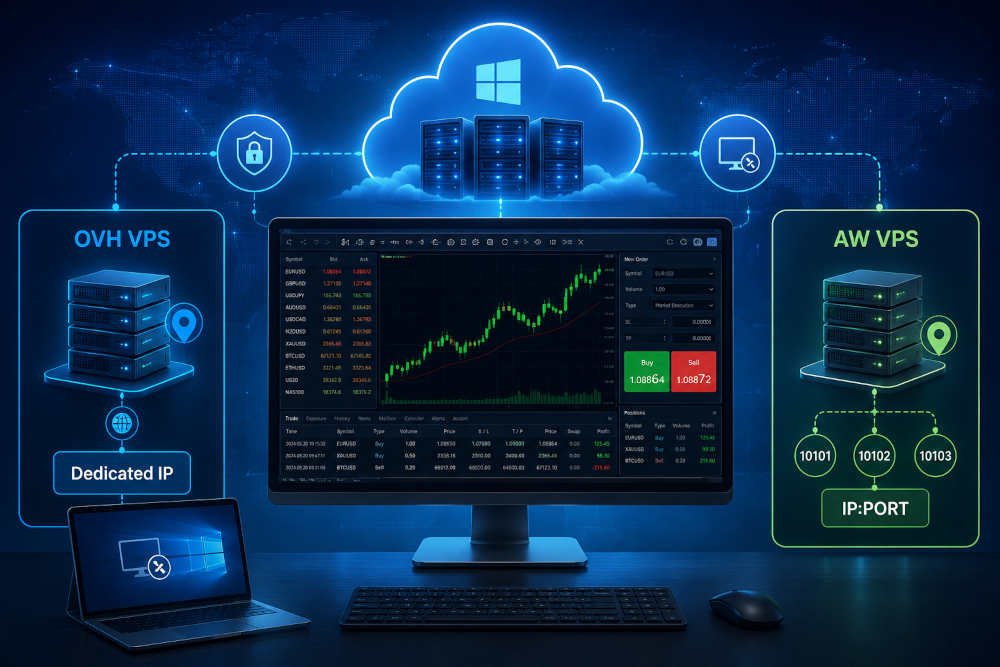
AlgoWay MT5 VPS is a cloud Windows server prepared for traders who need MetaTrader 5 to stay online without keeping a personal computer running all day. The VPS is accessed by RDP, includes MetaTrader 5, and is prepared for AlgoWay EA so that MT5 can work as a remote execution terminal for AlgoWay automation.
This guide explains the complete user flow: how to install an RDP client, when VPS credentials become available, how to connect to an OVH VPS with a dedicated IP address, how to connect to an AW VPS with an IP and custom RDP port, how to open MetaTrader 5, how to update AlgoWay EA, and how to keep the VPS running after setup.
The most important difference is simple: OVH VPS uses a dedicated public IP address, while AW VPS uses a public IP address plus a specific RDP port. If you use the wrong connection format, the RDP session will not open the correct VPS.
Last updated: September 10, 2026
What AlgoWay MT5 VPS Is Used For
AlgoWay MT5 VPS is designed for MetaTrader 5 automation. It gives traders a remote Windows environment where MT5 can stay online, connected to the broker, and ready to receive trading commands through AlgoWay.
This is useful for TradingView to MT5 automation, MT5 Expert Advisor workflows, MT5 copier routes, and any setup where the MetaTrader 5 terminal must stay open even when the trader's own computer is turned off.
The VPS service and the AlgoWay webhook service are separate. The VPS is the Windows server where MetaTrader 5 runs. The webhook is the AlgoWay route that receives trading signals and sends them to the selected execution destination. Webhook access is not included in the VPS price.
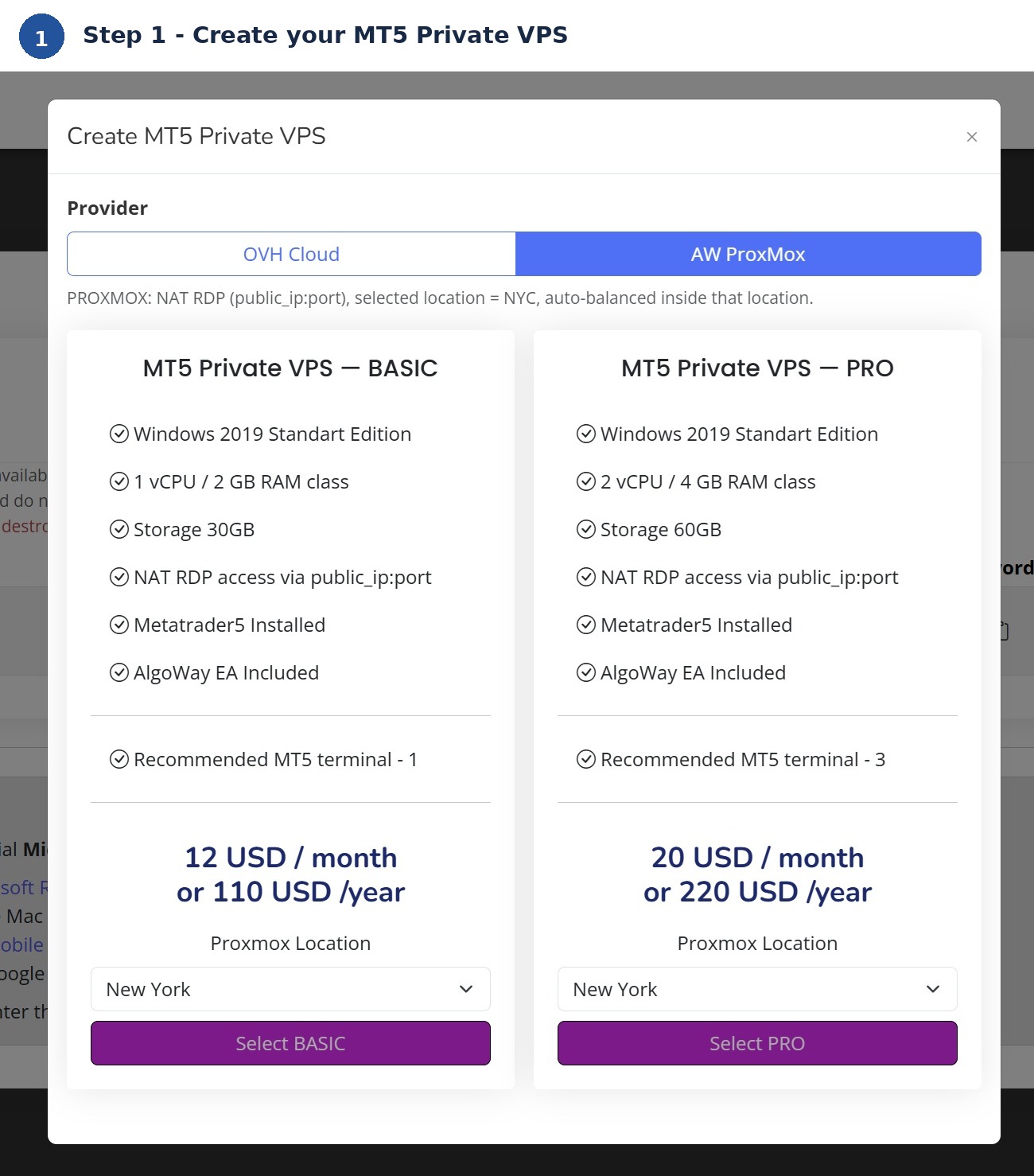
When VPS Access Details Become Available
After creating an AlgoWay MT5 VPS service, the server may need several minutes before it is ready. During this time, the VPS is being created and prepared on the server side.
Until the VPS is ready, access details may be hidden in the AlgoWay dashboard. This is normal. The RDP address, Windows login, Windows password, and RDP download button become available only after the VPS reaches the ready state.
In the VPS table, wait until the service status shows that the VPS is ready. Once the VPS is active, you can copy the Windows login and password, download the RDP file, or enter the connection details manually in your RDP client.
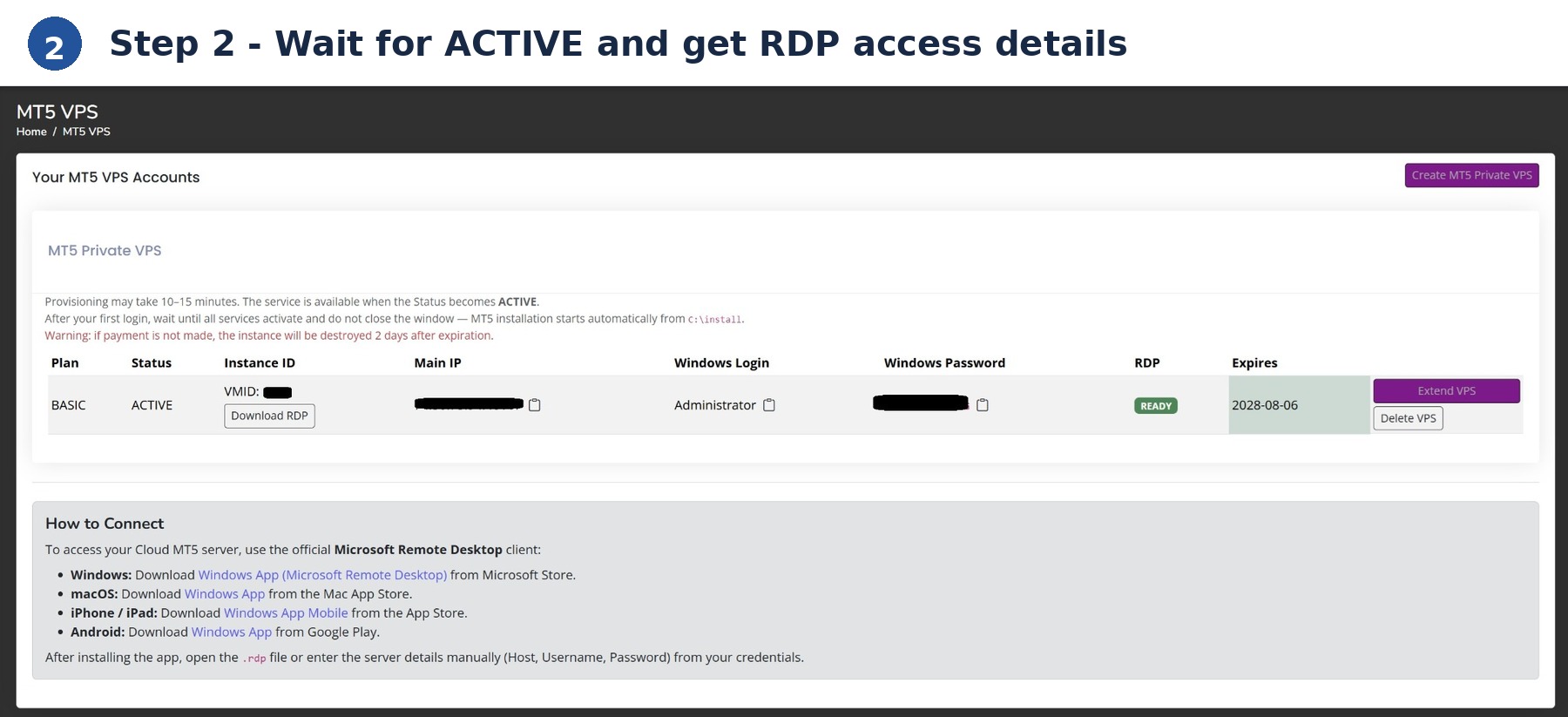
What You Need Before Connecting
Before opening the VPS, make sure you have these details from your AlgoWay dashboard:
- RDP address — the VPS IP address, or IP address with port for AW VPS.
- Windows login — the username for the remote Windows server.
- Windows password — the password for the remote Windows server.
- Download RDP button — the easiest connection method when available.
- VPS status — the server must be ready before the connection details can be used.
If the login and password are still hidden, wait for activation to finish and refresh the page.
How to Install an RDP Client
RDP means Remote Desktop Protocol. It allows you to open the Windows desktop of your AlgoWay VPS from your own device.
Windows
On Windows, you can use the built-in Remote Desktop Connection application. Open the Start menu, search for Remote Desktop Connection, and launch it. You can also press Win + R, type mstsc, and press Enter.
After the application opens, enter the VPS address from the AlgoWay dashboard and connect with your Windows login and password.
macOS
On macOS, install Windows App or Microsoft Remote Desktop from the Mac App Store. After installation, add a new PC connection and enter the RDP address, Windows login, and Windows password from your AlgoWay dashboard.
iPhone and iPad
On iPhone or iPad, install the Microsoft remote desktop client from the App Store. Add a new PC connection, enter the VPS address, then log in with the Windows username and password.
Android
On Android, install the Microsoft remote desktop client from Google Play. Add a new PC connection and use the VPS details shown in your AlgoWay dashboard.
The Easiest Method: Download the RDP File
When your VPS is ready, the AlgoWay dashboard can show a Download RDP button. This is the easiest way to connect.
- Open the AlgoWay dashboard.
- Go to your MT5 VPS service.
- Wait until the VPS status is ready.
- Click Download RDP.
- Open the downloaded RDP file on your device.
- Enter the Windows password when requested.
The RDP file already contains the server connection address. This reduces the chance of entering the wrong IP address or missing the custom port for AW VPS.
How to Connect to OVH VPS
OVH VPS plans use a dedicated public IP address. Each OVH VPS receives its own IP address for RDP access.
For manual connection, enter the VPS IP address exactly as shown in the AlgoWay dashboard:
123.123.123.123If your RDP client asks for a port separately, use the standard RDP port:
3389OVH VPS connection steps
- Open your RDP client.
- Enter the dedicated OVH VPS IP address.
- Click Connect.
- Enter the Windows login and password from AlgoWay.
- Accept the Windows certificate prompt if it appears.
- Wait until the Windows desktop opens.
After the remote desktop opens, you can start MetaTrader 5 and continue the AlgoWay EA setup.
How to Connect to AW VPS
AW VPS plans use a different RDP connection model. Instead of giving each VPS its own public IP address, the service can use one public IP address and separate VPS accounts by custom RDP ports.
For this reason, AW VPS must be entered with both IP address and port:
11.22.33.44:40215In this example, 11.22.33.44 is the public server IP address, and 40215 is the RDP port assigned to that specific VPS.
AW VPS connection steps
- Open your RDP client.
- Enter the full RDP address in the IP:PORT format.
- Click Connect.
- Enter the Windows login and password from AlgoWay.
- Accept the Windows certificate prompt if it appears.
- Wait until the Windows desktop opens.
The port is required. If you enter only the IP address without the assigned port, the RDP client will not open the correct VPS.
OVH VPS vs AW VPS Connection Format
The main difference between OVH VPS and AW VPS is the RDP address format.
| VPS type | Connection model | RDP address format | Example |
|---|---|---|---|
| OVH VPS | Dedicated public IP address | IP |
123.123.123.123 |
| AW VPS | Public IP address plus custom RDP port | IP:PORT |
11.22.33.44:40215 |
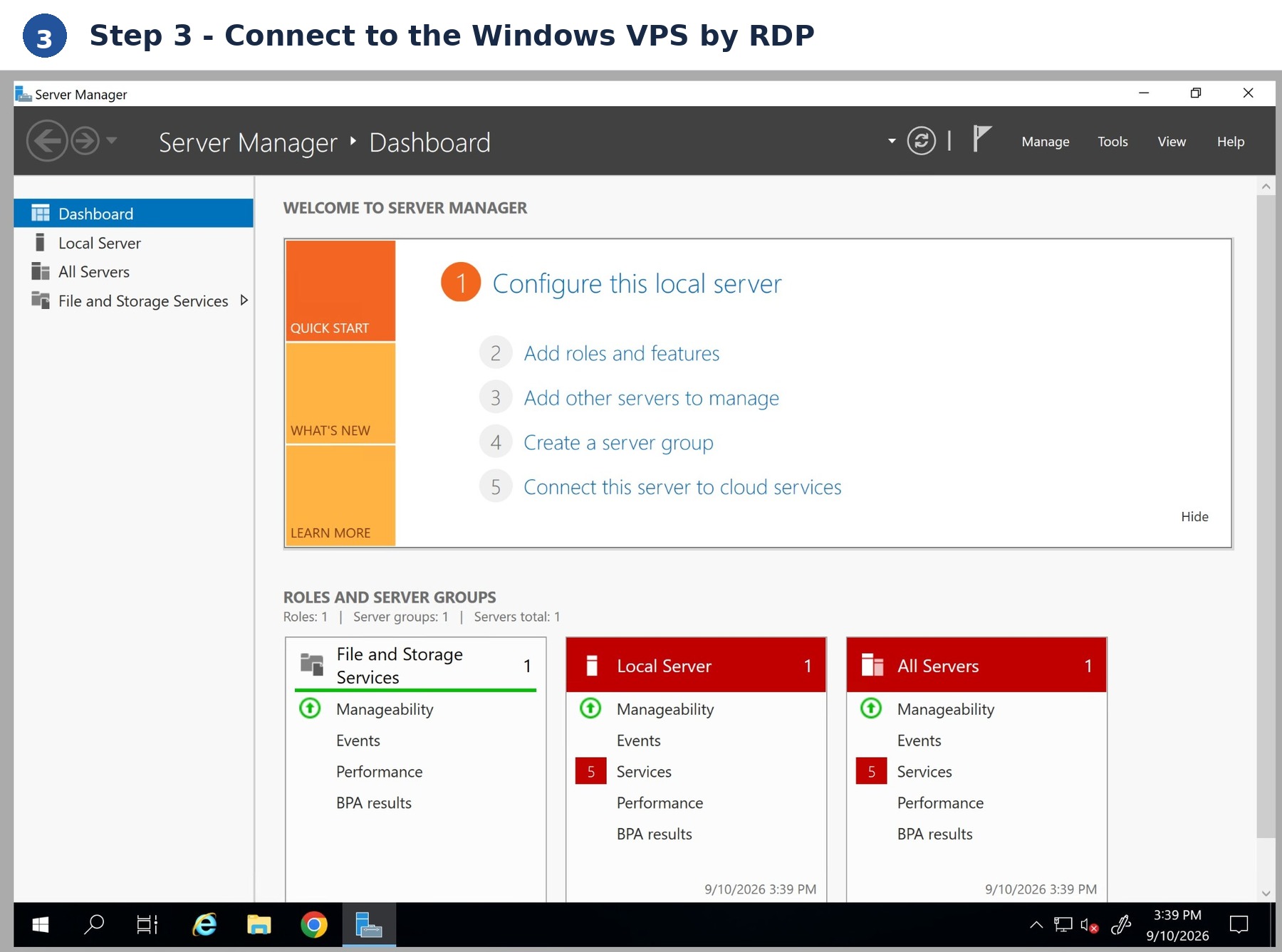
First Login to the MT5 VPS
After connecting by RDP, the remote Windows desktop will open. MetaTrader 5 is already installed on the VPS, and AlgoWay EA is prepared inside the environment.
The normal first-use flow is:
- Open MetaTrader 5 on the VPS.
- Log in to your broker account inside MT5.
- Confirm that MT5 is connected to the broker server.
- Open the trading chart you want to use.
- Attach AlgoWay EA to the chart.
- Enter your AlgoWay webhook UUID inside the EA settings.
- Confirm that the EA shows a connected status.
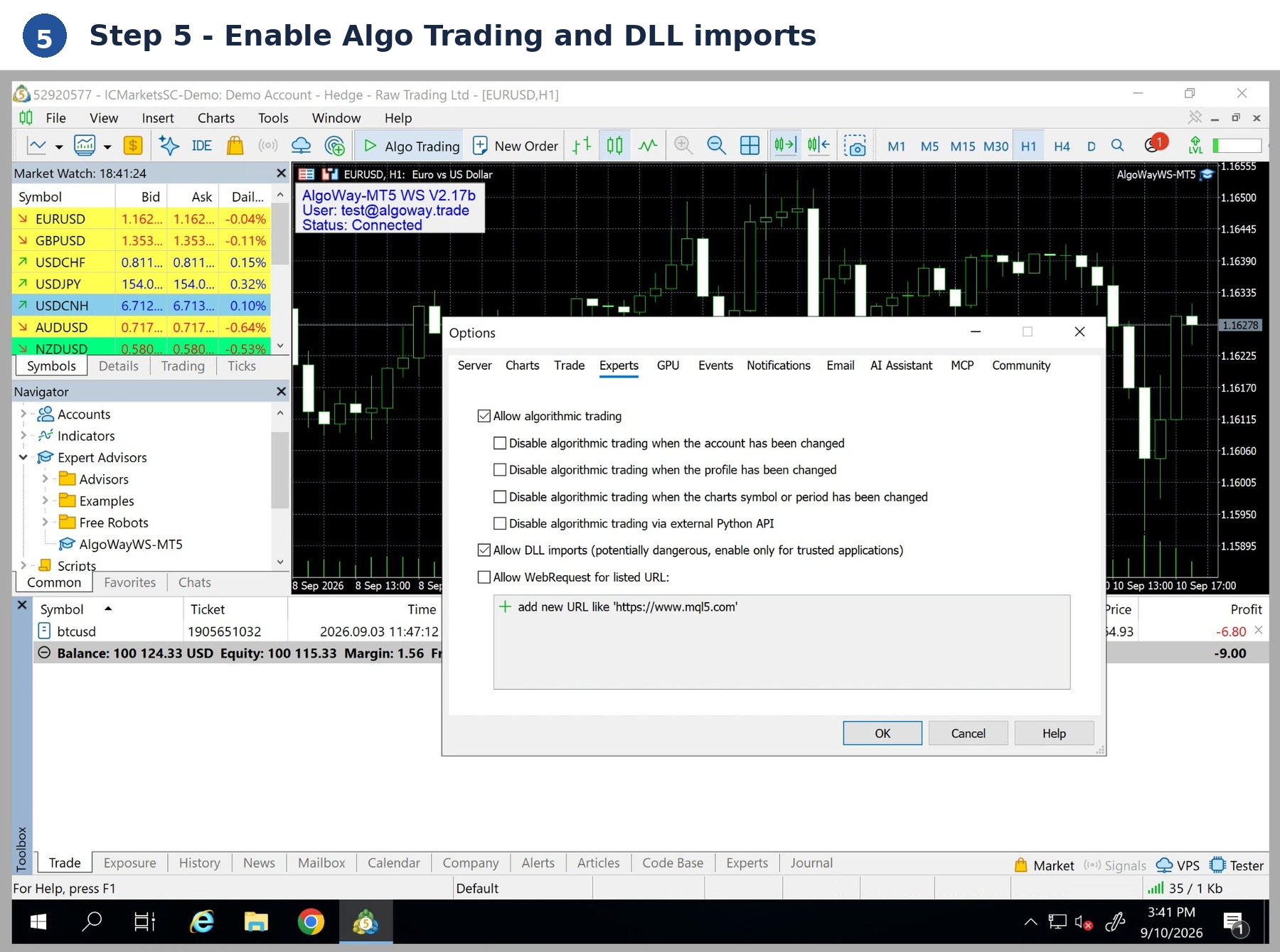
Once MT5 is connected and AlgoWay EA is active, the VPS can work as the MetaTrader 5 execution side of your AlgoWay automation setup.
Recommended Step: Update AlgoWay EA
After the first MT5 login, it is recommended to update AlgoWay EA from the VPS desktop. This helps make sure that the EA version used on the VPS is current.
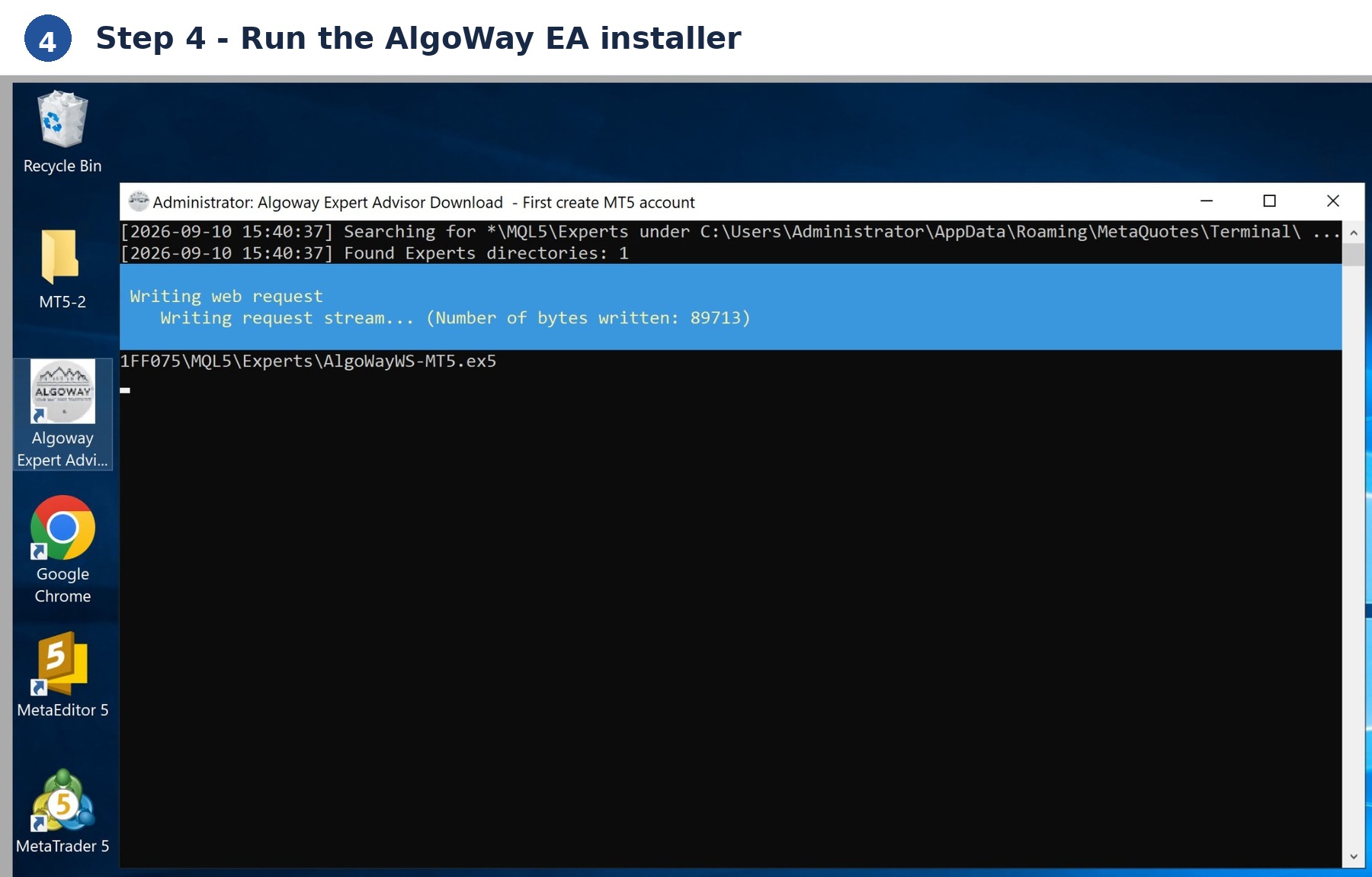
Use this flow:
- Close MetaTrader 5.
- Use the AlgoWay EA update shortcut on the VPS desktop.
- Wait for the update process to finish.
- Open MetaTrader 5 again.
- Attach or check AlgoWay EA on the required chart.
- Confirm that the webhook UUID and connection status are correct.
You can also configure MT5 and AlgoWay EA first, then close MT5, run the update, and reopen MT5. After reopening, check that the EA is still attached and connected.
How to Keep MT5 Running on the VPS
After MetaTrader 5 is running on the VPS, you do not need to keep the RDP window open all the time. You can disconnect from the RDP session and leave the VPS running remotely.
Do not shut down Windows if you want MT5 to continue working. Closing the RDP window or disconnecting from the session is different from shutting down the VPS.
The correct daily workflow is simple: connect by RDP when you need to check or change something, then disconnect from RDP when you are done. Leave MetaTrader 5 running on the remote Windows server.
AlgoWay MT5 VPS Plans and Prices
AlgoWay currently lists AW and OVH MT5 VPS plans. All listed plans are prepared for MetaTrader 5 usage and remote access by RDP.
| Plan | Provider type | RDP connection | Location | CPU / RAM | Storage | Recommended use | Monthly price | Yearly price |
|---|---|---|---|---|---|---|---|---|
| AW Basic VPS | AW | IP + custom RDP port | New York / Frankfurt | 1 vCPU / 2 GB RAM | 30 GB | 1 MT5 terminal | $12 | $110 |
| AW Pro VPS | AW | IP + custom RDP port | New York / Frankfurt | 2 vCPU / 4 GB RAM | 60 GB | 3 MT5 terminals | $20 | $220 |
| OVH Basic VPS | OVH | Dedicated public IP | London / Quebec | 1 vCPU / 2 GB RAM | 25 GB | 1 MT5 terminal | $16 | $170 |
| OVH Pro VPS | OVH | Dedicated public IP | London / Quebec | 2 vCPU / 4 GB RAM | 50 GB | 3 MT5 terminals | $26 | $280 |
Webhook automation is not included in the VPS price. If you want to receive and execute trading signals through AlgoWay, activate the required AlgoWay webhook route separately.
Common RDP and VPS Problems
The login and password are hidden
The VPS is not ready yet. Wait until the service finishes activation and the status becomes ready in the AlgoWay dashboard.
The RDP file does not open
Install an RDP client first. On Windows, use Remote Desktop Connection. On macOS, iPhone, iPad, or Android, install the Microsoft remote desktop client from the official app store.
AW VPS does not connect
Check that the RDP address includes both the IP address and the assigned port. AW VPS must be entered in the IP:PORT format.
OVH VPS does not connect
Check that you are using the dedicated public IP address shown in the AlgoWay dashboard.
The Windows password is rejected
Copy the password exactly as shown in the dashboard. Passwords are case-sensitive, and extra spaces can break login.
MetaTrader 5 is not connected to the broker
Open MT5 and check the broker account number, password, broker server name, and the connection status in the terminal.
AlgoWay EA does not show connected status
Check that AlgoWay EA is attached to the chart, the webhook UUID is entered correctly, and MetaTrader 5 is connected to the broker server.
Best Internal Guides to Use with MT5 VPS
After your VPS is connected and MetaTrader 5 is running, continue with the correct AlgoWay guide for your setup:
- AlgoWay MT5 Expert Advisor Installation Guide — install and configure AlgoWay EA inside MetaTrader 5.
- AlgoWayWS-MT5 Expert Advisor Setup — MT5 WebSocket execution setup.
- Create a TradingView Webhook for AlgoWay — connect TradingView alerts to AlgoWay.
- AlgoWay JSON Schema Guide — understand the standard AlgoWay webhook payload.
- Common MT5 Errors — fix MT5-side connection and execution issues.
FAQ: AlgoWay MT5 VPS and RDP Connection
When do I receive VPS access?
VPS access appears after the server is created and activated. Before that, login and password may be hidden in the AlgoWay dashboard.
How do I connect to OVH VPS?
Use the dedicated public IP address shown in the AlgoWay dashboard, or download the RDP file when it is available.
How do I connect to AW VPS?
Use the full RDP address in the IP:PORT format, or download the RDP file from the AlgoWay dashboard.
Is MetaTrader 5 already installed?
Yes. AlgoWay MT5 VPS is prepared with MetaTrader 5 installed.
Is AlgoWay EA included on the VPS?
Yes. AlgoWay EA is prepared inside the VPS environment. After the first login, it is recommended to update AlgoWay EA from the desktop shortcut.
Can I close the RDP window after MT5 is running?
Yes. You can disconnect from RDP while the VPS continues running. Do not shut down Windows if you want MT5 to stay active.
Is webhook service included in the VPS price?
No. Webhook service is separate from VPS hosting and is not included in the VPS price.
Which connection is easier: OVH VPS or AW VPS?
Both can be opened easily with the Download RDP button. For manual connection, OVH VPS uses a dedicated IP address, while AW VPS requires the IP address and assigned RDP port.
Conclusion
AlgoWay MT5 VPS gives traders a remote Windows environment for running MetaTrader 5 and AlgoWay EA in the cloud. After the VPS becomes ready, the user can download the RDP file, connect to Windows, open MetaTrader 5, log in to the broker, update AlgoWay EA, and connect the terminal to an AlgoWay webhook UUID.
For manual RDP connection, remember the key difference: OVH VPS uses a dedicated public IP address, while AW VPS uses an IP address with a custom RDP port. If you use the correct format and keep MT5 running on the VPS, AlgoWay can use the remote terminal as part of the automated trading execution flow.