AlgoWay Blog
Guides, manuals and platform references.
Core
- All articles
- FAQ
- PineConnector alternative
- TradersPost alternative
- Automate TradingView alerts
- Automate Telegram signals
- AlgoWay CopyTrader
- cTrader Copier
- TrendSpider with AlgoWay
- How to Automate a TradingView Indicator with Dynamic SL/TP and 1% Risk on MT5
JSON & Alerts
- JSON schema
- Manual alerts
- TradingView without paid subscription
- AlgoWay Strategy Integration in Pine Script
- Python Trading Bot Webhook Integration
- TRALADAL - TradingView Alert Adapter
- TradingView Order Action Alert
- How to use Clone Mode
MT5 / Expert Advisors
Errors
Integrations
- MetaTrader 5
- Tradovate
- TradeLocker
- cTrader
- Match-Trader
- DXtrade
- Capital.Com
- Binance
- Bybit
- MEXC
- OKX
- Bitget
- Hyperliquid
- BingX
- Alpaca
- Interactive Brokers
- Gate.io
- Coinbase
- TooBit
- WEEX
- KuCoin
- Kraken
- ProjectX
- Rithmic
Other Publications
- MT5 EA Webhook JSON Reference
- OANDA MT5 with AlgoWay
- Buy Webhook via Buy Me a Coffee
- AlgoWay vs PineConnector
- Compare AlgoWay with other trading automation tools
- AlgoWay Red News Filter
- Why Paid Trading Indicators Avoid Verifiable Backtests
- How Trade Automation Tools Mislead You
- utomating a Prop-Firm Eval End to End:
- ATP Premium Indicator Testing Bot
- Why TradingView Backtests Win but Live Trades Lose
- Best Prop Firms for Trading Automation and Telegram Signal Copy in 2026
- Four AIs, One Trader, and the Strange Case of TradingView to Alpaca
- TradingView Automation
AlgoWay Strategy Lab
How to Automate TradingView Alerts to Any Broker with AlgoWay Webhooks
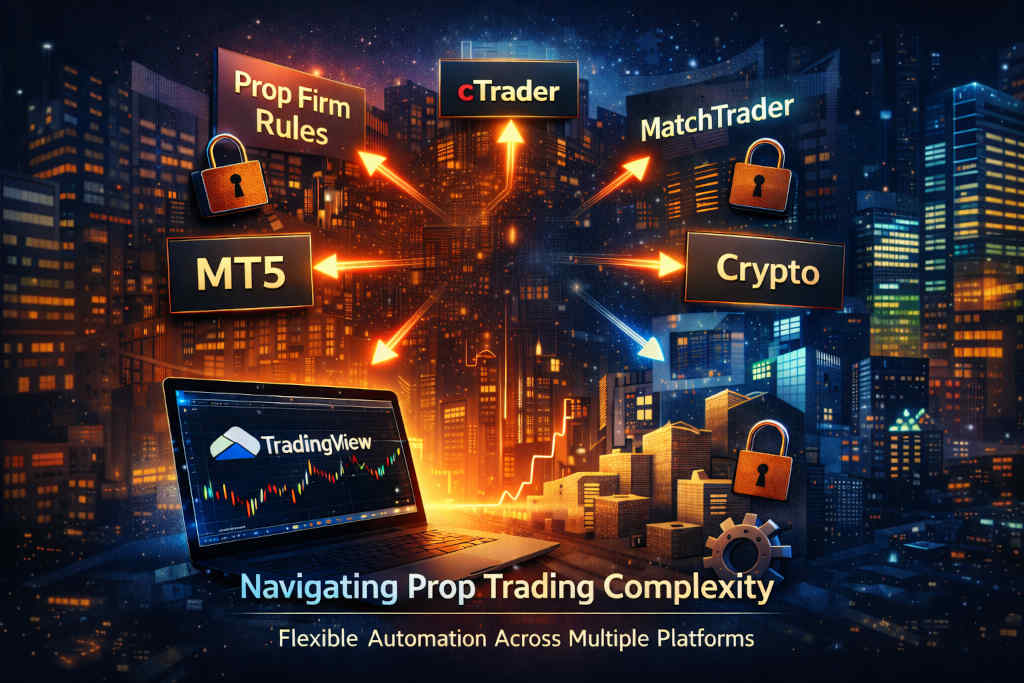
AlgoWay turns TradingView alerts into automated orders across brokers, exchanges and trading platforms. You keep your trading logic in TradingView, send a structured webhook alert to AlgoWay, and AlgoWay routes the signal to the selected execution destination: MetaTrader 5, TradeLocker, MatchTrader, DxTrade, cTrader, Binance, Bybit, OKX, Gate.io, Alpaca, Tradovate and other supported platforms.
This guide explains how AlgoWay connects TradingView alerts to supported brokers, exchanges and trading platforms, including webhook setup, JSON messages, platform routing, testing, risk controls and execution logs.
The basic automation route is:
TradingView strategy or indicator → Webhook alert → AlgoWay → Broker, exchange or MT5 executionImportant: “any broker” means any broker or platform supported by AlgoWay integrations and account rules. AlgoWay is a multiplatform automation layer, not a promise that every broker in the world supports webhook execution.
Last updated: 2026-05-12 • Author: AlgoWay
Quick Answer: How TradingView Alert Automation Works
TradingView can trigger alerts from strategies, indicators, price conditions and Pine Script logic. When you enable a webhook URL, TradingView sends the alert message to an external endpoint. AlgoWay receives that message, validates the JSON, applies your configured route and sends the resulting order to the connected platform.
| Layer | What happens |
|---|---|
| TradingView | Generates the alert from a strategy, indicator or manual condition. |
| Webhook | Sends a structured message to your AlgoWay webhook URL. |
| AlgoWay | Validates JSON, checks the webhook route, maps the platform and logs the request. |
| Execution platform | Receives the order through MT5 EA, API credentials, authorization session or platform integration. |
| Logs | AlgoWay and the destination platform show whether the alert was received, routed, accepted or rejected. |
Why This Page Matters
Many TradingView users reach the same point: the strategy works on the chart, alerts fire correctly, but execution is still manual. Manual execution creates delays, missed entries, copy-paste mistakes, wrong lot sizes and emotional interference.
To automate TradingView alerts properly, you need more than a webhook URL. You need:
- a receiving endpoint;
- valid JSON message format;
- platform-specific order mapping;
- broker or exchange authentication;
- position sizing rules;
- SL/TP and trailing logic where supported;
- trade mode rules such as Hedge, Reverse and Opposite;
- logs and troubleshooting when execution fails.
AlgoWay is built as that automation layer. TradingView sends the signal. AlgoWay handles the route from signal to execution.
The Three Ways to Automate TradingView Alerts
There are three common paths. The right choice depends on whether you want to build infrastructure or use an existing connector.
1. Build Your Own TradingView Webhook Bot
You can build a custom server that receives TradingView webhooks and sends orders to broker APIs.
What you need to build:
- public webhook endpoint;
- server or VPS;
- JSON parser;
- broker API integrations;
- authentication handling;
- order mapping for every broker;
- logs, retries and error handling;
- security and monitoring.
This is flexible, but it turns the trader into a developer and system administrator.
2. Use a Single-Broker TradingView Connector
Some connectors focus on one broker, one platform or one execution ecosystem. This is easier than building your own server, but it can limit you if you later need MT5, crypto exchanges, prop platforms, stocks and futures in one workflow.
Single-platform connectors can work well when you only need one destination. They are weaker when you need multi-account execution, clone mode, platform comparison, centralized logs or cross-platform routing.
3. Use AlgoWay as a Multiplatform TradingView Connector
AlgoWay is designed for traders who want to automate TradingView alerts across multiple execution destinations from one dashboard.
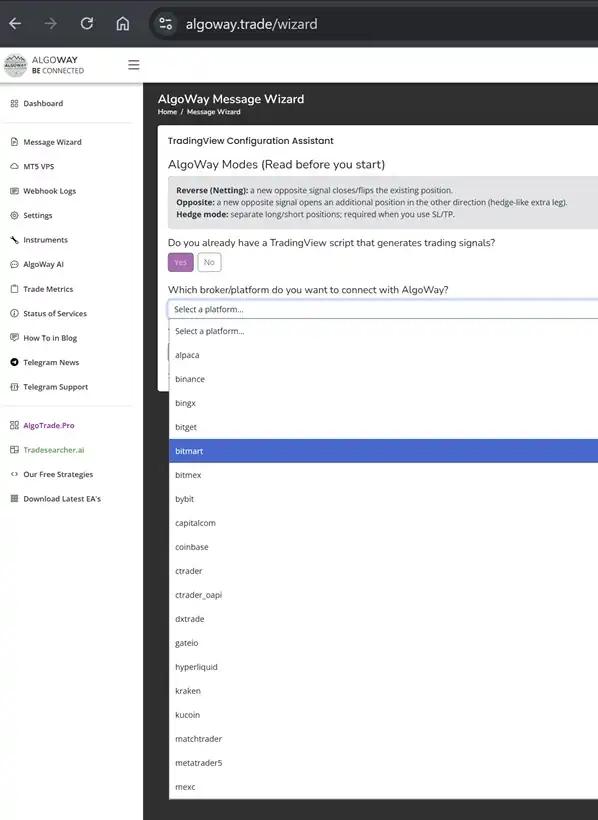
AlgoWay can route TradingView alerts to platform categories such as:
- MetaTrader 5 through AlgoWayWS-MT5 EA;
- prop and CFD platforms such as TradeLocker, MatchTrader, DxTrade and cTrader;
- crypto exchanges such as Binance, Bybit, OKX, Gate.io, BitMEX, KuCoin and Hyperliquid;
- stock/API brokers such as Alpaca;
- futures platforms such as Tradovate.
Instead of building a separate automation stack for each platform, you create the correct AlgoWay webhook route and send structured TradingView alerts into it.
How AlgoWay Automates TradingView Alerts
The AlgoWay automation workflow has five practical stages.
Stage 1. TradingView Generates the Signal
The alert can come from:
- a TradingView strategy;
- a TradingView indicator;
- a Pine Script
alert()message; - a price condition;
- a manual alert message.
Stage 2. TradingView Sends the Webhook
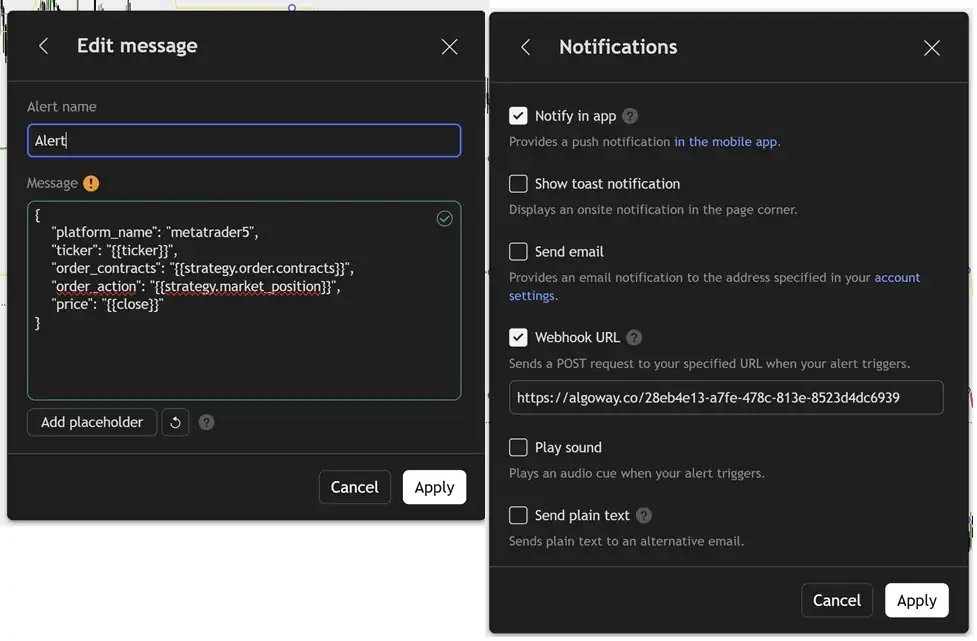
In the TradingView alert window, you enable Webhook URL, paste the AlgoWay webhook URL, and place the JSON payload in the message field.
Stage 3. AlgoWay Validates the Message
AlgoWay checks the webhook route, parses the JSON payload, verifies required fields and logs the request. This matters because a webhook that is not valid JSON can fail before it ever reaches the broker or exchange.
Stage 4. AlgoWay Routes the Order
Based on the configured webhook, AlgoWay routes the command to the selected destination: MT5 EA, crypto exchange API, stock broker API, futures platform session, prop platform or CFD platform.
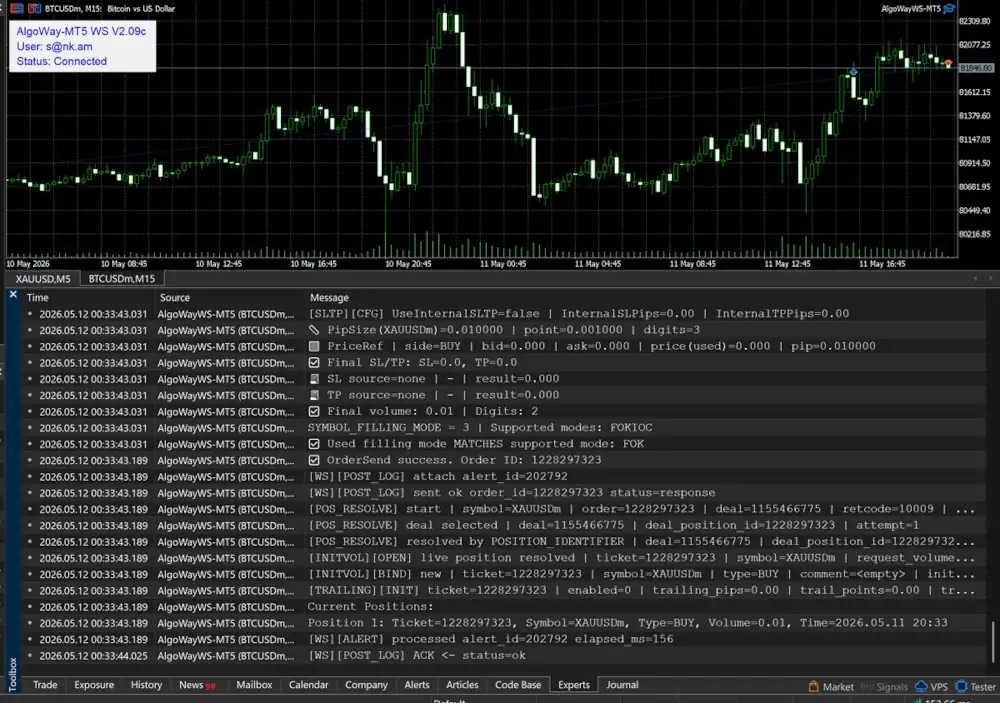
Stage 5. You Review Logs and Execution
AlgoWay logs show what was received and routed. The destination platform logs show whether the order was accepted, rejected, filled or blocked by platform rules.
Basic TradingView Webhook JSON for AlgoWay
A simple TradingView strategy alert message can look like this:
{
  "platform_name": "metatrader5",
  "ticker": "{{ticker}}",
  "order_contracts": "{{strategy.order.contracts}}",
  "order_action": "{{strategy.market_position}}",
  "price": "{{close}}"
}
TradingView replaces placeholders when the alert fires:
{{ticker}}— chart ticker;{{strategy.order.contracts}}— strategy order size;{{strategy.market_position}}— strategy direction or position state;{{close}}— close price at alert time.
For another destination, change platform_name and configure the correct AlgoWay webhook route.
Platform Examples
TradingView to MetaTrader 5
Use AlgoWayWS-MT5 EA to connect AlgoWay to your MT5 terminal. This is the common route for Forex, indices, metals, CFDs and broker accounts that trade through MetaTrader 5.
{
  "platform_name": "metatrader5",
  "ticker": "{{ticker}}",
  "order_contracts": "{{strategy.order.contracts}}",
  "order_action": "{{strategy.market_position}}",
  "price": "{{close}}"
}
Guide: How to connect TradingView to MetaTrader 5 with AlgoWay EA.
TradingView to Binance
Use a Binance webhook in AlgoWay to route TradingView alerts to Binance Spot, Futures or the configured Binance market route.
{
  "platform_name": "binance",
  "ticker": "{{ticker}}",
  "order_contracts": "{{strategy.order.contracts}}",
  "order_action": "{{strategy.market_position}}"
}
Guide: How to connect TradingView to Binance with AlgoWay.
TradingView to Bybit, OKX, Gate.io and Other Crypto Exchanges
Crypto exchanges usually require API keys, account permissions, market type settings, symbol format checks and size rules. AlgoWay provides platform-specific webhook forms and logs so the alert can be routed correctly.
TradingView to Alpaca
Alpaca automation is useful for stock trading workflows. Before live execution, check whether the asset is tradable, shortable, marginable or fractionable.
- How to connect TradingView to Alpaca with AlgoWay
- Alpaca tradable assets and shortable stocks for AlgoWay automation
TradingView to Tradovate
Tradovate automation is used for futures workflows. The route requires Tradovate authorization, correct account selection and valid futures symbols.
Guide: How to connect TradingView to Tradovate with AlgoWay.
Step-by-Step: Automate TradingView Alerts with AlgoWay
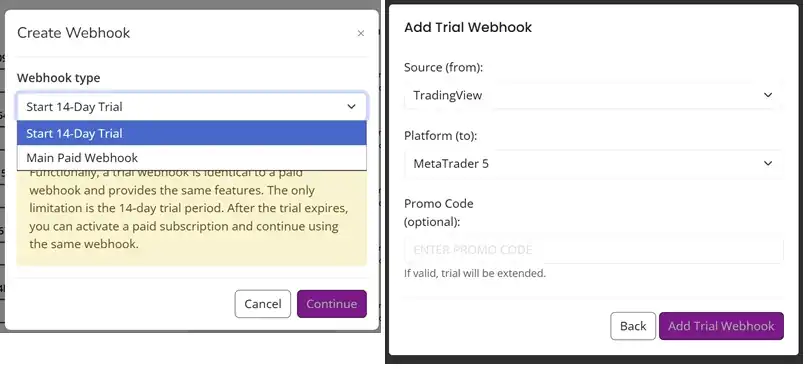
Step 1. Create an AlgoWay Webhook
Create a webhook in the AlgoWay dashboard and choose the source and destination.
- Source: TradingView
- Destination: MetaTrader 5, Binance, Bybit, Alpaca, Tradovate, TradeLocker or another supported platform
- Mode: Hedge, Reverse, Opposite or platform-specific mode
- Size logic: absolute size, multiplier, leverage-based logic or platform-specific setting
Step 2. Connect the Execution Destination
Different platforms require different connection methods:
| Destination type | Typical connection method |
|---|---|
| MetaTrader 5 | AlgoWayWS-MT5 EA and webhook UUID |
| Crypto exchanges | API key, API secret, permissions and market settings |
| Alpaca | Alpaca API key, secret and paper/live mode |
| Tradovate | Tradovate login, account ID and authorization session |
| Prop / CFD platforms | Platform-specific credentials or connection settings |
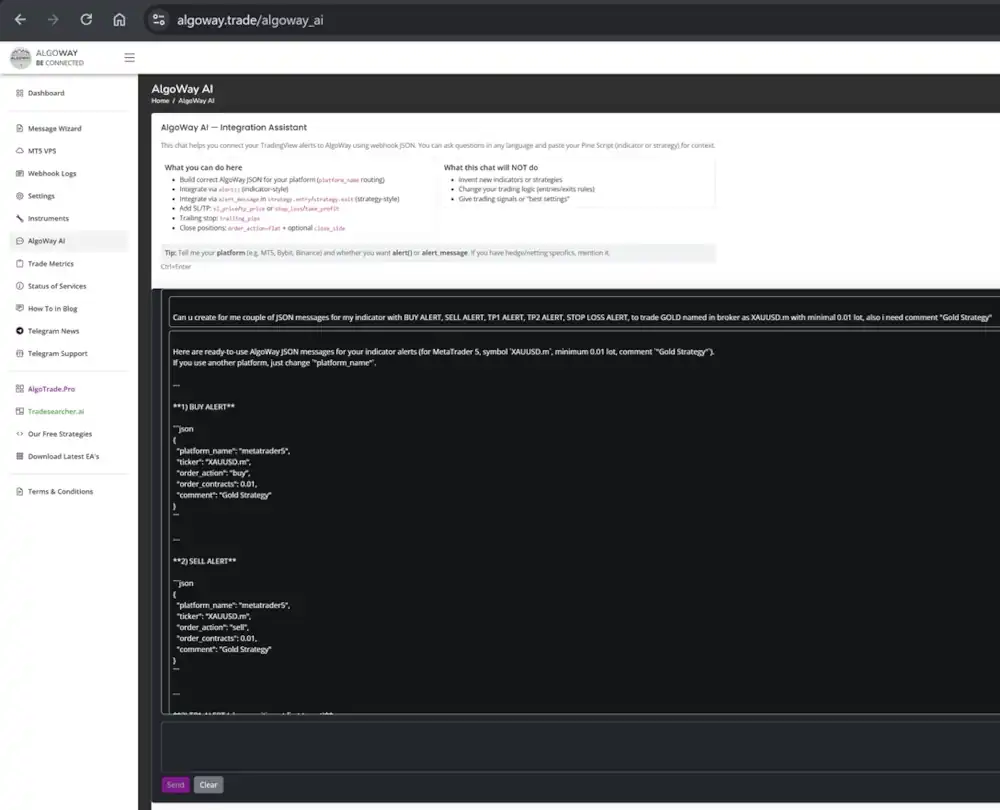
Step 3. Generate the JSON Message
You can write the JSON manually, use AlgoWay Message Wizard, or use AlgoWay AI to prepare a valid webhook message for the selected platform.
Step 4. Add the Webhook URL in TradingView
- Open the chart in TradingView.
- Create an alert from a strategy, indicator or price condition.
- Open the alert notifications section.
- Enable Webhook URL.
- Paste the AlgoWay webhook URL.
- Paste the JSON into the alert message field.
- Save the alert.
Step 5. Test Before Live Trading
Do not move directly from setup to live size. Test the pipeline in layers:
- Send a test webhook from AlgoWay where available.
- Confirm the destination account receives the test.
- Create a TradingView alert with a small safe size.
- Confirm AlgoWay logs show the incoming payload.
- Confirm the destination platform accepts or rejects the order with a clear response.
- Only then add SL/TP, trailing, close logic and larger size.
What Can Be Automated from TradingView?
A TradingView webhook message can carry much more than “buy” or “sell”. Depending on the destination and AlgoWay route, the message can include:
- platform name;
- ticker or symbol;
- order action;
- order size;
- price context;
- Stop Loss and Take Profit;
- trailing stop;
- comment or order identifier;
- close or flat action;
- partial close values;
- mode-specific values.
For the complete field reference, use: AlgoWay JSON schema guide.
Risk Management and Execution Modes
Automation is not only speed. It must also define what should happen when the market changes direction, when a position is already open, or when a new signal conflicts with the current state.
AlgoWay documentation separates key execution behaviors:
- Hedge Mode — allow opposite sides where supported;
- Reverse Mode — close current exposure according to opposite-signal logic;
- Opposite Mode — close and flip direction where configured;
- Clone Mode — copy one TradingView alert to multiple AlgoWay webhooks.
Guides:
- How AlgoWay handles opposite trading signals
- Advanced risk management and trade automation
- How to copy TradingView alerts to multiple accounts
Why AlgoWay Is Different from a Single TradingView Bot
Many tools call themselves a TradingView bot or TradingView connector. The key difference is scope.
| Feature | Single-broker connector | AlgoWay |
|---|---|---|
| TradingView webhook support | Yes | Yes |
| Multiple platform categories | Usually limited | MT5, prop/CFD, crypto, stocks and futures routes |
| Centralized logs | Depends on tool | AlgoWay webhook logs and destination responses |
| Trade copier / clone workflow | Usually limited | Clone Mode for multi-platform execution |
| Message generation support | Depends on tool | Message Wizard and AlgoWay AI |
| Platform-specific guides | One platform focus | Separate guides for MT5, Binance, Bybit, Gate.io, Alpaca, Tradovate and more |
Common Problems When Automating TradingView Alerts
Invalid JSON
TradingView must send valid JSON when the receiving endpoint expects JSON. Broken commas, missing quotes or plain text alerts can cause the request to fail before execution. See: How to fix AlgoWay webhook Error 415.
Wrong Webhook URL
The webhook URL must be placed in the TradingView alert notification settings, not only in the message text.
Wrong Platform Name
The platform_name field must match the AlgoWay route and destination. Do not send metatrader5 to a Binance webhook or binance to an Alpaca route.
Symbol Mismatch
TradingView tickers and broker symbols can differ. MT5 brokers may use suffixes, futures symbols can expire, and stock/crypto symbols may have platform-specific formats.
Order Size Rejected
Every platform has quantity rules. A valid TradingView strategy size can still be invalid for the destination account.
Broker or Exchange Permission Missing
API permissions, MT5 Algo Trading, DLL imports, account authorization, demo/live environment and market permissions must be correct before execution can work.
Safe Launch Checklist
Use this checklist before relying on live automation:
- Create the AlgoWay webhook for the correct destination.
- Confirm API keys, account credentials, MT5 EA connection or platform authorization.
- Send a fixed-symbol test message.
- Check AlgoWay logs.
- Check destination platform logs or order history.
- Test TradingView placeholders.
- Test close/flat actions, not only entries.
- Test SL/TP and trailing if the strategy uses them.
- Test minimum safe size first.
- Only then increase size or enable full strategy automation.
Related AlgoWay Guides
- How to create a webhook in TradingView
- TradingView webhook alerts and automation basics
- AlgoWay JSON schema guide
- How to fix AlgoWay webhook Error 415
- How to connect TradingView to MetaTrader 5 with AlgoWay EA
- How to install AlgoWayWS-MT5 EA
- AlgoWayWS-MT5 EA 2.10 guide
- How to connect TradingView to Binance with AlgoWay
- How to connect TradingView to Bybit with AlgoWay
- How to connect TradingView to Gate.io with AlgoWay
- How to connect TradingView to Alpaca with AlgoWay
- How to connect TradingView to Tradovate with AlgoWay
- How to copy TradingView alerts to multiple accounts
Final Summary
Automating TradingView alerts means converting chart signals into structured webhook messages and routing them to real execution platforms. AlgoWay provides the automation layer between TradingView and supported brokers, exchanges, MT5 terminals, prop platforms, stock APIs and futures platforms.
If you want to automate TradingView alerts without building your own webhook server, start with one AlgoWay webhook, one destination, one valid JSON message and one small test order. After that works, add SL/TP, trailing, advanced modes, multi-account routing and Clone Mode step by step.