How to Use Clone Mode in Webhook Trading Automation
AlgoWay Clone Mode lets one webhook trading signal reach several independently configured trading accounts. You send one TradingView alert to a primary AlgoWay webhook. Additional webhooks with Clone Mode enabled receive a copy and forward it to their own selected trading platforms. There is no need to maintain a separate TradingView alert for each destination.
This tutorial covers the complete workflow: creating the receiving webhooks, setting up symbol mapping, position modes and size rules, enabling Clone Mode in the dashboard, and checking that entries and exits execute correctly. The examples use TradingView as the signal source, because it makes the difference between a single alert and multiple execution accounts especially clear.
Updated October 8, 2026 · By AlgoWay
What Is Clone Mode in AlgoWay?
Clone Mode is webhook-level trade distribution. One incoming alert is processed by the primary route and copied to enabled destination webhooks in the same AlgoWay setup. Each destination keeps its own platform connection and webhook settings. That is what makes it useful for copying TradingView signals to different brokers, exchanges or accounts without forcing every destination to use exactly the same contract size or symbol name.
TradingView strategy or indicator
             |
             v
    AlgoWay main webhook
             |
       Clone Mode
         /   \
        v     v
   Clone #1  Clone #2
        |      |
   Broker A  Exchange B
For the standard Clone Mode configuration, the original webhook can be paired with up to two additional clone destinations: three execution routes in total. The relevant switches are visible in the dashboard when the account has more than one webhook. The system enforces its applicable cloning limit.
Before You Enable Clone Mode
Start with working destination connections, not with the Clone Mode switch. Every cloned trade still has to satisfy the destination's market rules. A forex broker may call gold XAUUSD.r; a strategy may send XAUUSD. A futures platform may require contracts instead of forex lots. A crypto derivatives account may use a different position mode and leverage from your MT5 account. These details are configured for each webhook or, where required, in the destination platform.
Make sure you can access the AlgoWay dashboard, have a primary webhook connected to the source strategy, and have created the additional webhooks you intend to receive copies. Set up the receiving platform credentials or MT5 EA connection as appropriate.
Step 1: Create the Main Trading Webhook
Open the AlgoWay dashboard and use Add Main Webhook or the available webhook creation option. Choose TradingView as the source, then select the first destination platform, such as TradeLocker, MetaTrader 5, Bybit or Tradovate. Complete the connection fields and save the webhook.
This primary webhook is the URL your TradingView alert will call. Test it independently first. If the strategy cannot open or close a position through the primary webhook, adding clones will not fix the underlying problem.
Step 2: Create the Destination Webhooks
Create an additional webhook for each receiving account. For example, use TradeLocker as the main destination, Bybit as the first clone, and MetaTrader 5 as the second. These are separate AlgoWay webhooks, even when every webhook is fed by the same strategy.
| Route | Destination | What you configure independently |
|---|---|---|
| Main webhook | TradeLocker account | Broker connection, supported trade mode, quantity multiplier and symbol mapping |
| Clone 1 | Bybit derivatives account | API connection, supported position mode, exchange leverage and symbol mapping |
| Clone 2 | MetaTrader 5 account | EA connection, symbol specifications, lot conversion and EA risk controls |
The table is an example, not a requirement to use those three platforms. Choose the destinations that match your strategy and account permissions. A single signal does not guarantee that three markets share equivalent instruments or exposure.
Step 3: Configure Each Webhook's Trading Rules
Open each webhook's edit page using the pencil icon in Your Webhooks. The edit form contains platform-specific settings. Not every field is available for every integration, but the key idea stays the same: clone the signal, not a single universal risk configuration.
Symbol Mapping
Use Symbol Mapping when TradingView's ticker differs from the destination instrument. The webhook creation form accepts FROM:TO pairs separated by commas or spaces. For example:
XAUUSD:XAUUSD.r, US100:USTECMap each destination to the actual tradeable symbol shown by its broker or exchange. Do not assume a crypto spot symbol is interchangeable with a perpetual futures contract. Check symbol specifications, tick size and contract units before testing.
Quantity Multiplier and Account Sizing
AlgoWay provides a Quantity Multiplier option for supported webhook destinations, including an absolute or lots-oriented configuration where applicable. The same alert quantity may represent very different economic exposure at different brokers. Configure the appropriate multiplier or sizing rules for each destination instead of copying one raw number blindly.
Trade Modes and Existing Positions
Some AlgoWay integrations expose Hedge/Dual side, Reverse/Netting, Opposite/Flip or other supported trade modes. Select the mode based on the destination's account type and the intended response to an opposite signal. A hedging MT5 account and a one-way crypto derivatives account cannot necessarily maintain positions in the same way. Available modes vary by platform.
Leverage and Exchange Settings
For supported exchange integrations, webhook configuration includes a Leverage field. Some forms allow you to leave it blank and preserve the exchange's existing leverage. This is not a global Clone Mode setting, and it does not mean AlgoWay can override every broker's margin policy. Set leverage per supported destination and confirm the effective value at the exchange.
Step 4: Enable Clone Mode in Your Webhooks
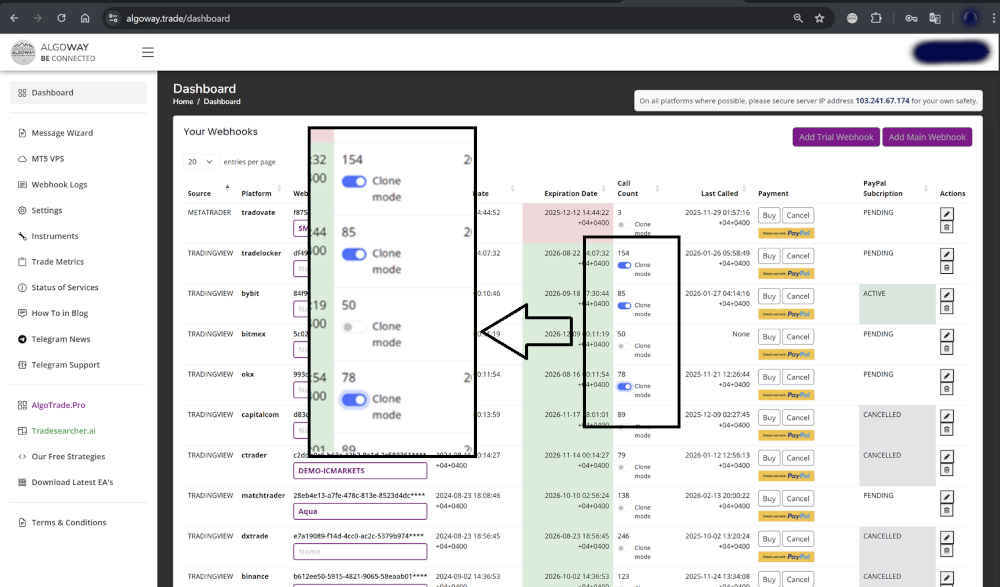
Return to Dashboard >> Your Webhooks. With multiple webhooks present, the dashboard shows a Clone mode switch in the webhook table. Enable the switches for the additional webhooks that should participate in cloning. Keep the original receiving webhook as your main alert endpoint. You do not need to add each destination URL to TradingView.
There is an important interface detail: the Clone mode switches are on the dashboard, not inside the Edit Webhook form. The edit form is for destination settings such as symbol mapping, size conversion and platform-specific trade modes. Confirm that the dashboard retains your Clone Mode selections after saving.
Step 5: Send One TradingView Alert
Use your main AlgoWay webhook URL as the TradingView alert's webhook destination. For a strategy alert, a minimal AlgoWay message can contain a ticker, action and quantity:
{
  "ticker": "{{ticker}}",
  "order_action": "{{strategy.market_position}}",
  "order_contracts": "{{strategy.order.contracts}}"
}
TradingView replaces the placeholders when the strategy triggers. Use the fields and action values appropriate for your actual strategy. Order types such as limit or stop entries may require a valid price and additional settings; consult the AlgoWay JSON schema guide. The destination webhooks must have compatible mappings, sizing and execution settings.
For example, one long alert can trigger an execution attempt in the TradeLocker account, a separately configured Bybit account and an MT5 account. The actual filled price, size and order status may differ by destination because each venue applies its own contract and execution rules.
Step 6: Test Entries, Exits and Logs
Do not call the setup complete after the first successful BUY. First, test every destination webhook alone. Then enable cloning and send a small test through the main webhook. Review the AlgoWay webhook logs and each broker's order history; a received signal is not the same thing as a confirmed fill.
Next, test the complete position lifecycle. Verify that SELL, flat or close signals do what the strategy intends under the chosen trading mode. Check how stop-loss, take-profit and partial close instructions translate to each destination where your integration supports them. Validate that no account violates its size, leverage or drawdown limits.
Clone Mode Configuration Checklist
| Check | Why it matters |
|---|---|
| Primary webhook URL | TradingView must send its alert to the correct main route. |
| Destination connection | Each account must accept orders independently. |
| Symbol Mapping | Different platforms use different ticker names. |
| Quantity / lots | Contract sizes and minimum quantities are not universal. |
| Trade Type | Hedging, netting and opposite-signal behavior can differ. |
| Leverage | Exchange leverage must be suitable for the destination account. |
| Clone mode switches | Only the intended destination webhooks should receive clones. |
| Entry and exit test | Verify fills and position closure, not only received alerts. |
Common Clone Mode Problems
A clone receives an alert but no trade appears
Check the destination's connection status and AlgoWay logs. A rejected symbol, invalid quantity, unsupported mode or broker-side order restriction can stop execution even though the signal was received.
Different accounts open different trade sizes
This is not always an error. Quantity multipliers, lot sizes, contract specifications and supported sizing settings are evaluated at the destination. Compare actual exposure, not only the displayed numeric quantity.
An opposite alert closes an existing trade instead of hedging it
Review the webhook's Trade Type and the destination account's position model. A netting account may reduce or reverse exposure where a hedging account could hold both directions. Use the AlgoWay trade modes guide to select the appropriate behavior.
Clone Mode fails on a third additional destination
The standard configuration permits up to two additional clone destinations. If the dashboard rejects a new clone selection, review the currently enabled webhooks before changing anything else.
Clone Mode Is Trade Distribution, Not Guaranteed Mirroring
Clone Mode copies a trading instruction, not a guaranteed outcome. Orders may fill at different prices, be rejected or produce different position states. It does not promise identical profit, automatic failover or protection against a losing strategy. For traders running several accounts, its real advantage is simpler signal management with destination-specific execution configuration.
Frequently Asked Questions
Do I need several TradingView alerts to use Clone Mode?
No. A single alert can call the main webhook, which distributes the received instruction to its enabled clone destinations.
Can clone destinations use different symbol mappings and trade modes?
Yes. Each destination has its own webhook settings, including symbol mapping and the platform-specific sizing and trading modes available for that integration.
Does Clone Mode set the same leverage for every account?
No. Leverage is configured or preserved per supported exchange destination. It is not a universal clone-wide value.
Is Clone Mode the only way to copy trades with AlgoWay?
No. AlgoWay also supports trade automation and copying workflows from other signal sources, including Telegram, MT5 and cTrader. Read the broader AlgoWay Trade Copier overview for those use cases.
Related Guides
For the pieces around this setup, see creating a TradingView webhook, the JSON message reference, and trade modes explained. To explore multi-account copying beyond Clone Mode, continue with the AlgoWay Trade Copier overview.