AlgoWay Blog
Guides, manuals and platform references.
Core
- All articles
- FAQ
- PineConnector alternative
- TradersPost alternative
- Automate TradingView alerts
- Automate Telegram signals
- AlgoWay CopyTrader
- cTrader Copier
- TrendSpider with AlgoWay
- How to Automate a TradingView Indicator with Dynamic SL/TP and 1% Risk on MT5
JSON & Alerts
- JSON schema
- Manual alerts
- TradingView without paid subscription
- AlgoWay Strategy Integration in Pine Script
- Python Trading Bot Webhook Integration
- TRALADAL - TradingView Alert Adapter
- TradingView Order Action Alert
- How to use Clone Mode
MT5 / Expert Advisors
Errors
Integrations
- MetaTrader 5
- Tradovate
- TradeLocker
- cTrader
- Match-Trader
- DXtrade
- Capital.Com
- Binance
- Bybit
- MEXC
- OKX
- Bitget
- Hyperliquid
- BingX
- Alpaca
- Interactive Brokers
- Gate.io
- Coinbase
- TooBit
- WEEX
- KuCoin
- Kraken
- ProjectX
- Rithmic
Other Publications
- MT5 EA Webhook JSON Reference
- OANDA MT5 with AlgoWay
- Buy Webhook via Buy Me a Coffee
- AlgoWay vs PineConnector
- Compare AlgoWay with other trading automation tools
- AlgoWay Red News Filter
- Why Paid Trading Indicators Avoid Verifiable Backtests
- How Trade Automation Tools Mislead You
- utomating a Prop-Firm Eval End to End:
- ATP Premium Indicator Testing Bot
- Why TradingView Backtests Win but Live Trades Lose
- Best Prop Firms for Trading Automation and Telegram Signal Copy in 2026
- Four AIs, One Trader, and the Strange Case of TradingView to Alpaca
- TradingView Automation
AlgoWay Strategy Lab
Automating a Prop-Firm Eval End to End: TradingView Pine Script >> AlgoWay Webhook >> Live Execution
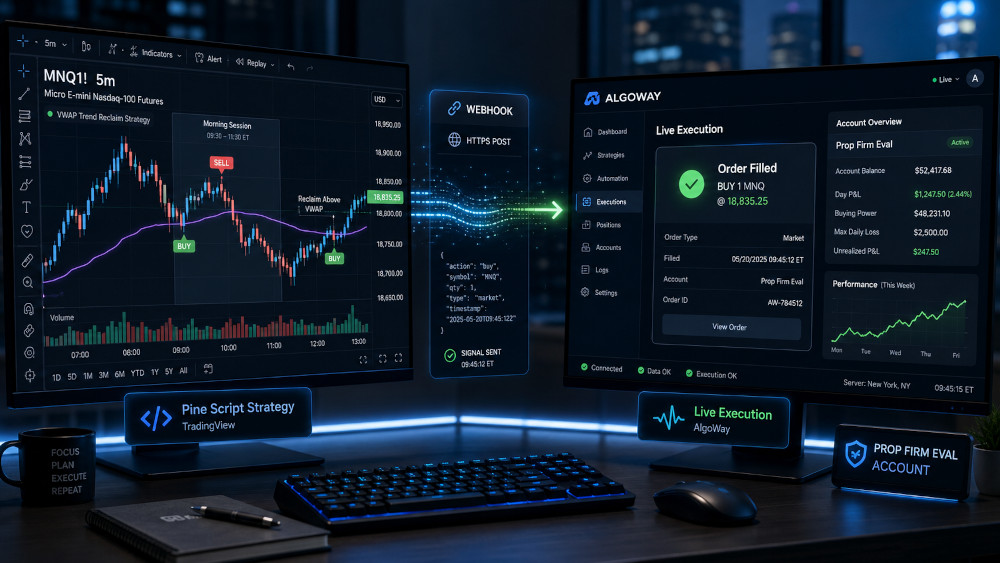
I’ll say the quiet part first: most people don’t fail prop-firm evaluations because their strategy is bad. They fail because they don’t follow their own strategy. You skip a signal because the last two lost. You size up on Thursday because the week is red and you want it back. Or the setup fires at 9:42 while you are away from the screen. I’ve done all three. The strategy was fine every time.
That is the real case for automation. Not “passive income” and not a robot printing money—just making sure the plan you already decided on gets executed the same way every day, whether you are watching or not.
This guide covers the complete setup I use from start to finish: a Pine Script strategy runs on TradingView, every order it generates goes out through a webhook, and AlgoWay receives the message and places the trade on the prop-firm account. Once the connection is configured, there is nothing to copy, paste, or enter manually.
Published: 2026-07-14 • Guest author: Tyler Francis, PropFirmPineScripts
What You Need Before Starting
- A TradingView account with webhook alerts. Webhooks are the connection between the Pine Script strategy and AlgoWay.
- A strategy that manages its own entries and exits. This walkthrough uses the MNQ 5m RTH — VWAP Trend Reclaim strategy from PropFirmPineScripts. Any Pine Script strategy that produces clean order events can use the same general workflow.
- An AlgoWay account. AlgoWay receives the TradingView webhook and converts the strategy event into an order on the selected destination platform.
- A supported prop-firm account. This example uses a Topstep account through ProjectX. AlgoWay can also route compatible TradingView strategies to MetaTrader 5 and Match-Trader accounts.
Step 1: Put the Pine Script Strategy on the Chart
Open an MNQ chart on the five-minute timeframe, paste the strategy into the Pine Editor, and add it to the chart. The script shades its own session window so you can see exactly when it is allowed to trade. The strategy used here trades the 9:30 a.m. to 12:00 p.m. New York session, enters after a VWAP trend reclaim with a volume filter, and manages the position after entry.
Its trade management includes an ATR-based stop, a trailing stop that activates after the trade moves in its favor, a dollar-based scale-out, and a hard time exit before the morning session ends.
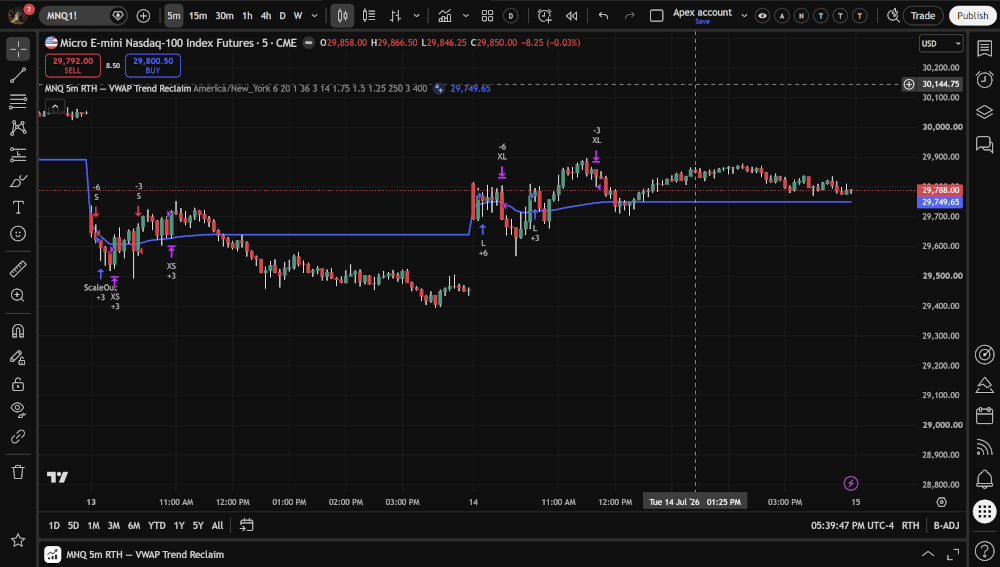
The “built for evaluations” part matters. Position size, stop distance, session limits, and forced exits need to fit the rules of the account being traded. Automation executes the strategy consistently, but it does not replace the need to verify that the strategy’s settings fit the prop firm’s current limits.
Step 2: Check the Backtest Against Your Firm’s Rules
Before sending any live order, open the TradingView Strategy Tester and compare the report with the exact rules of your evaluation. I focus on three numbers:
- maximum strategy drawdown compared with the account’s trailing drawdown;
- largest losing trade compared with the daily loss limit;
- trade frequency compared with the time available to complete the evaluation.
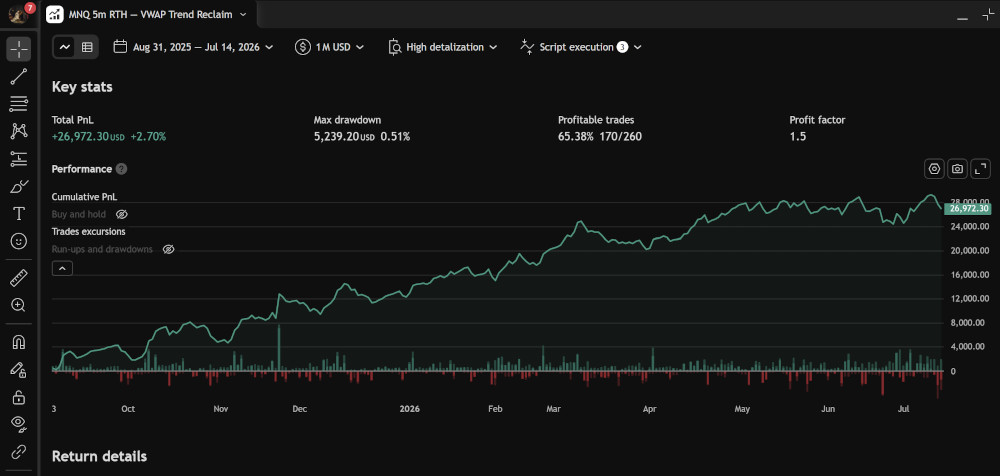
For a different account size, change the contract quantity in the strategy settings. The goal is to adjust the exposed input, not rewrite the strategy logic.
Step 3: Create the TradingView Alert and AlgoWay JSON
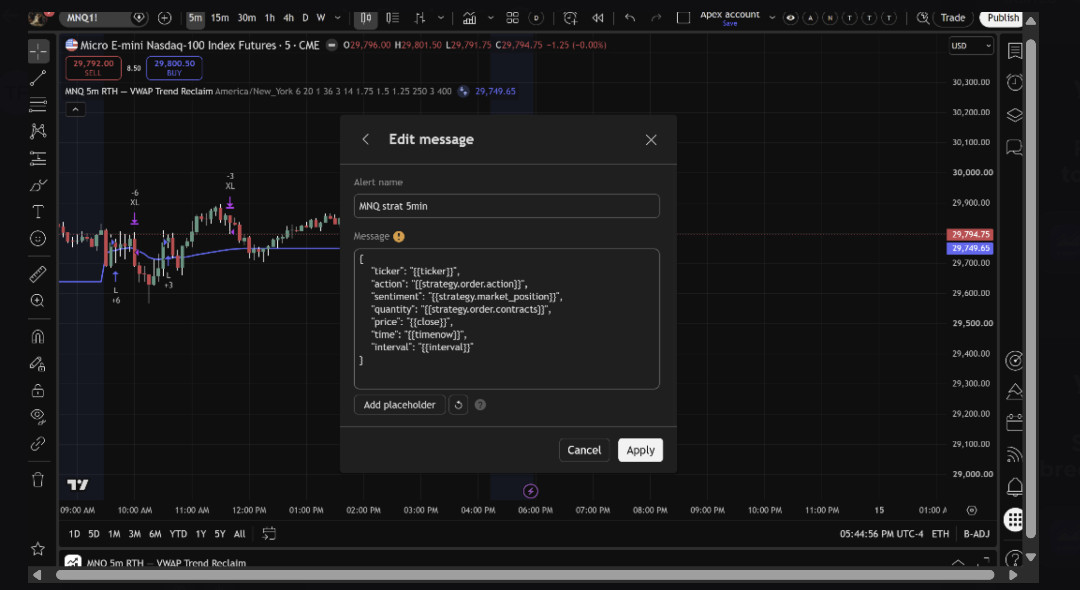
Right-click the strategy and create an alert. Select the strategy as the condition and choose the order-fill event option required by the script. In the Notifications section, enable Webhook URL. The unique AlgoWay URL will be pasted there after the webhook is created.
The alert message must use the JSON field names accepted by AlgoWay:
{
  "ticker": "MNQ",
  "order_action": "{{strategy.order.action}}",
  "order_contracts": "{{strategy.order.contracts}}"
}
TradingView replaces the placeholders with the real order direction and quantity when the strategy order fires. The same alert can carry entry and exit order events produced by the strategy.
Step 4: Create the Webhook in AlgoWay
Log in to AlgoWay, create a new trading webhook, and select the destination platform. For this walkthrough, the route is TradingView to ProjectX for a Topstep account. MT5 and Match-Trader use the same basic flow, with platform-specific credentials and connection settings.
During setup, select the receiving account and configure the instrument mapping required by the destination. AlgoWay then generates a unique webhook URL. Copy that URL into the TradingView alert created in Step 3.
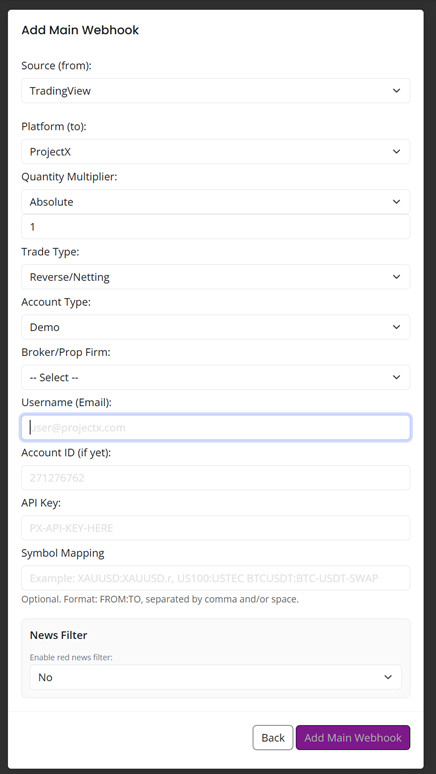
The webhook URL is the bridge between TradingView and the trading account. ProjectX execution runs through the platform connection. MT5 execution uses the AlgoWay MetaTrader connection. You do not need to copy signals manually whenever the strategy fires.
Step 5: Watch One Complete Trade Before Relying on It
Run at least one controlled session while watching the full pipeline. Confirm every stage in order:
- The strategy creates an order event on the TradingView chart.
- The alert appears in the TradingView alert log.
- The AlgoWay log shows that the webhook was received and processed.
- The destination account receives the correct symbol, direction, and quantity.
- The strategy’s exit event closes or manages the position as expected.
One correct entry is not enough. Verify a complete round trip: entry, position management, and exit. After that, continue comparing live behavior with the strategy report and the account’s risk limits.
Three Common Failure Points
1. The TradingView Alert Expires
An expired alert silently breaks the automation chain. Review the alert’s expiration setting and confirm that it remains active throughout the evaluation.
2. The Session Timezone Is Wrong
The strategy in this example uses the America/New_York timezone for the regular trading session. A timezone mismatch can move entries outside the intended market window even though the chart still appears correct at first glance.
3. The Same Strategy Sends Duplicate Orders
One strategy instance should use one alert and one intended webhook route. Adding another chart or alert with the same configuration can send the same order more than once.
Why This Setup Fits Prop-Firm Trading
A prop-firm evaluation is partly a trading test, but it is also a consistency test. The trader must use the same entry rules, the same sizing rules, and the same exit logic while staying inside the firm’s loss limits. Those are exactly the tasks that automation can execute without hesitation or fatigue.
The stack has three clear parts:
- PropFirmPineScripts supplies the Pine Script strategy logic and trade management.
- TradingView runs the strategy and sends the order events.
- AlgoWay receives those events and executes them on the connected prop-firm account.
The MNQ strategy used in this walkthrough is available from propfirmpinescripts.com, along with additional futures strategy packages. Connect the strategy to AlgoWay once, verify the complete order cycle, and let the system execute the plan exactly as configured.
About the author: Tyler Francis runs PropFirmPineScripts, creating ready-made Pine Script strategies for futures traders working with prop-firm evaluations.
Frequently Asked Questions
Can a TradingView Pine Script execute trades on a prop-firm account?
Yes. The Pine Script strategy produces order events, TradingView sends them through a webhook, and AlgoWay converts the webhook data into orders on a supported prop-firm platform.
Which AlgoWay JSON fields are used in this example?
The example uses ticker, order_action, and order_contracts. TradingView strategy placeholders populate the action and quantity when the order event occurs.
Does this require a VPS?
The ProjectX route does not require a local TradingView bridge or a desktop application running solely to relay the webhook. MT5 account execution follows the connection method selected inside AlgoWay.
Should the first test use the full evaluation size?
No. Verify the complete workflow with controlled size and confirm the entry, management, and exit behavior before relying on the automation during an evaluation.
Read More About Prop-Firm Trading Automation