AlgoWay Blog
Guides, manuals and platform references.
Core
- All articles
- FAQ
- PineConnector alternative
- TradersPost alternative
- Automate TradingView alerts
- Automate Telegram signals
- AlgoWay CopyTrader
- cTrader Copier
- TrendSpider with AlgoWay
- How to Automate a TradingView Indicator with Dynamic SL/TP and 1% Risk on MT5
JSON & Alerts
- JSON schema
- Manual alerts
- TradingView without paid subscription
- AlgoWay Strategy Integration in Pine Script
- Python Trading Bot Webhook Integration
- TRALADAL - TradingView Alert Adapter
- TradingView Order Action Alert
- How to use Clone Mode
MT5 / Expert Advisors
Errors
Integrations
- MetaTrader 5
- Tradovate
- TradeLocker
- Match-Trader
- DXtrade
- Capital.Com
- Binance
- Bybit
- MEXC
- OKX
- Bitget
- Hyperliquid
- BingX
- Alpaca
- Interactive Brokers
- Gate.io
- Coinbase
- TooBit
- WEEX
- ProjectX
- Rithmic
- cTrader logic
Other Publications
- MT5 EA Webhook JSON Reference
- OANDA MT5 with AlgoWay
- Buy Webhook via Buy Me a Coffee
- AlgoWay vs PineConnector
- Compare AlgoWay with other trading automation tools
- AlgoWay Red News Filter
- Why Paid Trading Indicators Avoid Verifiable Backtests
- How Trade Automation Tools Mislead You
- utomating a Prop-Firm Eval End to End:
- ATP Premium Indicator Testing Bot
- Why TradingView Backtests Win but Live Trades Lose
- Best Prop Firms for Trading Automation and Telegram Signal Copy in 2026
- Four AIs, One Trader, and the Strange Case of TradingView to Alpaca
- TradingView Automation
AlgoWay Strategy Lab
How to Install AlgoWayWS-MT5 EA for TradingView to MT5 Webhook Automation
AlgoWayWS-MT5 EA is the MetaTrader 5 Expert Advisor used by AlgoWay to receive TradingView webhook commands and execute them inside an MT5 broker account. This guide shows the complete installation process: how to install the EA, enable the required MT5 permissions, enter your AlgoWay webhook UUID, confirm the WebSocket connection, and send a safe test order before using live TradingView alerts.
The current AlgoWay MT5 automation route is:
TradingView alert -> AlgoWay webhook -> AlgoWayWS-MT5 EA -> MetaTrader 5 broker accountThis page focuses on setup and connection. For full EA behavior, JSON fields, SL/TP, trailing stop, breakeven, profit lock, trade modes and risk settings, use the detailed guide: AlgoWayWS-MT5 EA 2.10 user guide.
Last updated: 2026-05-12 • Author: AlgoWay
Quick Install Summary
If you already know MetaTrader 5, the process is simple. Create a MetaTrader 5 webhook in AlgoWay, install the EA, allow MT5 to run Expert Advisors and DLL imports, paste the webhook UUID into the EA inputs, wait for the connection message, and then send a small test webhook.
- Create a MetaTrader 5 webhook in the AlgoWay dashboard.
- Download and run the AlgoWayWS-MT5 Auto Installer.
- Close MetaTrader 5 before installation.
- Enable Allow algorithmic trading and Allow DLL imports in MT5.
- Attach AlgoWayWS-MT5 to a chart.
- Paste your AlgoWay webhook UUID into the EA inputs.
- Confirm the connection in the MT5 Experts tab.
- Send a small test webhook before live trading.
Video Tutorial: Connect TradingView to MetaTrader 5
This video shows the complete TradingView to MT5 workflow: AlgoWay webhook creation, EA installation, MT5 setup, JSON message, TradingView webhook URL and final test.
What You Need Before Starting
Before installing the EA, prepare your AlgoWay account and your MetaTrader 5 terminal. You need an active AlgoWay account, a MetaTrader 5 broker account, and a webhook created in the AlgoWay dashboard. The webhook must be created for the MetaTrader 5 platform because this UUID will be used by the EA to identify which AlgoWay route belongs to this terminal.
You also need access to the Windows machine where MT5 is installed. If you use a VPS, remote desktop, or a cloud Windows server, run the installer on that same machine. Installing the EA on your local computer will not connect a different VPS terminal.
- MetaTrader 5 installed on Windows;
- access to the AlgoWay dashboard;
- a MetaTrader 5 webhook created in AlgoWay;
- your AlgoWay webhook UUID;
- permission to install EA and DLL files;
- Microsoft Visual C++ Redistributable installed if required.
What Gets Installed
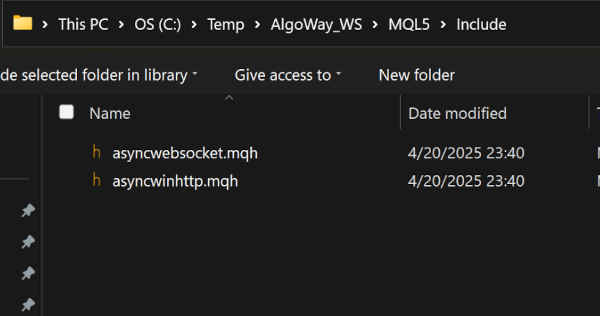
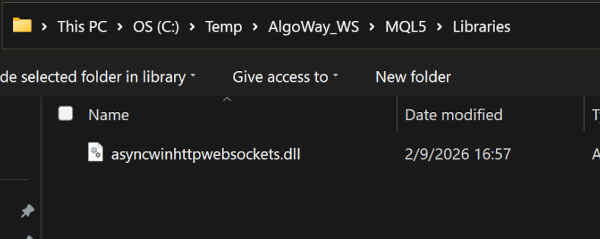
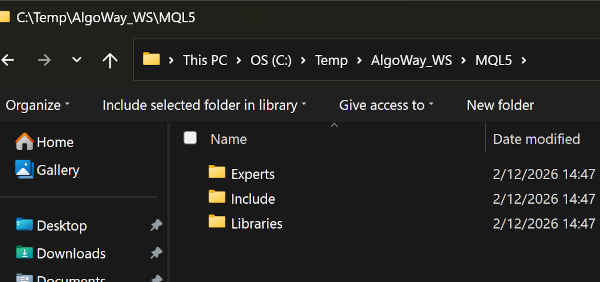
The AlgoWayWS-MT5 setup installs the Expert Advisor file, include files and the WebSocket DLL library required by the EA. These files must be placed inside the correct MetaTrader 5 Data Folder, not just inside the visible installation folder under Program Files.
| File | Destination folder |
|---|---|
AlgoWayWS-MT5.ex5 |
MQL5\Experts\ |
asyncwinhttp.mqh |
MQL5\Include\ |
asyncwebsocket.mqh |
MQL5\Include\ |
asyncwinhttpwebsockets.dll |
MQL5\Libraries\ |
Step 1 — Create the MT5 Webhook in AlgoWay
Open your AlgoWay dashboard and create a new webhook for MetaTrader 5. After the webhook is created, AlgoWay will show a webhook URL and a UUID. For the EA input you need the UUID only, not the full webhook URL.
A webhook URL usually contains the UUID inside it. The EA does not need the full URL because the connection is established through the AlgoWay WebSocket server. The UUID tells AlgoWay which route should deliver commands to this exact MT5 terminal.
b7534616-6c8c-4582-8af4-7c143d323231Copy this value carefully. A missing character, extra space or wrong UUID will prevent the terminal from receiving the expected trading commands.
Step 2 — Install with the Auto Installer
For most users, the Auto Installer is the correct method because it copies all required files into the MetaTrader 5 Data Folder automatically.
Download: AlgoWayWS-MT5-Setup.exe
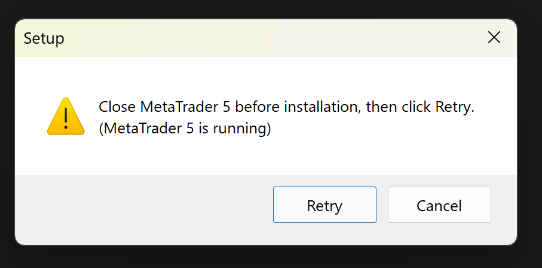
Close MetaTrader 5
Before running the installer, close every running MT5 terminal. If several MT5 terminals are open, close all of them. This prevents locked files and helps the installer detect the correct environment.
Run the Installer
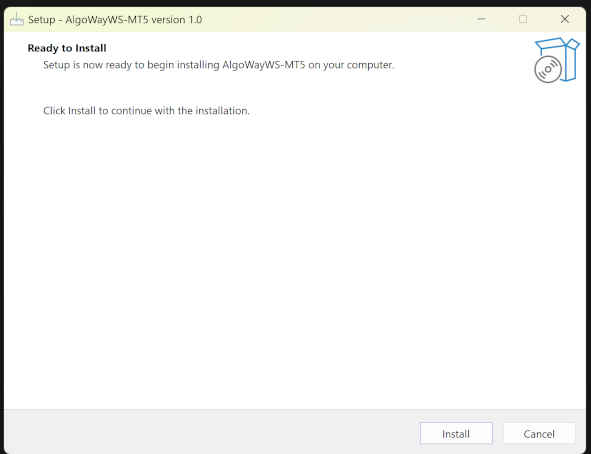
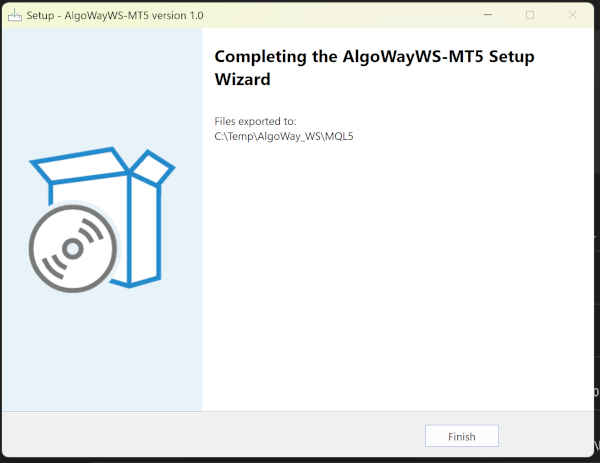
Launch the installer and follow the setup windows. If Windows asks whether the file should be kept or allowed, confirm only if the installer was downloaded from AlgoWay. If SmartScreen opens a blue warning window, click More info, then Run anyway.
Step 3 — Manual Install if the Installer Cannot Be Used
Use manual installation only if you cannot run the Auto Installer. The important part is to copy files into the real MT5 Data Folder. Do not guess the Windows path manually.
Manual package: EA_payload.zip
- Open MetaTrader 5.
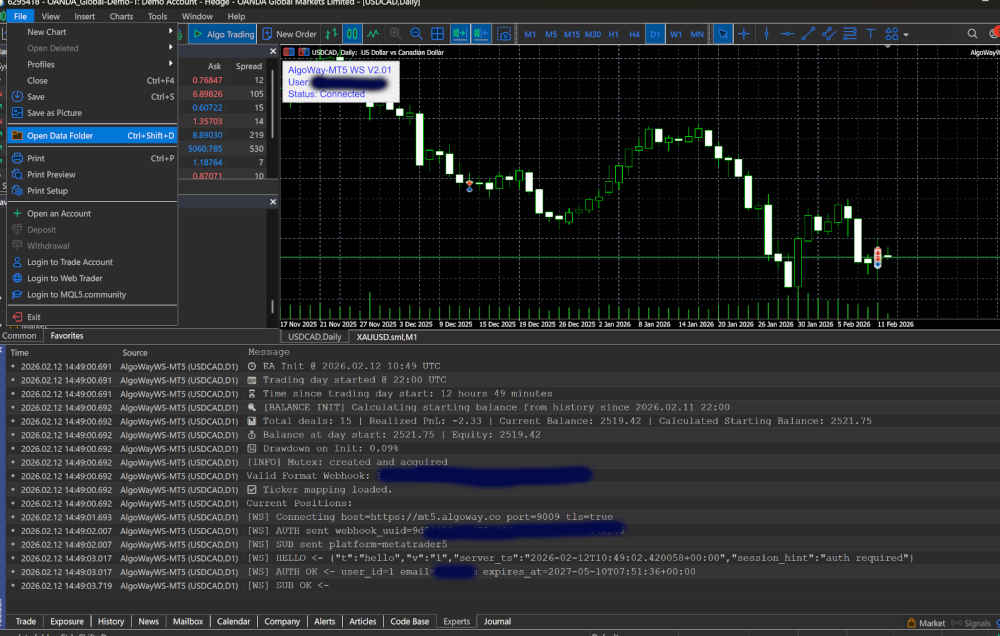
- Click File.
- Click Open Data Folder.
- Open the
MQL5directory. - Copy each file into the matching folder shown above.
- Restart MetaTrader 5 or refresh Navigator.
Step 4 — Install Microsoft Visual C++ Runtime
The WebSocket DLL may require Microsoft Visual C++ Redistributable. If the EA loads but the DLL cannot be used, install the current VC++ v14 redistributable package for your Windows architecture.
- x64 for 64-bit MT5: vc_redist.x64.exe
- x86 only for 32-bit MT5: vc_redist.x86.exe
Step 5 — Enable Required MT5 Options
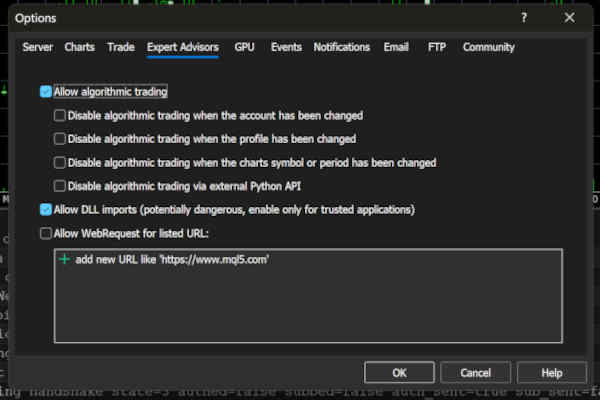
Open MetaTrader 5 and go to:
Tools >> Options >> Expert AdvisorsEnable these options:
- Allow algorithmic trading
- Allow DLL imports
Click OK. These settings are required because the EA must be allowed to run trading logic and load the WebSocket DLL library.
Step 6 — Attach AlgoWayWS-MT5 EA to a Chart
Open any chart in MetaTrader 5. The chart symbol is not the main routing rule because the webhook JSON controls the symbol, but the EA must be attached to a chart to run.
- Open Navigator.
- Open Expert Advisors.
- Find AlgoWayWS-MT5.
- Drag it onto a chart.
- Open the Inputs tab.
- Paste your AlgoWay webhook UUID.
Step 7 — Confirm the WebSocket Connection
After clicking OK, check the MT5 Experts tab. The EA should print connection messages. Also check the Journal tab for terminal-level errors such as blocked DLL imports or missing runtime libraries.
If the EA is not connected, do not test live TradingView alerts yet. First check the UUID, MT5 permissions, internet connection, DLL permission and AlgoWay webhook status.
Step 8 — Send a Small Test Command
After the EA is connected, send a small test message from AlgoWay or from your webhook source. Use a small order size and a symbol that exists in your MT5 Market Watch.
{
  "platform_name": "metatrader5",
  "ticker": "EURUSD",
  "order_contracts": 0.01,
  "order_action": "buy"
}
Check the result in two places:
- AlgoWay Webhook Logs — confirms that AlgoWay received and routed the command.
- MT5 Experts / Journal — confirms whether MT5 accepted or rejected the execution.
Step 9 — Connect TradingView After MT5 Is Ready
Only after the EA is installed, connected and tested should you activate the TradingView alert. In TradingView, paste your AlgoWay webhook URL into the webhook URL field and use a valid JSON message.
{
  "platform_name": "metatrader5",
  "ticker": "{{ticker}}",
  "order_contracts": "{{strategy.order.contracts}}",
  "order_action": "{{strategy.market_position}}",
  "price": "{{close}}"
}
Full guide: How to connect TradingView to MetaTrader 5 with AlgoWay EA.
Common Installation Problems
EA Does Not Appear in Navigator
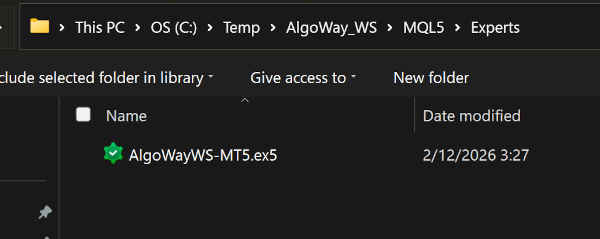
Confirm that AlgoWayWS-MT5.ex5 is inside MQL5\Experts\. Restart MT5 or refresh the Navigator panel.
DLL Cannot Be Loaded
Check that asyncwinhttpwebsockets.dll is inside MQL5\Libraries\, Allow DLL imports is enabled, and the required Microsoft Visual C++ runtime is installed.
EA Loads but Does Not Connect
Check the webhook UUID, internet access, AlgoWay webhook status and MT5 Experts log.
TradingView Fires but MT5 Does Not Trade
Check whether AlgoWay received the webhook, whether the EA is connected, whether Algo Trading is enabled, and whether MT5 returned an execution error.
Error 4752
Error 4752 means MT5 is blocking Expert Advisor trading. Read: How to fix MT5 Error 4752.
Error 4756
Error 4756 means the trade request failed or was rejected. Read: How to fix MT5 Error 4756.
Webhook Error 415
Error 415 usually means the TradingView alert message is not valid JSON. Read: How to fix AlgoWay webhook Error 415.
Where to Find Full EA Documentation
- AlgoWayWS-MT5 EA 2.10 guide
- AlgoWay JSON schema guide
- Advanced risk management and trade automation
- How AlgoWay handles opposite trading signals
- MetaTrader 5 common errors in AlgoWay
Why This URL Still Says v10
The filename algoway-mt5-ws-v10-overview.html was retained from an earlier version of the AlgoWayWS-MT5 documentation. The content is now maintained as the current AlgoWayWS-MT5 installation guide for TradingView-to-MT5 automation.
Final Summary
AlgoWayWS-MT5 EA installation has two safe paths: Auto Installer for most users, and manual Data Folder installation for advanced cases. After the files are installed, enable algorithmic trading and DLL imports, attach the EA to a chart, paste the AlgoWay webhook UUID, confirm the WebSocket connection, and test a small JSON command before using live TradingView alerts.