AlgoWay Blog
Guides, manuals and platform references.
Core
- All articles
- FAQ
- PineConnector alternative
- TradersPost alternative
- Automate TradingView alerts
- Automate Telegram signals
- AlgoWay CopyTrader
- cTrader Copier
- TrendSpider with AlgoWay
- How to Automate a TradingView Indicator with Dynamic SL/TP and 1% Risk on MT5
JSON & Alerts
- JSON schema
- Manual alerts
- TradingView without paid subscription
- AlgoWay Strategy Integration in Pine Script
- Python Trading Bot Webhook Integration
- TRALADAL - TradingView Alert Adapter
- TradingView Order Action Alert
- How to use Clone Mode
MT5 / Expert Advisors
Errors
Integrations
- MetaTrader 5
- Tradovate
- TradeLocker
- cTrader
- Match-Trader
- DXtrade
- Capital.Com
- Binance
- Bybit
- MEXC
- OKX
- Bitget
- Hyperliquid
- BingX
- Alpaca
- Interactive Brokers
- Gate.io
- Coinbase
- TooBit
- WEEX
- KuCoin
- Kraken
- ProjectX
- Rithmic
Other Publications
- MT5 EA Webhook JSON Reference
- OANDA MT5 with AlgoWay
- Buy Webhook via Buy Me a Coffee
- AlgoWay vs PineConnector
- Compare AlgoWay with other trading automation tools
- AlgoWay Red News Filter
- Why Paid Trading Indicators Avoid Verifiable Backtests
- How Trade Automation Tools Mislead You
- utomating a Prop-Firm Eval End to End:
- ATP Premium Indicator Testing Bot
- Why TradingView Backtests Win but Live Trades Lose
- Best Prop Firms for Trading Automation and Telegram Signal Copy in 2026
- Four AIs, One Trader, and the Strange Case of TradingView to Alpaca
- TradingView Automation
AlgoWay Strategy Lab
How to Copy Trades from cTrader to MetaTrader 5 with AlgoWay
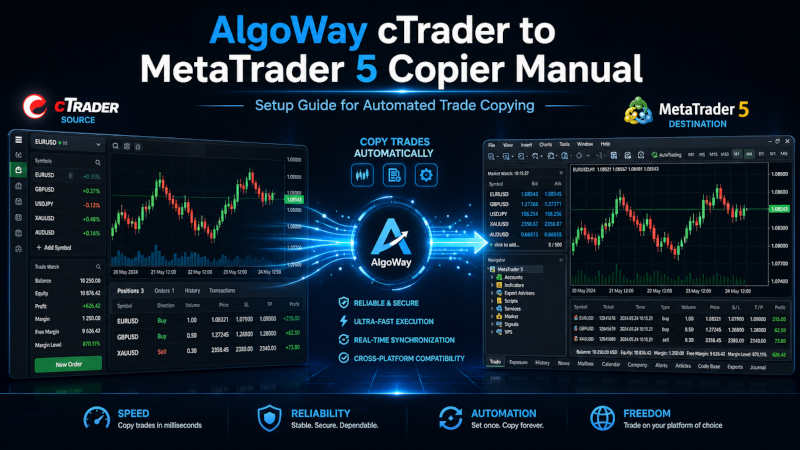
AlgoWay cTrader to MetaTrader 5 Copier lets you use cTrader as the source account and MetaTrader 5 as the destination account. A trade action opened, closed or modified in cTrader is detected by the AlgoWay-cTrader cBot, sent to an AlgoWay webhook, and then routed to MetaTrader 5 through the standard AlgoWayWS-MT5 Expert Advisor.
This guide explains the complete cTrader-to-MT5 copying workflow: how the cTrader cBot detects trade actions, how AlgoWay routes them through the webhook, how the AlgoWayWS-MT5 EA receives them, and how to test symbols, size, risk controls and execution logs before live copying.
The route is:
cTrader account -> AlgoWay-cTrader cBot -> AlgoWay webhook -> AlgoWayWS-MT5 EA -> MetaTrader 5 accountNo special MT5 Expert Advisor is required only for cTrader copying. The MetaTrader 5 side uses the same AlgoWayWS-MT5 EA 2.10 workflow used by other AlgoWay sources.
Last updated: 2026-05-12 • Author: AlgoWay
Quick Answer: cTrader to MT5 Trade Copying with AlgoWay
To copy trades from cTrader to MetaTrader 5 with AlgoWay, you need:
- a cTrader Desktop installation;
- the
AlgoWay-cTrader.algocBot installed in cTrader; - a MetaTrader 5 terminal with AlgoWayWS-MT5 EA installed and connected;
- an AlgoWay webhook where Source is cTrader and Platform is MetaTrader 5;
- the AlgoWay webhook URL pasted into the cTrader cBot settings;
- a small demo trade test before live copy trading.
After setup, the cTrader cBot monitors trading actions and sends them to AlgoWay. AlgoWay then routes the command to the connected MT5 terminal.
What Is the AlgoWay cTrader to MetaTrader 5 Copier?
The AlgoWay cTrader to MT5 copier is a cross-platform trade copying workflow. It does not require you to rewrite a cTrader strategy into MQL5. Instead, cTrader remains the source environment and MetaTrader 5 becomes the execution destination.
In this setup:
| Component | Role |
|---|---|
| cTrader account | Source of trading actions. |
| AlgoWay-cTrader cBot | Detects cTrader actions and sends them to AlgoWay. |
| AlgoWay webhook | Receives the cTrader action and routes it to the destination. |
| AlgoWayWS-MT5 EA | Receives the command inside MetaTrader 5. |
| MetaTrader 5 account | Destination where the copied trade is executed. |
The final route is always:
Source: cTrader
Destination platform: MetaTrader 5
Why Copy Trades from cTrader to MetaTrader 5?
Traders use cross-platform trade copiers when their strategy, manual trading style or signal source exists on one platform, while the account they need to execute on exists on another platform.
Common reasons:
- the trader prefers cTrader for entries but needs MT5 execution;
- a broker or prop account is only available on MT5;
- a cTrader cBot or manual workflow should be mirrored to MT5;
- the trader wants to test execution differences between cTrader and MT5;
- a team uses cTrader as the source account and MT5 accounts as receivers;
- the trader wants to avoid rewriting cTrader logic into an MT5 EA.
AlgoWay provides the bridge layer: cTrader sends the action, AlgoWay routes it, and MT5 receives the execution command.
cTrader to MT5 Copier vs Normal TradingView Webhook
This page is not a TradingView setup. In this workflow, the signal source is cTrader.
| Workflow | Signal source | Destination |
|---|---|---|
| TradingView to MT5 | TradingView alert | MetaTrader 5 through AlgoWayWS-MT5 EA |
| cTrader to MT5 Copier | cTrader trade action through AlgoWay-cTrader cBot | MetaTrader 5 through AlgoWayWS-MT5 EA |
Both routes can use the same MT5 execution component, but the source side is different.
What You Need Before Setup
Before starting, prepare:
- an AlgoWay account;
- cTrader Desktop installed;
- MetaTrader 5 installed;
- AlgoWayWS-MT5 Expert Advisor installed in MetaTrader 5;
AlgoWay-cTrader.algocBot file;- a webhook created with cTrader as the source and MetaTrader 5 as the platform;
- a demo account or small test size for verification.
Step 1. Create a cTrader to MetaTrader 5 Webhook
Open the webhook creation page in AlgoWay.
Set:
Source (from): cTrader
Platform (to): MetaTrader 5
This route tells AlgoWay that cTrader will send the trading action, and MetaTrader 5 will receive the execution command.
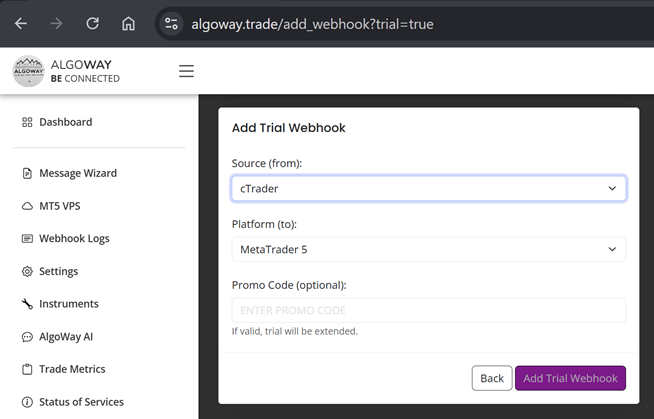
After creating the webhook, AlgoWay creates a dedicated route:
cTrader -> AlgoWay webhook -> MetaTrader 5Step 2. Check the Webhook in the AlgoWay Dashboard
Open Dashboard >> Your Webhooks and confirm that the new webhook exists.
The row should show:
- Source: CTRADER
- Platform: metatrader5
- Webhook UUID
- Activation Date
- Expiration Date
- Call Count
- Last Called
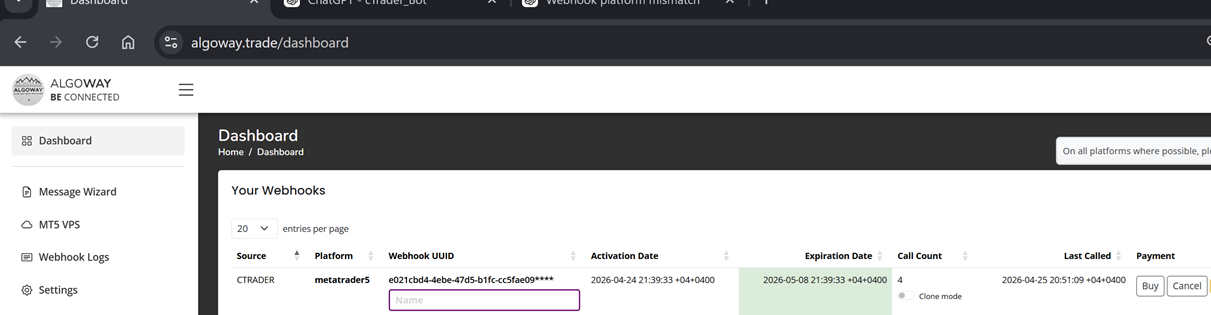
The webhook UUID from this row is also used on the MetaTrader 5 side when connecting the AlgoWayWS-MT5 EA.
Step 3. Connect the MetaTrader 5 Side
Before starting the cTrader copier, the MetaTrader 5 side must already be connected to AlgoWay.
MetaTrader 5 uses the standard AlgoWayWS-MT5 EA. The current installation guide is here:
How to install AlgoWayWS-MT5 EA for TradingView to MT5 webhook automation
In MetaTrader 5:
- install the AlgoWayWS-MT5 Expert Advisor;
- enable algorithmic trading;
- allow DLL imports if required by the current EA setup;
- attach the EA to a chart;
- enter the webhook UUID in the EA inputs;
- confirm that the EA is connected to AlgoWay.
Use the same webhook route created for:
cTrader -> MetaTrader 5If the MT5 EA is not connected, AlgoWay may receive cTrader requests, but MetaTrader 5 will not execute the copied trade.
Step 4. Download the AlgoWay cTrader cBot
Open the AlgoWay downloads page and download:
AlgoWay-cTrader.algoThis file is the cTrader cBot used to detect trade actions in cTrader and send them to AlgoWay.
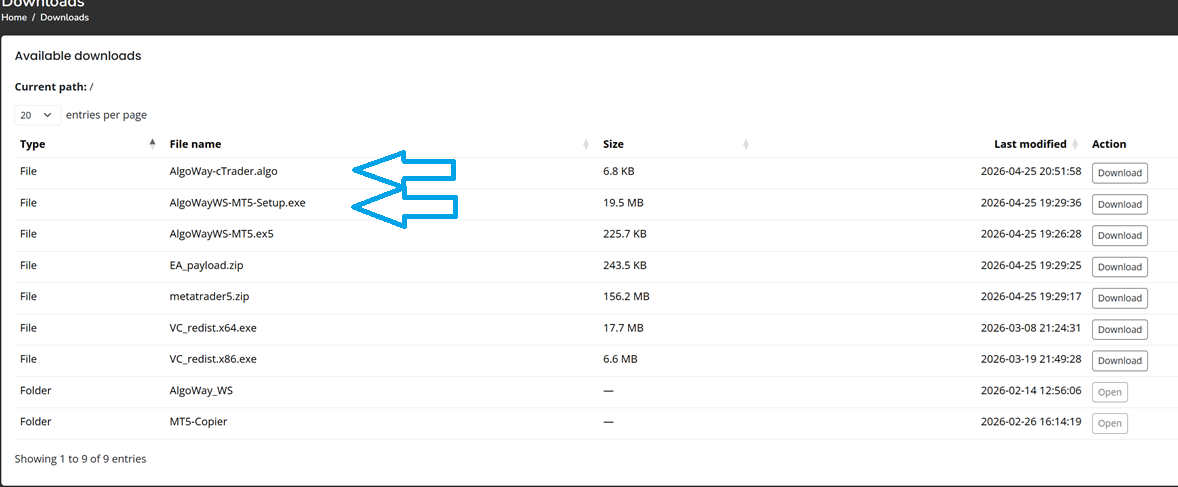
The downloads page may also include MT5 files such as:
AlgoWayWS-MT5-Setup.exe
AlgoWayWS-MT5.ex5
Those files are for the MetaTrader 5 destination side. For the cTrader source side, use:
AlgoWay-cTrader.algoStep 5. Install AlgoWay-cTrader.algo in cTrader
After downloading AlgoWay-cTrader.algo, open the file on your computer. Usually, double-clicking the file opens cTrader Desktop and installs the cBot automatically.
After installation, open cTrader and go to:
Algo >> cBotsYou should see:
AlgoWay-cTraderIf the cBot appears in the list, the installation was successful.
Step 6. Add a cBot Instance
Open the AlgoWay-cTrader cBot in cTrader and add an instance for the source account.
Select:
- the cTrader account whose trades should be copied;
- the symbol;
- the timeframe.
Example:
Account: Demo
Symbol: ETHUSD
Timeframe: h1
Then click Add instance.
The cBot must run on the cTrader account whose trading actions should be copied to MetaTrader 5.
Step 7. Insert the AlgoWay Webhook URL
Open the cBot instance settings and find:
Webhook URLPaste the AlgoWay webhook URL into this field.
https://algoway.co/your-webhook-uuid
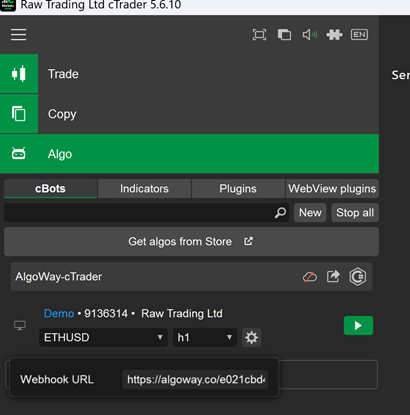
Save the settings. This URL is the main connection point between cTrader and AlgoWay.
Step 8. Start the cTrader cBot
Start the cBot by clicking the green start button in cTrader.
Once the cBot is running, it starts monitoring trading actions on the selected cTrader account.
The active route becomes:
cTrader trade action -> AlgoWay-cTrader cBot -> AlgoWay webhook -> MT5 EA -> MetaTrader 5 accountStep 9. Test the Copier
Open a small test trade on a cTrader demo account first.
Then check:
- AlgoWay Last Called should update;
- AlgoWay Call Count should increase;
- the corresponding trade should appear in MetaTrader 5;
- MT5 Experts log should show activity from AlgoWayWS-MT5 EA;
- symbol and lot size should match your expected mapping and sizing logic.
If Last Called updates in AlgoWay, the cTrader cBot successfully sent the request to AlgoWay. If the trade does not appear in MT5, inspect the MT5 side.
Symbol Mapping and Size Differences
cTrader and MetaTrader 5 brokers may use different symbol names and contract rules. A symbol that exists in cTrader may have a different suffix, prefix, contract size, minimum lot or volume step in MT5.
Before live copying, check:
- cTrader source symbol;
- MT5 broker symbol;
- minimum lot in MT5;
- volume step in MT5;
- contract size differences;
- spread and session differences;
- Stop Loss and Take Profit distance rules.
If cTrader sends ETHUSD but MT5 uses ETHUSDm, symbol mapping or route configuration must handle the difference before live copying.
Risk Control for cTrader to MT5 Copying
Trade copying is powerful because it mirrors actions. It is also risky because it can mirror mistakes.
Check these risk controls before live use:
- source account size vs destination account size;
- lot multiplier or quantity scaling;
- maximum open positions;
- maximum daily loss;
- maximum drawdown;
- Stop Loss and Take Profit copying behavior;
- whether partial closes are copied as expected;
- whether manual closes are copied as expected;
- what happens if the MT5 account rejects an order.
Do not assume that a trade size safe in cTrader is automatically safe in MetaTrader 5.
Troubleshooting: cTrader to MT5 Copier Problems
AlgoWay Last Called Does Not Update
The cTrader cBot may not be running, the webhook URL may be missing, or the URL may be wrong. Check the cBot instance and webhook URL field first.
AlgoWay Receives the Request but MT5 Does Not Trade
Check AlgoWayWS-MT5 EA connection, webhook UUID inside the EA, MT5 Algo Trading status, DLL imports permission and MT5 Experts log.
Trade Opens on the Wrong Symbol
Check cTrader symbol, MT5 symbol and any symbol mapping logic. Brokers often use suffixes or different naming.
MT5 Rejects the Order
Check MT5 lot size, symbol specification, market session, filling mode, Stop Loss/Take Profit distance and margin. See: How to fix MT5 Error 4756.
MT5 Says Trading Is Disabled
Error 4752 means MetaTrader 5 is blocking EA trading. See: How to fix MT5 Error 4752.
The cBot Is Installed but Not Running
Open cTrader Algo >> cBots, add an instance, insert the webhook URL, save settings and start the cBot.
Copied Size Is Wrong
Check cTrader volume, MT5 lot rules, account size difference and any multiplier or size conversion setting in the route.
Why Use AlgoWay Instead of a Local cTrader to MT5 Copier?
A local copier can work when everything runs on the same computer or VPS. AlgoWay provides a webhook-based bridge that fits the broader AlgoWay automation environment.
| Local copier | AlgoWay cTrader to MT5 route |
|---|---|
| Often tied to local files, local terminals or one machine | Uses AlgoWay webhook routing and MT5 EA connection |
| Usually focused only on one copier workflow | Fits the same dashboard used for TradingView, Telegram and other sources |
| Debugging depends on local logs only | AlgoWay dashboard shows webhook activity and call history |
| May require separate tools for other platforms | Uses AlgoWay as a broader multi-platform automation layer |
Related AlgoWay Guides
- How to install AlgoWayWS-MT5 EA
- AlgoWayWS-MT5 EA 2.10 guide
- MetaTrader 5 common errors in AlgoWay
- How to fix MT5 Error 4752
- How to fix MT5 Error 4756
- How to copy TradingView alerts to multiple accounts
- cTrader webhook automation with AlgoWay
- Automate TradingView alerts to any broker with AlgoWay
Final Summary
AlgoWay cTrader to MetaTrader 5 Copier lets cTrader act as the source and MT5 act as the destination. The AlgoWay-cTrader cBot detects trade actions, sends them to the AlgoWay webhook, and AlgoWay routes the command to MetaTrader 5 through the standard AlgoWayWS-MT5 EA.
The most important settings are the correct cTrader -> MetaTrader 5 webhook route, the correct webhook URL in the cBot, and a connected AlgoWayWS-MT5 EA on the MT5 side.
Test on demo first, confirm AlgoWay Last Called, check MT5 Experts logs, verify symbol mapping and lot size, and only then move to live trade copying.