AlgoWay Blog
Guides, manuals and platform references.
Core
- All articles
- FAQ
- PineConnector alternative
- TradersPost alternative
- Automate TradingView alerts
- Automate Telegram signals
- AlgoWay CopyTrader
- cTrader Copier
- TrendSpider with AlgoWay
- How to Automate a TradingView Indicator with Dynamic SL/TP and 1% Risk on MT5
JSON & Alerts
- JSON schema
- Manual alerts
- TradingView without paid subscription
- AlgoWay Strategy Integration in Pine Script
- Python Trading Bot Webhook Integration
- TRALADAL - TradingView Alert Adapter
- TradingView Order Action Alert
- How to use Clone Mode
MT5 / Expert Advisors
Errors
Integrations
- MetaTrader 5
- Tradovate
- TradeLocker
- Match-Trader
- DXtrade
- Capital.Com
- Binance
- Bybit
- MEXC
- OKX
- Bitget
- Hyperliquid
- BingX
- Alpaca
- Interactive Brokers
- Gate.io
- Coinbase
- TooBit
- WEEX
- ProjectX
- Rithmic
- cTrader logic
Other Publications
- MT5 EA Webhook JSON Reference
- OANDA MT5 with AlgoWay
- Buy Webhook via Buy Me a Coffee
- AlgoWay vs PineConnector
- Compare AlgoWay with other trading automation tools
- AlgoWay Red News Filter
- Why Paid Trading Indicators Avoid Verifiable Backtests
- How Trade Automation Tools Mislead You
- utomating a Prop-Firm Eval End to End:
- ATP Premium Indicator Testing Bot
- Why TradingView Backtests Win but Live Trades Lose
- Best Prop Firms for Trading Automation and Telegram Signal Copy in 2026
- Four AIs, One Trader, and the Strange Case of TradingView to Alpaca
- TradingView Automation
AlgoWay Strategy Lab
How to Connect TradingView Alerts to Capital.com with AlgoWay Webhook Automation
AlgoWay lets you route TradingView alerts to a Capital.com trading account through webhook automation. The setup requires a Capital.com API key, the custom API password created for that key, your Capital.com login email, the exact trading Account Name, and the correct Demo or Live API mode.
This guide is based on the Capital.com connection flow used in the AlgoWay dashboard and expands the original quick manual with the missing Account Name step.
The execution route is:
TradingView alert -> AlgoWay webhook -> Capital.com API -> Capital.com trading accountYou can also open the Capital.com integration section on AlgoWay before starting the setup.
Last updated: 2026-08-25 • Author: AlgoWay
Quick Answer: TradingView to Capital.com with AlgoWay
To connect TradingView to Capital.com through AlgoWay, you need:
- a Capital.com Live or Demo trading account;
- Two-Factor Authentication enabled on Capital.com;
- a Capital.com API key and its custom API password;
- the exact Account Name shown under Settings > My accounts;
- the matching API Mode in AlgoWay: Demo for a demo account, Live for a live account;
- an AlgoWay Capital.com webhook;
- a TradingView alert containing the AlgoWay webhook URL and the JSON message copied from AlgoWay.
USDAccount, EURAccount or simply Account.
Prerequisites
Prepare these items before creating the webhook:
- Capital.com account;
- AlgoWay account with access to the Webhooks dashboard;
- TradingView alert source: strategy, indicator or manual condition;
- TradingView plan that supports webhook alerts;
- 2FA enabled on Capital.com;
- Capital.com API key and custom API password;
- exact Capital.com Account Name;
- correct decision about Demo or Live mode;
- small test size for the first automation test.
Step 1. Create or Select a Capital.com Trading Account
- Register on Capital.com and open a trading account.
- Register on AlgoWay.trade and log in.
- Decide whether the integration will use a Demo account or a Live account.
- Keep the selected environment consistent throughout the setup. A Demo account must use AlgoWay API Mode: Demo; a Live account must use API Mode: Live.
Step 2. Create a Capital.com API Key
Capital.com requires Two-Factor Authentication before API key generation. Create a dedicated key for AlgoWay so the integration is easy to identify and manage later.
- Log in to Capital.com.
- Open Settings.
- Select API integrations.
- Click Generate new key or Generate API key.
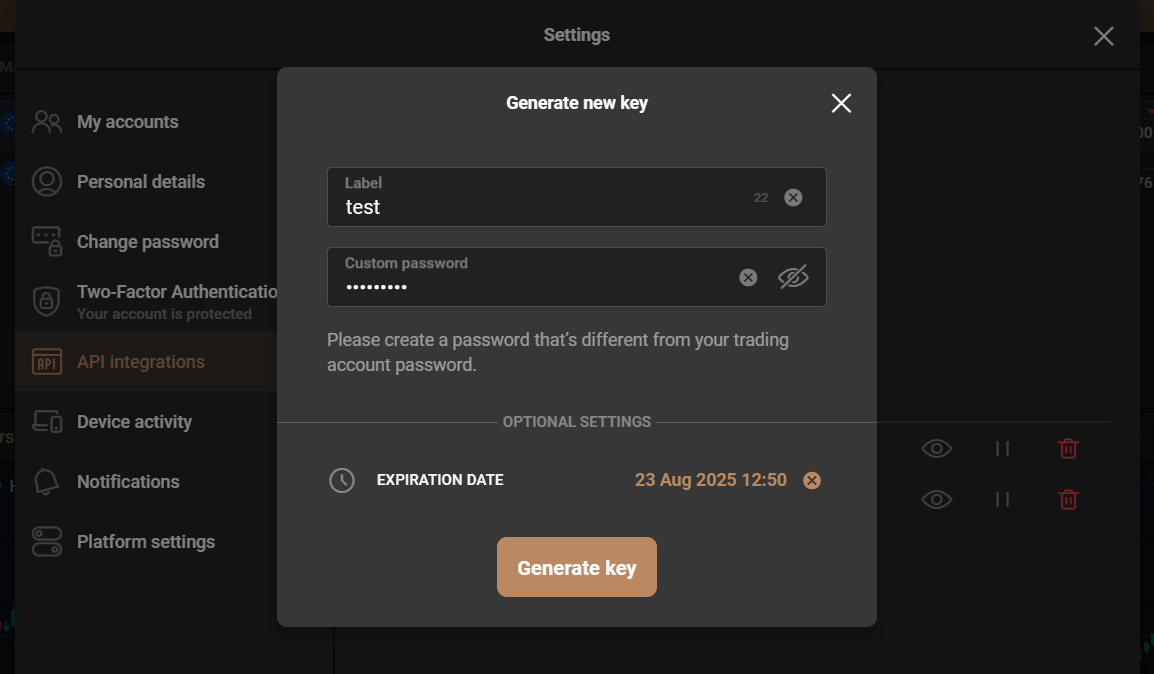
When creating the key:
- Enter a clear label for the API key, for example
AlgoWay. - Create a Custom password for this API key.
- Set an expiration date if required.
- Confirm the action with your 2FA code.
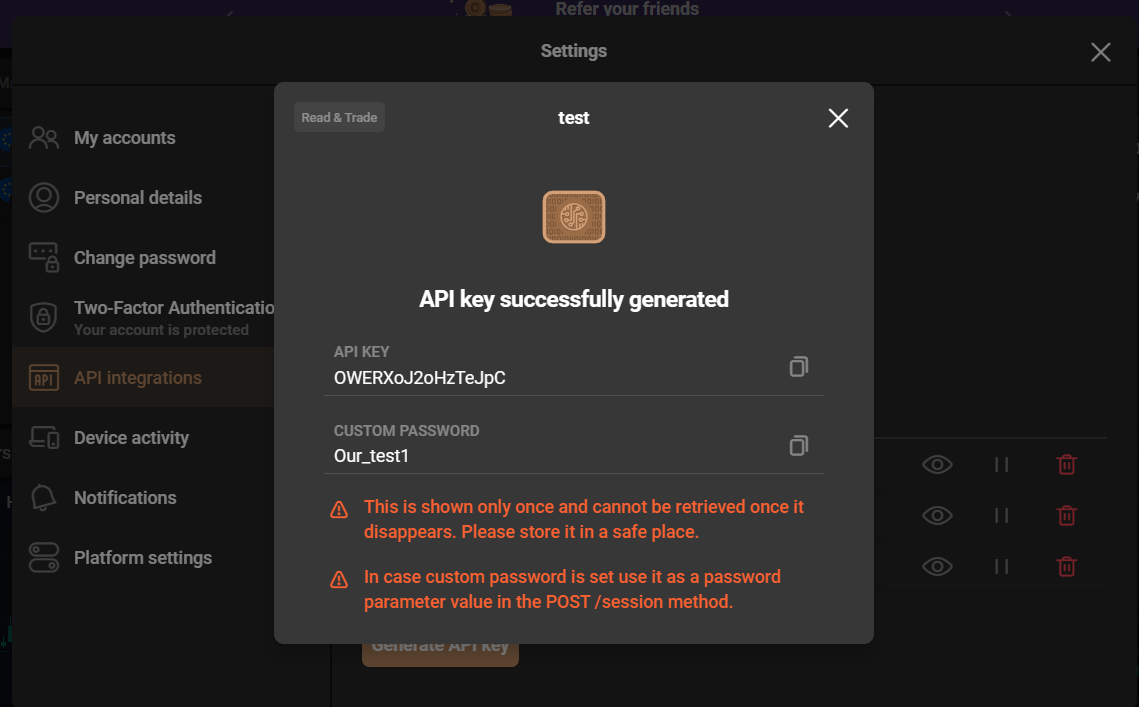
Capital.com documents the same flow in its Public API documentation.
Step 3. Find Your Capital.com Account Name
This is the step that is easy to miss. AlgoWay asks for Account Name, and the value must match the name of the trading account shown in Capital.com.
- In Capital.com, open Settings.
- Select My accounts.
- Open the tab that matches the environment you want to connect: Live accounts or Demo accounts.
- Find the trading account you want AlgoWay to use.
- Copy the account name exactly as shown. For example:
USDAccount,EURAccountorAccount.
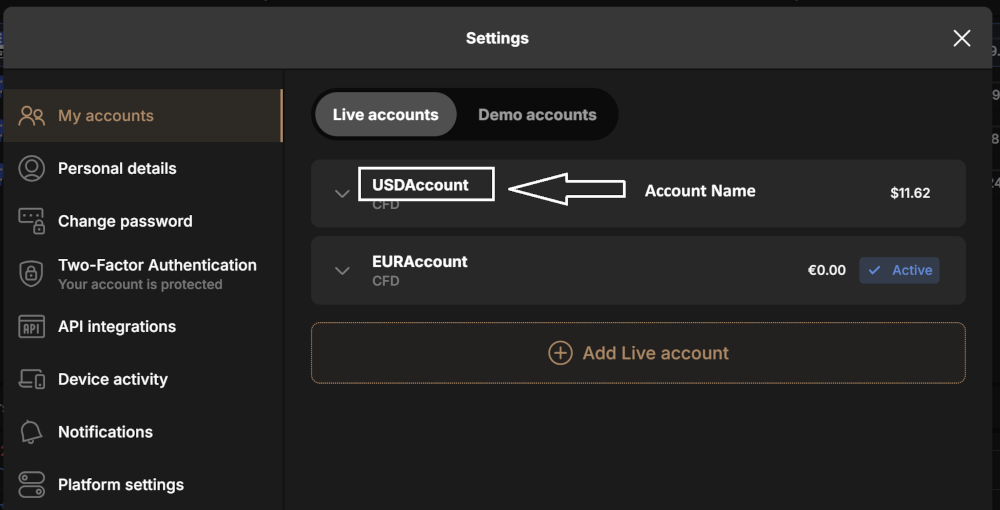
test, demo, your email address or a made-up name. Enter the exact account name shown in Capital.com. The Demo/Live environment is selected separately with the API Mode field in AlgoWay.
Step 4. Create a Capital.com Webhook in AlgoWay
- Log in to AlgoWay.trade.
- Open the Dashboard.
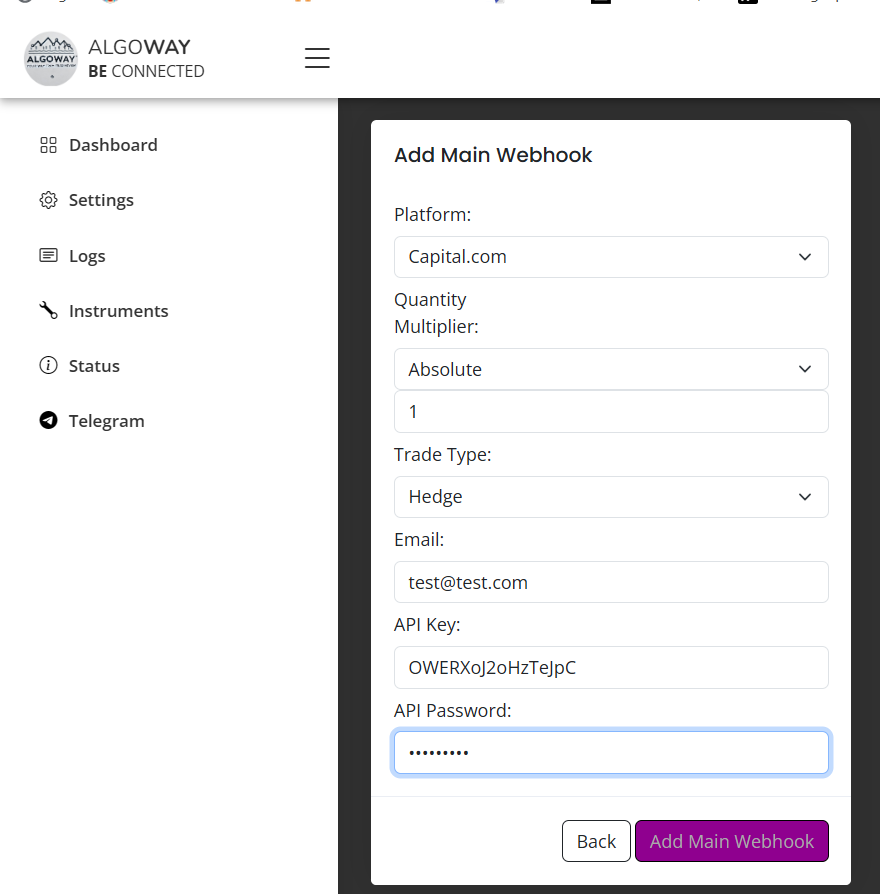
- Click Add Main Webhook or the available webhook creation button.
- Select TradingView as the source.
- Select Capital.com as the platform.
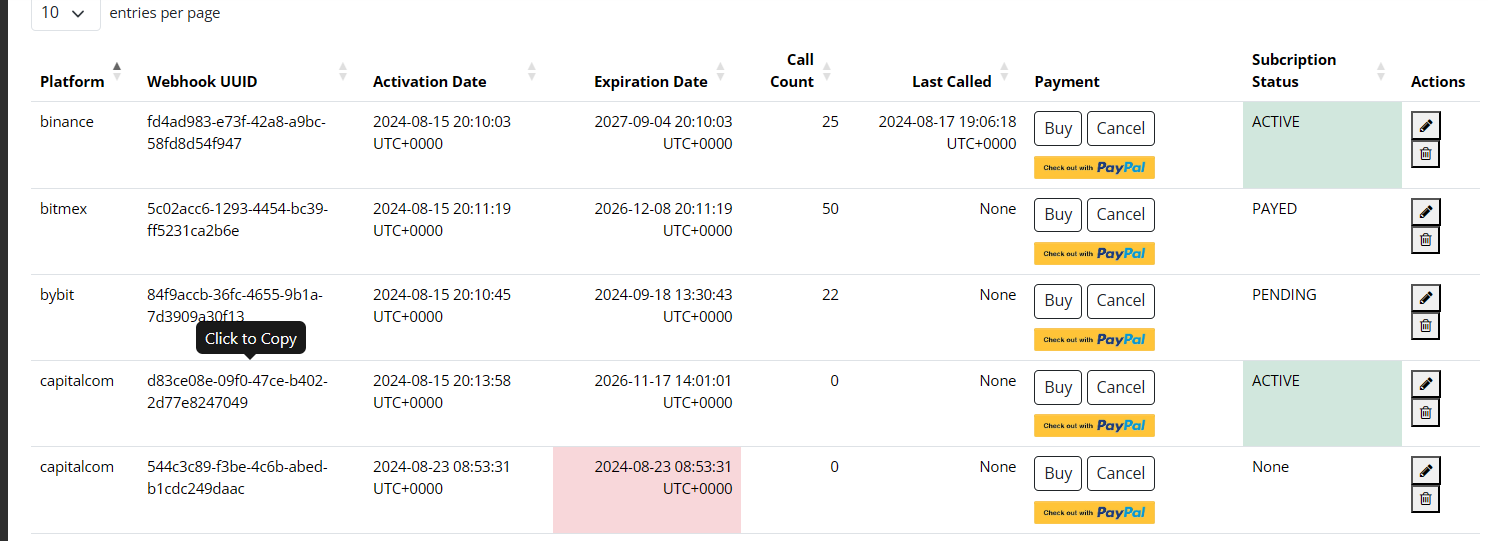
Fill in the Capital.com webhook settings:
- Quantity Multiplier: choose how TradingView quantity should be interpreted by the webhook.
- Trade Type: choose the behavior required by your strategy, for example Hedge/Dual side or Reverse.
- API Mode: select Demo for a Capital.com demo account or Live for a live account.
- Email: the email/login identifier used for Capital.com.
- Account Name: the exact visible account name from Settings > My accounts.
- API Key: the generated Capital.com API key.
- API Password: the Custom password created for that API key.
- Symbol Mapping: optional mapping when the TradingView ticker and the Capital.com symbol do not match.
- News Filter: configure only if your AlgoWay workflow requires it.
Click Add Main Webhook to save the configuration. AlgoWay will create a unique webhook URL for this connection.
Step 5. Create a TradingView Alert
- Open the desired chart in TradingView and configure your strategy, indicator or alert condition.
- Create an alert by right-clicking the chart and selecting Add Alert..., or use the alert button in TradingView.
- Choose the condition and alert frequency required by your strategy.
- Open the alert notification/action settings.
- Enable Webhook URL.
- Paste the webhook URL created by AlgoWay.
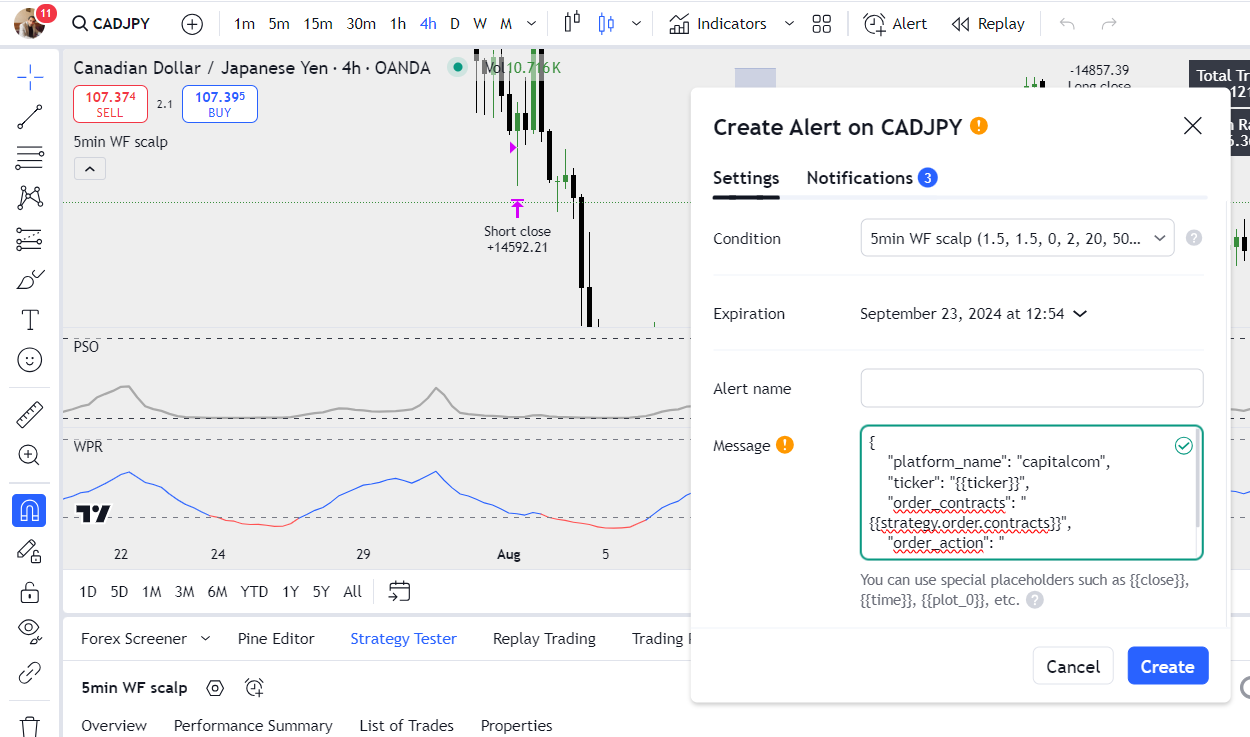
Step 6. Add the TradingView JSON Message
AlgoWay provides the JSON format for the webhook you created. Use that generated format instead of typing a Capital.com payload from memory.
- Return to the AlgoWay Dashboard.
- Find the Capital.com webhook.
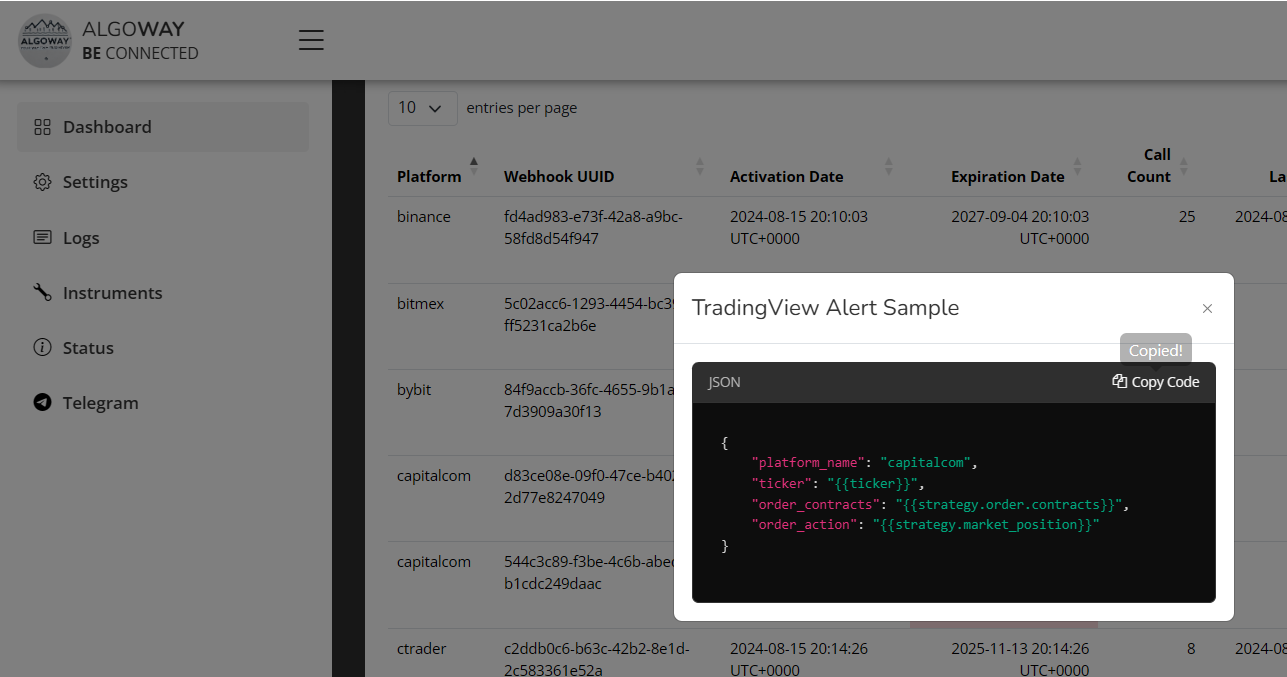
- Click the platform/webhook entry to display the TradingView JSON format.
- Copy the JSON template.
- Paste it into the TradingView alert Message field.
- Review the placeholders and strategy quantity before saving the alert.
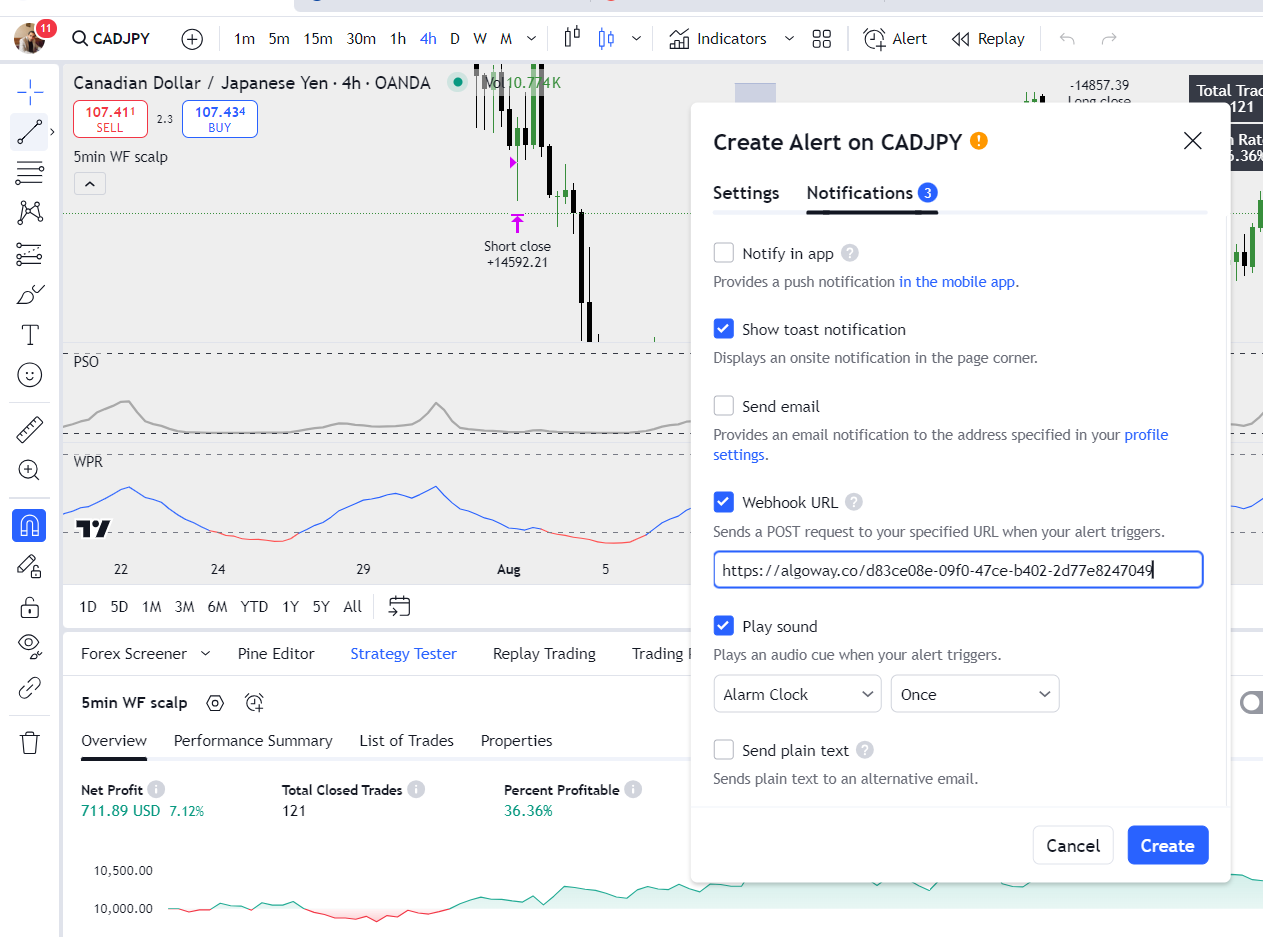
After reviewing the alert settings, click Create in TradingView.
Step 7. Test and Monitor the Capital.com Webhook
Test the connection before relying on it for live automation.
- Prefer Demo mode for the first test.
- Use a small valid quantity for the selected Capital.com instrument.
- Trigger a controlled TradingView alert.
- Open AlgoWay webhook logs and confirm that the alert was received.
- Check the execution result returned by Capital.com.
- Open Capital.com and confirm that the position or order matches the intended symbol, direction and size.
If the order fails, inspect the exact AlgoWay log message first. Authentication, Account Name, Demo/Live mismatch and symbol mapping are easier to diagnose from the broker response than by changing the TradingView strategy.
Common Capital.com Connection Problems
Account Name Not Found
Open Capital.com > Settings > My accounts and copy the visible account name exactly. Do not use test or demo unless that is literally the account name.
Demo / Live Mode Mismatch
If the account is under Demo accounts, select API Mode: Demo in AlgoWay. If the account is under Live accounts, use API Mode: Live.
Wrong API Password
The Capital.com session uses the Custom password created for the API key. Do not substitute the normal Capital.com account password.
API Key Was Not Saved
Capital.com displays the full API key when it is created and masks it afterward. If the full key was not saved, generate a new key and store it securely.
API Key Is Paused or Expired
Open Settings > API integrations in Capital.com and make sure the key is active and has not reached its expiration date.
Wrong Symbol
If the TradingView ticker does not match the Capital.com symbol expected by the webhook route, use the AlgoWay Symbol Mapping field.
Invalid Quantity
Capital.com instruments can have minimum size and size-increment rules. Test with a quantity that is valid for the selected instrument.
TradingView Alert Reaches AlgoWay but No Trade Appears
Check the webhook log for the broker response. Verify API Mode, Email, Account Name, API Key, API Password, symbol mapping and quantity before changing strategy logic.
Capital.com Account Name vs Internal Account ID
Capital.com internally identifies financial accounts with a numeric account ID, but AlgoWay users should not need to search for or enter that hidden identifier. The AlgoWay form uses the visible Account Name so the user can copy the value directly from the Capital.com interface.
That means the connection workflow is user-facing and simple:
Capital.com Settings -> My accounts -> copy Account Name -> AlgoWay Account NameRelated AlgoWay Guides
- How to automate TradingView alerts to any broker with AlgoWay
- How to create a webhook in TradingView
- AlgoWay JSON schema guide
- How to fix AlgoWay webhook Error 415
- How AlgoWay handles opposite trading signals
Final Summary
To connect TradingView to Capital.com with AlgoWay, generate a Capital.com API key and Custom password, find the exact Account Name under Settings > My accounts, choose the matching Demo or Live API mode in AlgoWay, create the Capital.com webhook, and paste its URL and generated JSON message into TradingView.
The most important account-selection rule is simple: enter the visible Capital.com Account Name in AlgoWay, not an internal numeric account ID and not a generic value such as test.
Start here: AlgoWay Capital.com integration.