AlgoWay Blog
Guides, manuals and platform references.
Core
- All articles
- FAQ
- PineConnector alternative
- TradersPost alternative
- Automate TradingView alerts
- Automate Telegram signals
- AlgoWay CopyTrader
- cTrader Copier
- TrendSpider with AlgoWay
- How to Automate a TradingView Indicator with Dynamic SL/TP and 1% Risk on MT5
JSON & Alerts
- JSON schema
- Manual alerts
- TradingView without paid subscription
- AlgoWay Strategy Integration in Pine Script
- Python Trading Bot Webhook Integration
- TRALADAL - TradingView Alert Adapter
- TradingView Order Action Alert
MT5 / Expert Advisors
Errors
Integrations
- MetaTrader 5
- TradeLocker
- Match-Trader
- DXtrade
- Capital.Com
- Binance
- Bybit
- MEXC
- OKX
- Bitget
- Hyperliquid
- BingX
- Alpaca
- Interactive Brokers
- Gate.io
- Coinbase
- WEEX
- ProjectX
- cTrader logic
Other Publications
- MT5 EA Webhook JSON Reference
- OANDA MT5 with AlgoWay
- Buy Webhook via Buy Me a Coffee
- AlgoWay vs PineConnector
- Compare AlgoWay with other trading automation tools
- AlgoWay Red News Filter
- Why Paid Trading Indicators Avoid Verifiable Backtests
- How Trade Automation Tools Mislead You
- utomating a Prop-Firm Eval End to End:
- ATP Premium Indicator Testing Bot
- Why TradingView Backtests Win but Live Trades Lose
- Best Prop Firms for Trading Automation and Telegram Signal Copy in 2026
- Four AIs, One Trader, and the Strange Case of TradingView to Alpaca
- TradingView Automation
AlgoWay Strategy Lab
Heikin Ashi Automation: Chart Prices vs Broker Fills
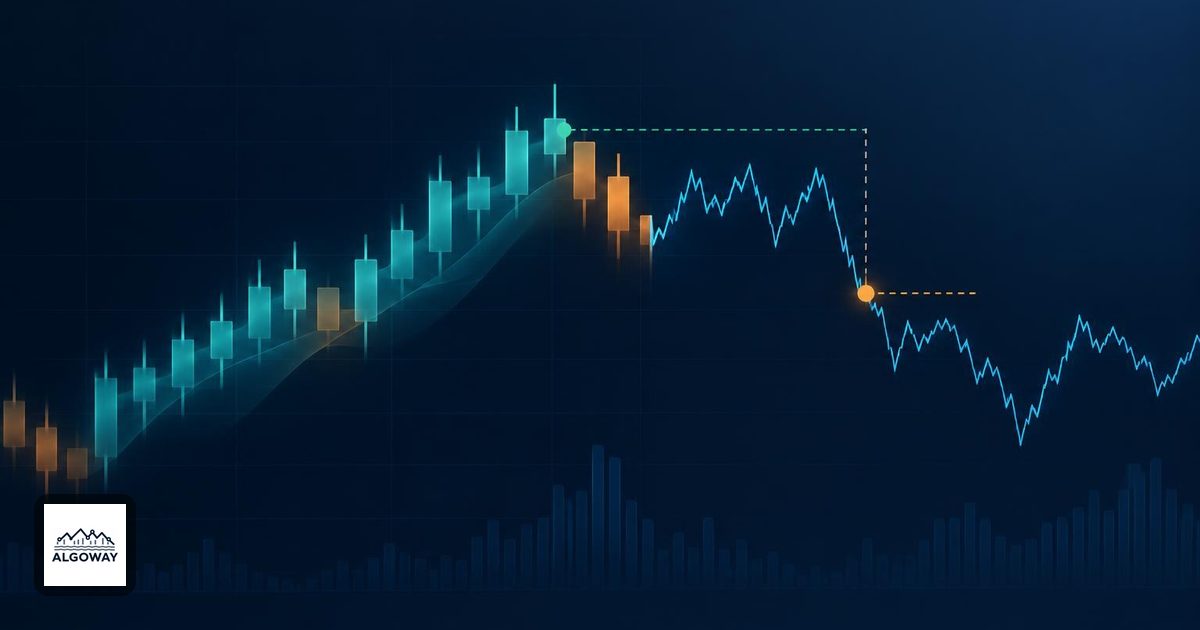
A Heikin Ashi candle can give a perfectly clear signal at a price your broker is not quoting. Faster webhooks cannot close that gap. Before blaming execution delay, check whether the strategy and the trading account are measuring the same kind of price.
You can use Heikin Ashi calculations to define a signal, but automated orders must be evaluated against executable market prices. For a TradingView-to-AlgoWay setup, separate three records: the value that triggered the signal, the simulated fill in Strategy Tester, and the actual fill reported by the broker.
The candle close is an average, not an offer
Heikin Ashi replaces ordinary open, high, low and close values with calculated values. Its close is the average of the current ordinary candle's four prices. Its open also incorporates the previous Heikin Ashi bar. TradingView explains these calculations in its Heikin Ashi chart guide.
Consider a hypothetical ordinary candle with an open of 100, high of 106, low of 98 and close of 104. The Heikin Ashi close is (100 + 106 + 98 + 104) / 4 = 102. At that candle's end, the ordinary close is 104. An instruction generated then cannot assume that 102 is still available. The average is good at smoothing a chart; it has no authority over the order book.
This is a price-basis problem before it is a latency problem. Spread, movement during transmission and differences between the chart feed and broker feed can add further differences. If the values agree but the event times do not, use the separate strategy alert timing guide.
What standard OHLC fills fix, and what they leave alone
TradingView provides a Heikin Ashi strategy option named Using standard OHLC in its documented strategy Properties. In Pine, the corresponding strategy parameter is fill_orders_on_standard_ohlc = true. It makes the broker emulator use ordinary OHLC prices for fills on a Heikin Ashi chart. See TradingView's strategy properties reference.
The distinction matters: this changes the simulated execution basis. It does not turn the strategy's Heikin Ashi signal calculations into ordinary-candle calculations. TradingView explicitly describes this combination in its non-standard-chart backtesting explanation. The Heikin Ashi option is not a general repair for Renko or other synthetic chart backtests.
It also does not rewrite a price that your script calculates and places in a custom alert message. If that calculation takes close from a Heikin Ashi chart, audit it separately. A better simulated fill and a synthetic stop price can coexist in the same strategy.
Keep commission, slippage assumptions and the test period consistent when comparing results with the setting changed. Treat the new result as a revised simulation, not a promise that live orders will fill at those exact prices.
Keep the signal series separate from order prices
An alternative is to run on ordinary candles and request Heikin Ashi data explicitly for the signal. Pine's public ticker.heikinashi() and request.security() functions support that separation. TradingView's non-standard data documentation demonstrates requesting Heikin Ashi values on a regular chart.
Write down which series each part of the strategy uses. For example, the entry condition might compare Heikin Ashi open and close, while an absolute protective level is deliberately calculated from ordinary market data. Merely switching the entire chart to normal candles may change the signal logic as well as the fills. That is a different experiment.
For a closed-source indicator, ask its author which series supplies the signal and any prices embedded in its alerts. A label drawn beside a candle does not answer either question. If the author cannot establish the price basis, do not assume that a setting elsewhere in TradingView corrects the message.
Audit the prices that AlgoWay actually receives
AlgoWay's webhook JSON reference distinguishes market orders, pending-order entry prices, and absolute protective prices. Use those field meanings to inspect the emitted message, rather than treating every number in an alert as a fill.
order_type: establish whether you intended a market instruction or a pending order. A chart value included elsewhere is not a broker execution receipt.price: for a supported limit or stop entry, check the requested level against the intended market and order direction. A synthetic level can turn an expected immediate entry into an order waiting for another price.sl_priceandtp_price: these represent absolute protective levels. Trace their calculations too. Correcting only the entry simulation leaves this part of the message untouched.
For example, suppose the earlier candle produces a long signal at its Heikin Ashi close of 102. If the message requests a buy limit at 102, it is asking for that limit, not asking the broker to reproduce a market entry at the ordinary close of 104. If it instead supplies an absolute take-profit of 103, that level is already below the ordinary close. Whether such an instruction is accepted or how it behaves depends on the destination and current quote; neither level should pass review merely because it looked sensible against the smoothed candle.
Check destination support and active route or EA settings before interpreting the result. On MT5, the invalid-stops guide explains quote-side validation and the user-visible SL/TP overrides that can change the submitted protection. Do not use a different order type just to make a misleading backtest look reproducible.
Retest one complete trade with its price basis recorded
- Save the original chart type, symbol, timeframe, strategy settings and test results. Record whether standard OHLC fills are enabled.
- Choose the corrected setup: Heikin Ashi signals with standard-price simulated fills, or ordinary candles with an explicitly requested Heikin Ashi signal series. Check entry and exit price calculations in either case.
- Replace the running alert after changing the setup. TradingView saves the alert's script and chart context when it is created; editing the chart does not update that saved copy. Follow the alert replacement procedure, including checking open exposure before switching.
- On a demo or test account, capture a new alert, the corresponding AlgoWay Webhook Logs entry and the broker's order record. Compare the transmitted order type and levels with the requested order and resulting fill. Include the exit and the actual protective levels, not just the entry.
The alert-copy behavior is documented in TradingView's alerts manual. Historical markers will not provide that new live test.
A useful result is a trade for which you can explain every price: why the signal fired, what the simulator assumed, what AlgoWay received and what the broker executed. If a difference remains, it now has a name and a record. That is a much better starting point than asking a webhook to deliver yesterday's average faster.