AlgoWay Blog
Guides, manuals and platform references.
Core
- All articles
- FAQ
- PineConnector alternative
- TradersPost alternative
- Automate TradingView alerts
- Automate Telegram signals
- AlgoWay CopyTrader
- cTrader Copier
- TrendSpider with AlgoWay
- How to Automate a TradingView Indicator with Dynamic SL/TP and 1% Risk on MT5
JSON & Alerts
- JSON schema
- Manual alerts
- TradingView without paid subscription
- AlgoWay Strategy Integration in Pine Script
- Python Trading Bot Webhook Integration
- TRALADAL - TradingView Alert Adapter
- TradingView Order Action Alert
- How to use Clone Mode
MT5 / Expert Advisors
Errors
Integrations
- MetaTrader 5
- Tradovate
- TradeLocker
- cTrader
- Match-Trader
- DXtrade
- Capital.Com
- Binance
- Bybit
- MEXC
- OKX
- Bitget
- Hyperliquid
- BingX
- Alpaca
- Interactive Brokers
- Gate.io
- Coinbase
- TooBit
- WEEX
- KuCoin
- Kraken
- ProjectX
- Rithmic
Other Publications
- MT5 EA Webhook JSON Reference
- OANDA MT5 with AlgoWay
- Buy Webhook via Buy Me a Coffee
- AlgoWay vs PineConnector
- Compare AlgoWay with other trading automation tools
- AlgoWay Red News Filter
- Why Paid Trading Indicators Avoid Verifiable Backtests
- How Trade Automation Tools Mislead You
- utomating a Prop-Firm Eval End to End:
- ATP Premium Indicator Testing Bot
- Why TradingView Backtests Win but Live Trades Lose
- Best Prop Firms for Trading Automation and Telegram Signal Copy in 2026
- Four AIs, One Trader, and the Strange Case of TradingView to Alpaca
- TradingView Automation
AlgoWay Strategy Lab
Free TradingView Webhook Alerts Without a Paid Plan
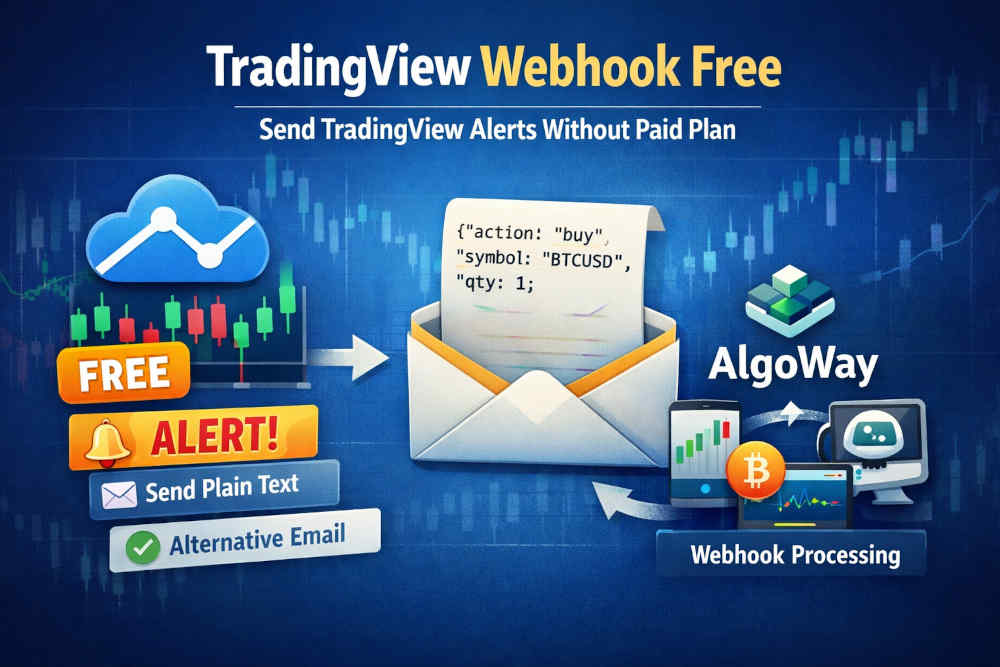
Can you send TradingView webhook alerts on a free account? TradingView's Basic plan does not provide native Webhook URL notifications, but there is another way to deliver an alert to an automated trading service. Send the TradingView alert by plain text email to an AlgoWay address associated with your webhook. AlgoWay receives the email, extracts the JSON instruction and forwards it to the trading platform configured for that route.
This is not a hidden switch that enables TradingView's native webhook feature. It is a working email-to-webhook alternative for accounts that can send plain text alert notifications to a verified alternative email address. TradingView documents both the alternative email verification process and the Send plain text option in its official help center.
The distinction matters: a typical do-it-yourself relay needs a mailbox, a program that checks it and an endpoint that receives the converted webhook. With AlgoWay, the receiving address and signal-processing route already exist. You configure the alert instead of operating an email listener.
In this guide
- How free TradingView webhook alerts work
- Email-to-webhook vs native webhook vs Python relay
- Set up TradingView alert emails with AlgoWay
- TradingView JSON alert examples
- Check delivery and troubleshoot alerts
- Free plan limits and email delivery considerations
- Frequently asked questions
- Documentation and related guides
How free TradingView webhook alerts work
A normal TradingView webhook sends an HTTP POST request to a specified URL when an alert triggers. That notification method is a separate feature from TradingView's ordinary email alerts. On a Basic account, the missing Webhook URL field does not mean that every automated delivery path is closed: an eligible alert can send a plain text message to a verified email address instead.
AlgoWay assigns each configured webhook route a UUID. The same UUID can be used as the local part of a receiving
email address at algoway.co. For example, when a webhook has its own UUID, its alert mailbox is formed as
YourWebhookUUID@algoway.co. A message sent to that address is associated with the matching route.
When the email arrives, AlgoWay reads its message content and processes the JSON alert using the connection already assigned to the UUID. The selected trading destination then handles the instruction according to that route's configuration. The destination is not chosen by a magic email subject line; it is determined by the webhook you created.
This works for suitable TradingView price alerts and any other alert types available on your plan. The Basic plan has its own alert-count and feature limits; email delivery does not expand those limits.
Email-to-webhook vs native webhook vs Python relay
All three approaches can eventually deliver structured alert data, but the maintenance requirements and delivery speed are different. Here is the practical comparison for someone who wants to automate an existing TradingView alert.
| Approach | Signal path | What you need to operate |
|---|---|---|
| Native TradingView webhook | TradingView >> HTTP POST >> AlgoWay | TradingView plan with Webhook URL access; best route when speed is important |
| DIY email-to-webhook relay | TradingView >> email inbox >> mailbox-reading program >> webhook | Email credentials, Python or another runtime, polling and a running machine or cloud job |
| AlgoWay email-to-webhook | TradingView >> plain text email >> AlgoWay >> trading platform | Verified UUID email and an existing AlgoWay webhook route; no separate listener to maintain |
A Python relay is useful for developers who want full control over mailbox handling. It also introduces moving parts: authentication, provider restrictions, polling intervals and uptime. AlgoWay removes those components from the user's setup, though the delivery still depends on email and therefore cannot offer the timing of a direct HTTP webhook.
Set up free TradingView alert emails with AlgoWay
1. Create a TradingView webhook route in AlgoWay
In the AlgoWay dashboard, create a webhook with TradingView as its source. Choose the destination platform, enter the required connection details and save the route. Copy that route's webhook UUID. The same destination connection can be used for alerts arriving by the email method.
The address format is YourWebhookUUID@algoway.co. Replace YourWebhookUUID with the actual UUID
shown for your route. This is a receiving address for automated alerts, not an ordinary personal mailbox.
2. Register the alternative email in TradingView
Open Settings and billing >> Alerts delivery in TradingView. Select Add email and enter the AlgoWay UUID email. TradingView sends a six-digit verification code to that address. This email registration procedure is described in the official TradingView alternative email instructions.
3. Confirm the address from the AlgoWay dashboard
Return to the mail area of the AlgoWay dashboard and locate the verification message sent to that UUID address. Copy its six-digit code and submit it in TradingView. Until TradingView confirms this address, it cannot be used as the destination for that alternative alert email.
4. Create the alert and select Send plain text
Create an alert on a chart using a condition supported by your TradingView plan. In the alert notification options, enable Send plain text, select the verified UUID email, and put the JSON instruction into the Message field. Do not confuse Send Email, which targets your account email, with Send plain text, which uses the alternative email destination. TradingView confirms this distinction in its plain text notification guide.
5. Verify an actual alert before using live execution
Trigger a controlled test alert and inspect its delivery in AlgoWay. Confirm that the route receives the JSON, then check that the connected platform interprets the symbol, order side and quantity as intended. An email arriving is not the same as a successfully accepted trade; both parts of the workflow should be checked.
TradingView JSON alert examples
Email delivery does not change the AlgoWay alert format. The simplest instruction contains a ticker, an order action and a quantity. The webhook UUID identifies the route, so the destination does not need to be repeated in every message. Use quantities that match your destination's contract or lot conventions.
Example 1: Simple buy alert
{"ticker":"{{ticker}}","order_action":"buy","order_contracts":1}
When the alert fires, TradingView replaces {{ticker}} with the symbol from the alert. The selected
AlgoWay route receives the resolved value and processes a buy instruction for a quantity of one in that route's units.
Example 2: Simple sell alert
{"ticker":"{{ticker}}","order_action":"sell","order_contracts":1}The delivery method is unchanged. You can use a different alert condition with the same verified mailbox, provided the JSON command is compatible with the destination and the quantity is appropriate.
Example 3: Pine Script strategy order action
{"ticker":"{{ticker}}","order_action":"{{strategy.order.action}}","order_contracts":"{{strategy.order.contracts}}"}
Strategy placeholders are available only for applicable strategy alerts. The
{{strategy.order.action}} placeholder produces the executed strategy order's buy or sell action;
it is not the same as {{strategy.market_position}}, which describes the position state.
Make sure your TradingView plan supports the required alert type.
For stop loss, take profit, limit orders or position sizing rules, consult the AlgoWay JSON schema guide and the destination's own parameters. There is no reason to pack those settings into a minimal test message before basic delivery works.
Check delivery and troubleshoot alerts
The verification code never appears
Compare the email address in TradingView with the exact UUID of your saved AlgoWay webhook. Confirm that you added it under Alerts delivery and requested verification. The six-digit code should be associated with the same UUID mail area in AlgoWay. A misspelled UUID sends mail to the wrong destination.
The alert fires, but AlgoWay receives nothing
Check that this specific alert uses Send plain text and the verified alternative address. The ordinary Send Email option does not automatically send messages to the AlgoWay UUID inbox. Check the TradingView alert log to confirm that the alert itself triggered.
The message arrives, but no order is opened
Verify the JSON syntax and the required ticker, order_action and
order_contracts fields. Then inspect the selected AlgoWay route, platform connection and order response.
A symbol that does not exist at the destination, an unavailable connection or an unsuitable order quantity can prevent execution.
The signal reaches the wrong account
The UUID email maps to the webhook route from which that UUID was taken. Check the route's selected destination; changing JSON fields will not correct an alert that is being delivered to a different UUID address.
Free plan limits and email delivery considerations
The word free in this method refers to avoiding the paid TradingView feature for native Webhook URL notifications. It does not remove TradingView Basic alert limits or imply that an AlgoWay account, a broker connection or execution services have no separate terms or fees.
Email is also not a real-time transport guarantee. There can be delays between the TradingView trigger, message delivery, processing and order submission. The method is useful for strategies that tolerate such delays, but direct webhook delivery is the better choice for latency-sensitive execution when it is available.
TradingView may change plan features or notification controls. The procedure here depends on an available Send plain text notification method and a verified alternative email. Do not confuse lack of Webhook URL access with unlimited free alerts: your account's alert quota and supported alert types still apply.
Frequently asked questions
Can I use TradingView webhooks for free?
The Basic plan does not include native Webhook URL delivery. An alternative is to send an available TradingView alert as plain text email to AlgoWay, which converts the message into an instruction for the linked webhook route. This avoids upgrading TradingView just to gain native webhook notifications.
Do I need Python or an IMAP email listener?
No. AlgoWay provides the receiving UUID email address and processes the alert. The user does not need to install Python, configure mailbox polling or keep a separate listener running.
How do I convert a TradingView email alert into a webhook?
Create an AlgoWay webhook, add YourWebhookUUID@algoway.co as a TradingView alternative email,
confirm the six-digit code, and enable Send plain text with a JSON message on the alert.
AlgoWay handles the email-to-webhook processing.
Can I use this on the free TradingView Basic plan?
The method is intended for Basic accounts with the required email notification options. It works only with alert types and quantities of active alerts allowed under the account's plan. Check the available controls in your current TradingView alert dialog.
Is an email-to-webhook alert as fast as a direct webhook?
No. Email transmission adds a delivery stage that is not present in a direct HTTP POST. There is no guaranteed fixed latency for this email route; use direct webhook notifications when execution speed is critical.
Can one email address forward alerts to different trading platforms?
An AlgoWay UUID identifies a specific configured webhook route. To direct signals to a different connection, use the UUID for the intended route and verify that the TradingView alert is addressed to it.
Documentation and related guides
TradingView's own documentation explains the two relevant notification controls: setting up an alternative email and using Send plain text for alert delivery. Its webhook reference describes the direct HTTP POST method for comparison.
For the next part of the workflow, see the TradingView webhook setup guide, the AlgoWay JSON reference, and automated TradingView trading without a paid subscription.