[Canonical HTML article](https://algoway.trade/blog/tradingview-limit-order-verification.html)
# **TradingView Limit Order Verification: Price and Time**
Published November 3, 2026
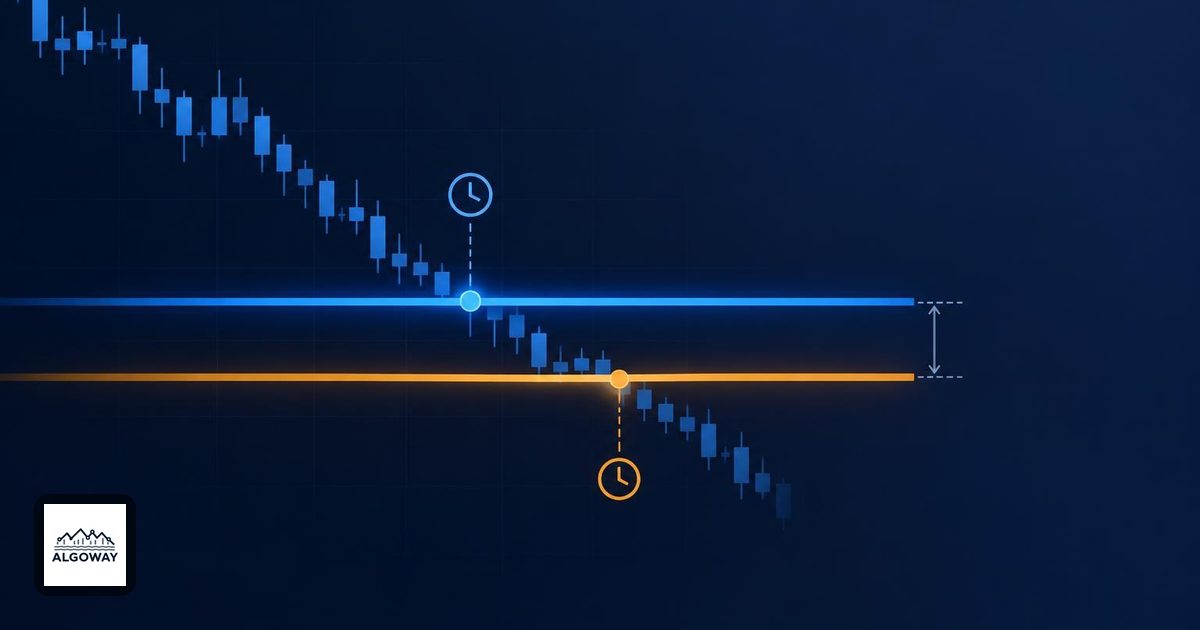
A backtest can keep your limit entry at 100.00 while moving its fill to a later moment. That is the small but important bargain behind TradingView's limit-order verification: the price must pass an extra test before the simulator records the fill.
For TradingView automation, keep three records separate: the strategy's order instruction, its simulated fill, and the execution account's actual trade. If you use [AlgoWay to route TradingView alerts](https://algoway.trade/blog/tradingview-strategy-alert-timing.html), inspect which event your alert represents before interpreting a changed backtest entry as a changed broker order.
## Find the current control
TradingView's [Pine release notes](https://www.tradingview.com/pine-script-docs/release-notes/) document the replacement of “Verify price for limit orders” with “Limit order execution” in Settings/Properties. Older tutorials may show the previous name.
The current dropdown offers filling when price reaches the limit or moves one tick beyond it. In Pine, `backtest_fill_limits_assumption` specifies the tick count; its default is zero. The dropdown overrides the script's default. To restore a script-defined value greater than one after using the dropdown, choose Defaults, then Reset settings. Record your other settings before resetting. These controls are described in the [official strategies documentation](https://www.tradingview.com/pine-script-docs/concepts/strategies/#slippage-and-unfilled-limits).
## One tick is a threshold, not a new order price
Consider a hypothetical resting buy limit at 100.00 on an instrument with a minimum tick of 0.25. Assume the order is already active, price approaches from above without a gap, and the simulation has the following price sequence. This is arithmetic, not a recorded TradingView test.
| Event | Price | Touch assumption | One-tick verification |
| --- | --- | --- | --- |
| First touch | 100.00 | Threshold reached | Threshold not reached |
| Bounce | 100.25 | Already eligible at the touch | Still waiting |
| Later decline | 99.75 | No additional requirement | Threshold reached |
The verification threshold is 100.00 − 1 × 0.25 = 99.75. For a resting sell limit at 100.00 approached from below, the corresponding threshold is 100.25. Direction matters: verification asks for movement beyond the limit in the favorable direction.
TradingView documents that verified limit fills retain their specified order prices even when verification changes their timing. In this example, 99.75 is the buy verification threshold, while 100.00 remains the recorded limit price. The documentation cautions that this price-time combination can be unrealistic, especially with large verification values.
## Read the changed trade, not just the changed profit
Suppose the first touch was followed by a rally, with no later visit to 99.75. Your two assumptions would admit different entry opportunities. You cannot explain the result as a fixed extra cost per trade: one version may have a position while the other has none.
Now suppose the deeper visit occurs after an exit condition has already come and gone. The useful question is whether the new entry still belongs to the same trading opportunity. Write down the order-creation time, verification event, recorded fill and subsequent exit. A profit total cannot tell that story by itself.
Keep the [historical intrabar detail setting](https://algoway.trade/blog/tradingview-bar-magnifier-backtest-fills.html) unchanged during this comparison. Otherwise, you are changing both the price evidence and the rule applied to it. Save the symbol, tick size, chart interval, date range, script version, inputs and execution settings with each result.
## Carry the distinction into the alert workflow
For an automation review, add columns for the alert event, outgoing order type, requested price and actual broker fill. Do not assume a message triggered by a simulated fill is the same instruction as placing a resting limit earlier. Check the alert message itself and the account's execution record.
If the question is instead why a real order remained open after a chart touch, use the separate guide to [limit orders that touch but do not fill](https://algoway.trade/blog/limit-order-touched-not-filled.html). A simulator setting cannot establish your place in a live order queue.
Use verification as a sensitivity check: identify which entries depend on an exact touch, then investigate those entries. Choosing whichever setting gives the prettiest report would be letting the answer write the question.