[Canonical HTML article](https://algoway.trade/blog/tradingview-free-webhook-alerts.html)
Published: 2026-05-12T00:00:00+00:00
Updated: 2026-11-15T00:00:00+04:00
# **Free TradingView Webhook Alerts Without a Paid Plan**
> **Important update — November 2026:** TradingView's free Basic plan no longer supports the email-to-webhook workaround described below. Neither native webhook notifications nor the alternative plain-text email method for automated indicator alerts is available for free. The email instructions remain available for accounts that support this notification method.
You can still automate trading without a paid TradingView subscription. AlgoWay's free Chrome extension, in Indicator to Webhook mode, can automate virtually any trading indicator that displays a readable trade setup on your chart — including entry, stop loss and take profit levels. It reads the signals directly from the chart and sends trading commands to your connected platform through AlgoWay. No TradingView alerts, paid native webhooks, email forwarding or Pine Script changes are required.
[Get the Free Chrome Extension](https://algoway.trade/tradingview-indicator-to-webhook) · [Read the Setup Guide](https://docs.algoway.trade/algoway-free-alerts-chrome-extension-guide.html)
Keep Chrome and the TradingView chart open while monitoring. Indicator compatibility depends on whether its trade setup is readable by the extension. AlgoWay service terms and any indicator access fees are separate.
 #### **In this guide**
- [How TradingView email-to-webhook routing works](https://algoway.trade/blog/tradingview-free-webhook-alerts.html#how-it-works)
- [Email-to-webhook vs native webhook vs Python relay](https://algoway.trade/blog/tradingview-free-webhook-alerts.html#comparison)
- [Set up TradingView alert emails with AlgoWay](https://algoway.trade/blog/tradingview-free-webhook-alerts.html#setup)
- [TradingView JSON alert examples](https://algoway.trade/blog/tradingview-free-webhook-alerts.html#json)
- [Check delivery and troubleshoot alerts](https://algoway.trade/blog/tradingview-free-webhook-alerts.html#checking)
- [Plan requirements and email delivery considerations](https://algoway.trade/blog/tradingview-free-webhook-alerts.html#limitations)
- [Frequently asked questions](https://algoway.trade/blog/tradingview-free-webhook-alerts.html#faq)
- [Documentation and related guides](https://algoway.trade/blog/tradingview-free-webhook-alerts.html#references)
------------------------------------------------------------------------
#### **How TradingView email-to-webhook routing works**
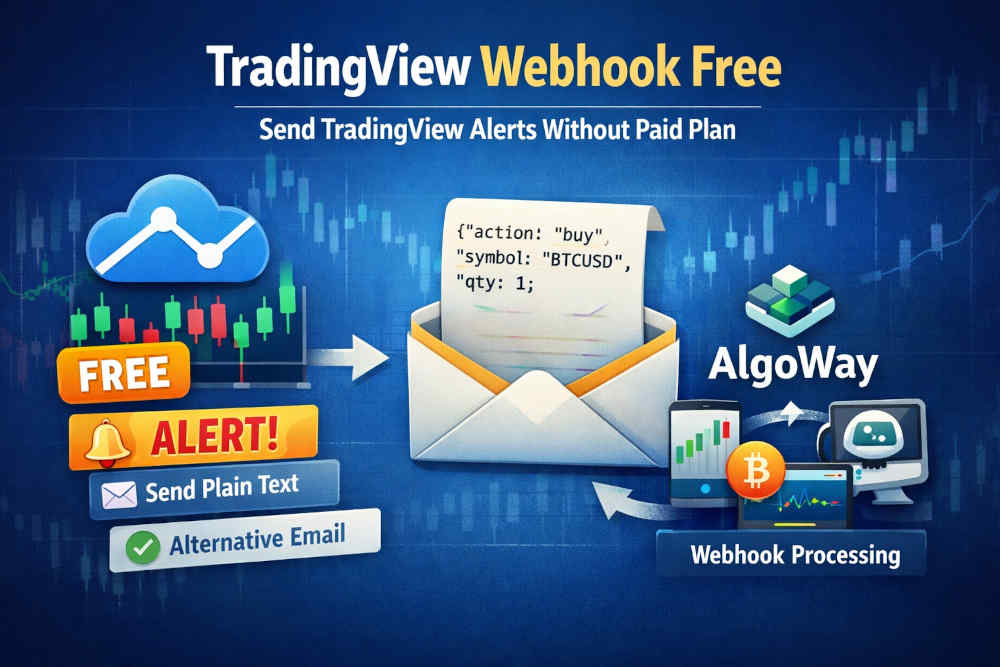
A normal TradingView webhook sends an HTTP POST request to a specified URL when an alert triggers. Email-to-webhook is a separate delivery method for accounts that support the Send plain text notification to a verified alternative email address. It is no longer a free workaround for Basic users.
AlgoWay assigns each configured webhook route a UUID. The same UUID can be used as the local part of a receiving email address at `algoway.co`. For example, when a webhook has its own UUID, its alert mailbox is formed as `YourWebhookUUID@algoway.co`. A message sent to that address is associated with the matching route.
When the email arrives, AlgoWay reads its message content and processes the JSON alert using the connection already assigned to the UUID. The selected trading destination then handles the instruction according to that route's configuration. The destination is not chosen by a magic email subject line; it is determined by the webhook you created.
Email delivery works only with alert types and notification options supported by your TradingView plan. The free Basic plan does not provide the technical alerts required to automate indicators by email.
------------------------------------------------------------------------
#### **Email-to-webhook vs native webhook vs Python relay**
These approaches can deliver structured trading data, but the maintenance requirements and delivery speed are different. Here is the practical comparison for someone who wants to automate an existing TradingView alert.
| Approach | Signal path | What you need to operate |
|--------------------------------|------------------------------------------------------------------------|---------------------------------------------------------------------------------------------|
| **AlgoWay Chrome extension** | TradingView chart \>\> Chrome extension \>\> AlgoWay \>\> trading platform | Free TradingView account, readable indicator setup, open Chrome chart and an AlgoWay webhook route |
| **Native TradingView webhook** | TradingView \>\> HTTP POST \>\> AlgoWay | TradingView plan with Webhook URL access; best route when speed is important |
| **DIY email-to-webhook relay** | TradingView \>\> email inbox \>\> mailbox-reading program \>\> webhook | TradingView account with suitable email alerts, email credentials, Python or another runtime and a running machine or cloud job |
| **AlgoWay email-to-webhook** | TradingView \>\> plain text email \>\> AlgoWay \>\> trading platform | TradingView account with Send plain text access, verified UUID email and an AlgoWay webhook route |
A Python relay is useful for developers who want full control over mailbox handling. It also introduces moving parts: authentication, provider restrictions, polling intervals and uptime. AlgoWay removes those components from the user's setup, though the delivery still depends on email and therefore cannot offer the timing of a direct HTTP webhook.
------------------------------------------------------------------------
#### **Set up TradingView alert emails with AlgoWay**
##### **1. Create a TradingView webhook route in AlgoWay**
In the AlgoWay dashboard, create a webhook with **TradingView** as its source. Choose the destination platform, enter the required connection details and save the route. Copy that route's **webhook UUID**. The same destination connection can be used for alerts arriving by the email method.
The address format is `YourWebhookUUID@algoway.co`. Replace `YourWebhookUUID` with the actual UUID shown for your route. This is a receiving address for automated alerts, not an ordinary personal mailbox.
##### **2. Register the alternative email in TradingView**
Open **Settings and billing \>\> Alerts delivery** in TradingView. Select **Add email** and enter the AlgoWay UUID email. TradingView sends a six-digit verification code to that address. This email registration procedure is described in the official TradingView alternative email instructions.
##### **3. Confirm the address from the AlgoWay dashboard**
Return to the mail area of the AlgoWay dashboard and locate the verification message sent to that UUID address. Copy its six-digit code and submit it in TradingView. Until TradingView confirms this address, it cannot be used as the destination for that alternative alert email.
##### **4. Create the alert and select Send plain text**
Create an alert on a chart using a condition supported by your TradingView plan. In the alert notification options, enable **Send plain text**, select the verified UUID email, and put the JSON instruction into the **Message** field. Do not confuse **Send Email**, which targets your account email, with **Send plain text**, which uses the alternative email destination. TradingView confirms this distinction in its plain text notification guide.
##### **5. Verify an actual alert before using live execution**
Trigger a controlled test alert and inspect its delivery in AlgoWay. Confirm that the route receives the JSON, then check that the connected platform interprets the symbol, order side and quantity as intended. An email arriving is not the same as a successfully accepted trade; both parts of the workflow should be checked.
**Setup checklist:** AlgoWay webhook saved \>\> UUID email added in TradingView \>\> six-digit code confirmed \>\> Send plain text enabled \>\> JSON message entered \>\> test alert verified.
------------------------------------------------------------------------
#### **TradingView JSON alert examples**
Email delivery does not change the AlgoWay alert format. The simplest instruction contains a ticker, an order action and a quantity. The webhook UUID identifies the route, so the destination does not need to be repeated in every message. Use quantities that match your destination's contract or lot conventions.
##### **Example 1: Simple buy alert**
{"ticker":"{{ticker}}","order_action":"buy","order_contracts":1}
When the alert fires, TradingView replaces `{{ticker}}` with the symbol from the alert. The selected AlgoWay route receives the resolved value and processes a buy instruction for a quantity of one in that route's units.
##### **Example 2: Simple sell alert**
{"ticker":"{{ticker}}","order_action":"sell","order_contracts":1}
The delivery method is unchanged. You can use a different alert condition with the same verified mailbox, provided the JSON command is compatible with the destination and the quantity is appropriate.
##### **Example 3: Pine Script strategy order action**
{"ticker":"{{ticker}}","order_action":"{{strategy.order.action}}","order_contracts":"{{strategy.order.contracts}}"}
Strategy placeholders are available only for applicable strategy alerts. The `{{strategy.order.action}}` placeholder produces the executed strategy order's buy or sell action; it is not the same as `{{strategy.market_position}}`, which describes the position state. Make sure your TradingView plan supports the required alert type.
For stop loss, take profit, limit orders or position sizing rules, consult the [AlgoWay JSON schema guide](https://algoway.trade/blog/json-schema-guide.html) and the destination's own parameters. There is no reason to pack those settings into a minimal test message before basic delivery works.
------------------------------------------------------------------------
#### **Check delivery and troubleshoot alerts**
##### **The verification code never appears**
Compare the email address in TradingView with the exact UUID of your saved AlgoWay webhook. Confirm that you added it under **Alerts delivery** and requested verification. The six-digit code should be associated with the same UUID mail area in AlgoWay. A misspelled UUID sends mail to the wrong destination.
##### **The alert fires, but AlgoWay receives nothing**
Check that this specific alert uses **Send plain text** and the verified alternative address. The ordinary **Send Email** option does not automatically send messages to the AlgoWay UUID inbox. Check the TradingView alert log to confirm that the alert itself triggered.
##### **The message arrives, but no order is opened**
Verify the JSON syntax and the required `ticker`, `order_action` and `order_contracts` fields. Then inspect the selected AlgoWay route, platform connection and order response. A symbol that does not exist at the destination, an unavailable connection or an unsuitable order quantity can prevent execution.
##### **The signal reaches the wrong account**
The UUID email maps to the webhook route from which that UUID was taken. Check the route's selected destination; changing JSON fields will not correct an alert that is being delivered to a different UUID address.
------------------------------------------------------------------------
#### **Plan requirements and email delivery considerations**
For free TradingView accounts, use the Chrome extension's Indicator to Webhook mode described above. The email method requires an account with the necessary alert and notification features. AlgoWay, broker connections and any paid indicators have separate terms and fees.
Email is also not a real-time transport guarantee. There can be delays between the TradingView trigger, message delivery, processing and order submission. The method is useful for strategies that tolerate such delays, but direct webhook delivery is the better choice for latency-sensitive execution when it is available.
TradingView may change plan features or notification controls. The procedure here depends on an available **Send plain text** notification method and a verified alternative email. Do not confuse lack of Webhook URL access with unlimited free alerts: your account's alert quota and supported alert types still apply.
------------------------------------------------------------------------
#### **Frequently asked questions**
##### **Can I use TradingView webhooks for free?**
TradingView's free Basic plan does not provide native webhook notifications or technical alerts for indicator automation. AlgoWay's free Chrome extension can instead read compatible trading setups directly from the chart and send webhook commands without a paid TradingView subscription. [Learn how Indicator to Webhook works.](https://algoway.trade/tradingview-indicator-to-webhook)
##### **Do I need Python or an IMAP email listener?**
No. AlgoWay provides the receiving UUID email address and processes the alert. The user does not need to install Python, configure mailbox polling or keep a separate listener running.
##### **How do I convert a TradingView email alert into a webhook?**
Create an AlgoWay webhook, add `YourWebhookUUID@algoway.co` as a TradingView alternative email, confirm the six-digit code, and enable **Send plain text** with a JSON message on the alert. AlgoWay handles the email-to-webhook processing.
##### **Can I use this on the free TradingView Basic plan?**
No. For free Basic accounts, use Indicator to Webhook in the AlgoWay Chrome extension instead. The email-to-webhook instructions on this page apply only to accounts that support the required notification method.
##### **Is an email-to-webhook alert as fast as a direct webhook?**
No. Email transmission adds a delivery stage that is not present in a direct HTTP POST. There is no guaranteed fixed latency for this email route; use direct webhook notifications when execution speed is critical.
##### **Can one email address forward alerts to different trading platforms?**
An AlgoWay UUID identifies a specific configured webhook route. To direct signals to a different connection, use the UUID for the intended route and verify that the TradingView alert is addressed to it.
------------------------------------------------------------------------
#### **Documentation and related guides**
TradingView's own documentation explains the two relevant notification controls: setting up an alternative email and using Send plain text for alert delivery. Its webhook reference describes the direct HTTP POST method for comparison.
For the next part of the workflow, see the [TradingView webhook setup guide](https://algoway.trade/blog/guide-to-creating-a-webhook-in-tradingview.html), the [AlgoWay JSON reference](https://algoway.trade/blog/json-schema-guide.html), and [automated TradingView trading without a paid subscription](https://algoway.trade/blog/tradingview-algo-trading-without-paid-subscription.html).
Last updated: November 15, 2026