[Canonical HTML article](https://algoway.trade/blog/how-to-set-up-telegram-notifications-on-algoway.html)
Published: 2026-05-12T00:00:00+00:00
Updated: 2026-10-29T00:00:00+04:00
# **How to Set Up Telegram Trading Notifications in AlgoWay**
**AlgoWay Telegram Notifications can send updates about processed trading webhooks to Telegram.** You can choose **Account Level**, which uses one Telegram bot and chat for all supported webhooks in your account, or **Webhook Level**, which lets each webhook use its own bot token and chat ID.
Both options require a Telegram bot created through BotFather and a destination chat ID. The **Enable Telegram Notifications** checkbox in Account Settings is the global on/off switch for either mode. In Webhook Level, you enter credentials inside each webhook's **Edit Webhook** page.
**Account Level:** BotFather → bot token and chat ID → Account Settings → Save Settings → Send Test Message.
**Webhook Level:** BotFather → bot token and chat ID → Account Settings (select Webhook Level) → Edit Webhook (credentials per route) → Save Changes.
Telegram notifications do not execute trades and are separate from AlgoWay's Telegram Signal Copier. Always use Webhook Logs and your trading platform to verify execution details.
Last updated: 2026-10-29 • Author: AlgoWay
**Contents**
- [Quick answer](https://algoway.trade/blog/how-to-set-up-telegram-notifications-on-algoway.html#quick-answer)
- [What Telegram notifications do](https://algoway.trade/blog/how-to-set-up-telegram-notifications-on-algoway.html#what-it-does)
- [Before you start](https://algoway.trade/blog/how-to-set-up-telegram-notifications-on-algoway.html#before)
- [Create Telegram bot with BotFather](https://algoway.trade/blog/how-to-set-up-telegram-notifications-on-algoway.html#botfather)
- [Get your Telegram chat_id](https://algoway.trade/blog/how-to-set-up-telegram-notifications-on-algoway.html#chat-id)
- [Choose Account Level or Webhook Level](https://algoway.trade/blog/how-to-set-up-telegram-notifications-on-algoway.html#algoway)
- [Account Level setup](https://algoway.trade/blog/how-to-set-up-telegram-notifications-on-algoway.html#account-level)
- [Webhook Level setup](https://algoway.trade/blog/how-to-set-up-telegram-notifications-on-algoway.html#webhook-level)
- [Verify notification delivery](https://algoway.trade/blog/how-to-set-up-telegram-notifications-on-algoway.html#test)
- [Private chat, group and channel notes](https://algoway.trade/blog/how-to-set-up-telegram-notifications-on-algoway.html#group)
- [Security notes](https://algoway.trade/blog/how-to-set-up-telegram-notifications-on-algoway.html#security)
- [Common problems](https://algoway.trade/blog/how-to-set-up-telegram-notifications-on-algoway.html#problems)
## Quick Answer: Enable Telegram Notifications in AlgoWay
1. Create a Telegram bot using `@BotFather` and copy its token.
2. Message your bot, then retrieve the correct `chat.id` using the Telegram Bot API `getUpdates` method.
3. In AlgoWay, open **Settings → Telegram Notifications**.
4. Choose **Notification Level: Account Level** or **Webhook Level**.
5. Check **Enable Telegram Notifications** and click **Save Settings**.
6. **Account Level:** enter Bot Token and Chat ID in Settings, then click **Send Test Message**.
7. **Webhook Level:** open **Connections → Edit Webhook**, enter the Telegram Bot Token and Telegram Chat ID for that webhook, and click **Save Changes**. Repeat for each webhook that needs notifications.
At Account Level, all supported webhooks use the shared Telegram destination. At Webhook Level, each webhook uses only its own credentials. A webhook without both values sends no Telegram notification, and there is **no fallback to the account's token or chat ID**.
## What AlgoWay Telegram Notifications Do
Telegram notifications are useful when you want to monitor AlgoWay activity without keeping the dashboard open all the time.
Depending on your AlgoWay setup, Telegram messages can help you monitor:
- test notification delivery;
- webhook activity;
- trading automation events;
- platform connection status;
- execution confirmations;
- errors or rejected actions where supported;
- important account or route events shown by AlgoWay.
Telegram is a fast notification channel, but it should not replace AlgoWay Webhook Logs, platform logs or broker/exchange order history. Use Telegram for awareness and logs for investigation.
## Where Telegram Notifications Fit in Trading Automation
AlgoWay Telegram notifications are not only basic account messages. They are part of a wider **trading automation monitoring** workflow. When a TradingView webhook alert, manual webhook signal, Telegram signal copier event or platform connector event reaches AlgoWay, the dashboard and logs remain the main source of technical detail. Telegram gives you the fast external notification layer, so you can see important trading activity without keeping the AlgoWay dashboard open every minute.
This is especially useful for traders who run **automated trading alerts** on several routes. A trader may have one webhook for TradingView to MetaTrader 5, another route for TradingView to TradeLocker, and a separate crypto route for Binance or Bybit. In that setup, Telegram notifications become a practical way to monitor whether the system is alive, whether test messages are delivered, and whether key events are reaching the user.
The goal is not to replace execution logs. Telegram provides a fast notification, while AlgoWay logs show the received payload, parsed command, destination response and debugging details. Together they make the trading workflow easier to supervise.
## Telegram Notifications vs Telegram Signal Copier
AlgoWay has two Telegram-related workflows, and they should not be confused. **Telegram notifications** send messages from AlgoWay to your Telegram chat. They are used for monitoring, alerts, status checks and test messages. **AI Telegram Signals** work in the opposite direction: AlgoWay reads Telegram channels or groups, understands trading signals with AI, and routes those signals to a connected trading platform.
In simple terms, Telegram notifications are for receiving updates from AlgoWay, while the Telegram signal copier is for using Telegram as a trade signal source. A user who wants to receive a message when a webhook fires should configure Telegram notifications. A user who wants to copy trading signals from a Telegram channel to MT5, cTrader, TradeLocker, Tradovate or a crypto exchange should configure the AI Telegram Signals feature.
This page covers notifications sent from AlgoWay to Telegram. For copying Telegram trading signals into a broker or exchange account, use the AI Telegram signal copier manual.
## Before You Start
Prepare:
- Telegram account;
- access to `@BotFather` in Telegram;
- AlgoWay account;
- AlgoWay dashboard access;
- a browser to call `getUpdates`;
- a safe place to temporarily copy the bot token and `chat_id`.
**Important:** the bot token is a secret. Anyone with the token can control that bot through Telegram Bot API. Do not publish it in screenshots, logs, public chats or support tickets unless you intentionally want support to inspect the setup.
## Step 1. Create a Telegram Bot with BotFather
Telegram bots are created and managed through `@BotFather`.
1. Open Telegram.
2. Search for `@BotFather`.
3. Open the official BotFather chat.
4. Click **Start**.
5. Send the command `/newbot`.
6. Choose a display name, for example `AlgoWayBot`.
7. Choose a unique username ending in `bot`, for example `AlgoWayTradeBot`.
8. Copy the bot token that BotFather gives you.
Example token format:
1234567890:ABCDEF12345ghIkl-zyx57W2v1u123ew11
Do not include the word `bot` before the token when pasting it into AlgoWay settings.
## Step 2. Get Your Telegram chat_id
AlgoWay needs a `chat_id` so Telegram knows where to deliver notifications.
1. Open your newly created bot in Telegram.
2. Send any message to the bot, for example `Hello`.
3. Open your browser.
4. Paste the following URL, replacing `` with your real bot token:
https://api.telegram.org/bot/getUpdates
Example:
https://api.telegram.org/bot1234567890:ABCDEF12345ghIkl-zyx57W2v1u123ew11/getUpdates
You should see a JSON response. Find `chat.id`.
{
"ok": true,
"result": [
{
"update_id": 987654321,
"message": {
"chat": {
"id": 1122334455,
"type": "private"
},
"text": "Hello"
}
}
]
}
In this example, the `chat_id` is:
1122334455
**If result is empty:** send a new message to your bot, then refresh the `getUpdates` URL.
## Step 3. Choose the Telegram Notification Level in AlgoWay
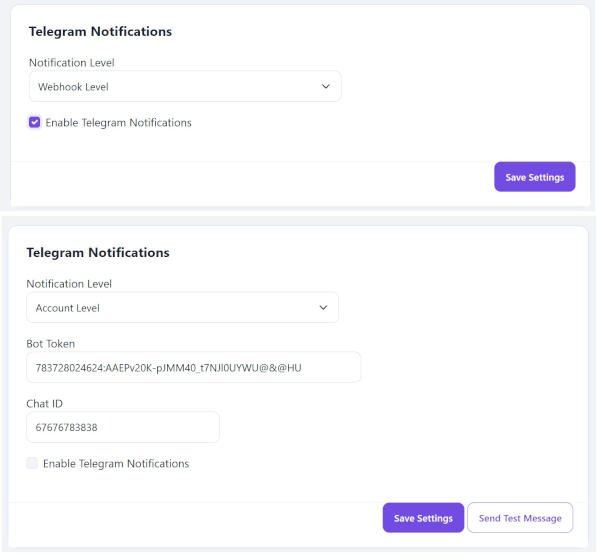
Go to **Settings → Telegram Notifications**. Choose the **Notification Level**, check **Enable Telegram Notifications**, and click **Save Settings**. This checkbox controls notification delivery globally in both modes.
The two levels work differently:
- **Account Level:** one Bot Token and Chat ID are stored in Settings and used for Telegram notifications from supported webhooks across your account.
- **Webhook Level:** each webhook has its own Bot Token and Chat ID inside Edit Webhook. You can direct different trading strategies or routes to different Telegram chats, groups, or channels.
Telegram Notifications in Settings: Webhook Level (top) and Account Level (bottom).
### Option A. Account Level: One Telegram Destination for Your Account
1. In **Settings → Telegram Notifications**, select **Account Level**.
2. Enter the token from `@BotFather` in **Bot Token** (without adding `bot` before the token).
3. Enter the destination `chat.id` in **Chat ID**.
4. Check **Enable Telegram Notifications** and click **Save Settings**.
5. Click **Send Test Message** to check Telegram delivery, then look for the message in the selected chat.
If the global checkbox is off, Telegram notifications are disabled even if the bot token and chat ID are saved. The saved account-level credentials remain available if you switch modes and later return to Account Level.
### Option B. Webhook Level: Different Telegram Chats for Different Webhooks
1. In **Settings → Telegram Notifications**, select **Webhook Level**, turn on **Enable Telegram Notifications**, and click **Save Settings**.
2. Open **Connections** and choose **Edit Webhook** for the trading webhook you want to configure.
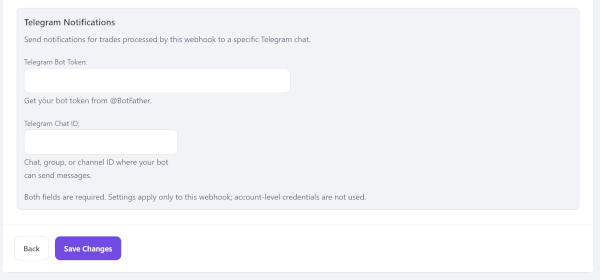
3. Scroll to **Advanced Settings → Telegram Notifications**. Enter that webhook's **Telegram Bot Token** and **Telegram Chat ID**.
4. Click **Save Changes**. Repeat the process for any other webhooks that should notify a different bot or destination.
Edit Webhook: configure a separate Telegram bot and destination chat for this connection.
**Important:** Webhook Level does not reuse account-level credentials. Both per-webhook fields must be provided to send notifications. There is no per-webhook enable switch: the global checkbox in Settings controls all Telegram notifications.
Switching between Account Level and Webhook Level does not erase credentials saved for the other mode. It only changes which set of credentials AlgoWay uses.
## Step 4. Verify Telegram Notification Delivery
### Account Level: Send Test Message
1. Save your bot token and chat ID in Account Level.
2. Click **Send Test Message** in Settings.
3. Check the Telegram chat and confirm that the test message arrived.
4. If it did not arrive, see the troubleshooting section below.
The test confirms that the supplied bot can send a message to the selected chat. It does not, by itself, prove that a trading platform executed an order.
### Webhook Level: Check the Configured Webhook
The account-level **Send Test Message** button is not available in Webhook Level. After saving the individual webhook's token and chat ID, verify delivery through a real supported webhook event. Start with a demo or otherwise safe test setup, and compare the notification with **Webhook Logs** and the connected platform's result. Do not place a live order just to test Telegram notifications.
## Best Notification Workflow for Webhook Trading
Telegram is a notification destination, not an execution engine. For a typical trading webhook, the monitoring path is:
TradingView alert → AlgoWay processes the webhook → connected platform responds → Telegram notification
Use Webhook Logs and the trading platform to investigate errors or order status. Telegram delivery depends on the correct token, the correct destination chat ID, and the global Enable Telegram Notifications switch.
## Private Chat, Group and Channel Notes
The easiest setup is a private chat between you and your bot. Groups and channels can also work, but they require extra attention.
### Private Chat
Private chat is the simplest option. Send a message to the bot and use the `chat.id` from `getUpdates`.
### Group Chat
To send notifications to a group:
1. Add the bot to the group.
2. Send a message in the group.
3. Call `getUpdates`.
4. Find the group `chat.id`.
Group chat IDs can be negative numbers. That is normal.
### Channel
For channels, the bot usually must be added as an administrator with permission to post messages. Use channel setup only if you understand Telegram channel permissions.
## Security Notes for Telegram Notifications
Telegram bot tokens should be treated like passwords.
- Do not publish the bot token.
- Do not expose the token in public screenshots.
- Do not reuse the same bot for unrelated systems.
- Do not add the bot to public groups unless you need it there.
- If the token is leaked, revoke it in BotFather and create a new token.
- If notifications stop unexpectedly, verify that the bot still exists and the token was not regenerated.
If you regenerate the token in BotFather, update the token in AlgoWay immediately.
## Common Telegram Notification Problems
### Send Test Message Does Not Arrive (Account Level)
Confirm you are using Account Level and that the token and chat ID are valid for the intended chat. Check whether the bot has been blocked or its token was regenerated. The Send Test Message button is only available in Account Level.
### Webhook Level Fields Are Missing in Edit Webhook
Open Settings, select **Webhook Level**, check **Enable Telegram Notifications**, and save. Then reopen Edit Webhook. The per-webhook Telegram fields appear only when both conditions are saved.
### Webhook Level Notifications Do Not Arrive
Verify that the correct webhook has both its own Telegram Bot Token and Telegram Chat ID saved. Account-level credentials are ignored in this mode, and empty webhook credentials do not trigger a fallback. Also confirm that the global Enable Telegram Notifications checkbox is on and check the relevant Webhook Logs.
### getUpdates Shows Empty result
Open the bot chat in Telegram and send a new message. Then refresh the `getUpdates` URL.
### Token Was Pasted with bot Prefix
In the URL, Telegram uses `bot`. In AlgoWay settings, paste only the token itself, without the word `bot`.
### Wrong chat_id
Make sure you copied `message.chat.id` from the correct chat. If you want private notifications, use the private chat ID, not a group ID.
### Group Notifications Do Not Work
Add the bot to the group, send a new group message, call `getUpdates`, and copy the group chat ID. For some group/channel setups, bot permissions must be adjusted.
### Bot Was Blocked
If you blocked the bot in Telegram, unblock it and send a new message before testing again.
### Token Was Regenerated
If you regenerated the token in BotFather, the old token no longer works. Update AlgoWay with the new token.
### Test Message Works but Trade Notifications Do Not Arrive
Check that Notification Level is still set to Account Level, or confirm each webhook's own credentials if using Webhook Level. Then inspect Webhook Logs and the connected platform's response; the test button checks Telegram delivery, not trade execution.
## Telegram Notifications vs Webhook Trading
Telegram notifications and webhook trading are different parts of the AlgoWay system.
| Feature | Purpose |
|------------------------|------------------------------------------------------------------------------------|
| TradingView webhook | Sends trading commands to AlgoWay. |
| AlgoWay webhook route | Routes trading commands to platforms such as MT5, Coinbase, ProjectX or Tradovate. |
| Telegram notifications | Sends monitoring messages to your Telegram chat. |
Telegram is for notification. AlgoWay webhooks are for automation.
## Use Cases for Telegram Trading Notifications
Telegram notifications are useful for solo traders, small trading teams and account managers who need fast awareness around automated trading activity. The most common use case is simple: you want to know when AlgoWay receives an important event, sends a test message or reports platform activity. But the same setup can also support more advanced workflows.
- **TradingView webhook monitoring:** receive Telegram alerts when your TradingView automation route is being tested or used.
- **MT5 automation monitoring:** keep an external notification channel for MetaTrader 5 automated trading routes.
- **Crypto execution awareness:** monitor webhook routes connected to Binance, Bybit, OKX, Coinbase or other supported exchanges.
- **Manual alert testing:** confirm that a manual AlgoWay alert or webhook test reaches the expected monitoring channel.
- **Team visibility:** send notifications to a private Telegram group when several people need to monitor the same automation setup.
For traders who manage several systems, this creates a clean separation: AlgoWay handles automation, the connected platform handles execution, and Telegram handles fast external notifications. This makes the setup easier to operate than checking every platform manually after each alert.
## Telegram Bot Token, chat_id and AlgoWay Alerts
The **Telegram bot token** identifies a bot created with BotFather. The **chat_id** identifies the destination private chat, group, or channel, and **getUpdates** can help you find it after the bot receives an update. AlgoWay stores these values either on your account (Account Level) or on individual webhook connections (Webhook Level).
Choose Account Level when all trading notifications should reach one destination; choose Webhook Level when different strategies or webhook routes need separate Telegram destinations. In either case, the global Enable Telegram Notifications checkbox must be turned on.
## Related AlgoWay Guides
- [How to create a TradingView webhook alert](https://algoway.trade/blog/guide-to-creating-a-webhook-in-tradingview.html)
- [How to create manual TradingView webhook alerts](https://algoway.trade/blog/how-to-create-manual-alerts-for-webhooks-on-the-algoway-platform.html)
- [How to automate TradingView alerts to any broker with AlgoWay](https://algoway.trade/blog/automate-tradingview-alerts-to-any-broker-with-algoway.html)
- [AlgoWay JSON schema guide](https://algoway.trade/blog/json-schema-guide.html)
- [How to fix AlgoWay webhook Error 415](https://algoway.trade/blog/algoway-415.html)
- [TradingView to MetaTrader 5 with AlgoWay](https://algoway.trade/blog/setting-up-access-for-tradingview-to-metatrader-5.html)
- [TradingView to ProjectX with AlgoWay](https://algoway.trade/blog/how-to-connect-projectx.html)
- [TradingView to Coinbase with AlgoWay](https://algoway.trade/blog/coinbase-api.html)
## Final Summary
**To set up AlgoWay Telegram notifications, create a bot in BotFather, retrieve its token and your destination `chat_id`, and choose Account Level or Webhook Level in Settings.** At Account Level, save the bot credentials in Settings and click Send Test Message. At Webhook Level, save the credentials separately inside Edit Webhook for every route that should send notifications.
Keep the global Enable Telegram Notifications checkbox on, protect your bot token, and use AlgoWay Webhook Logs for detailed execution troubleshooting. Switching levels preserves saved credentials, but Webhook Level never falls back to account-level Telegram credentials.
Last updated: October 29, 2026
 **AlgoWay Telegram Notifications can send updates about processed trading webhooks to Telegram.** You can choose **Account Level**, which uses one Telegram bot and chat for all supported webhooks in your account, or **Webhook Level**, which lets each webhook use its own bot token and chat ID.
Both options require a Telegram bot created through BotFather and a destination chat ID. The **Enable Telegram Notifications** checkbox in Account Settings is the global on/off switch for either mode. In Webhook Level, you enter credentials inside each webhook's **Edit Webhook** page.
**Account Level:** BotFather → bot token and chat ID → Account Settings → Save Settings → Send Test Message.
**Webhook Level:** BotFather → bot token and chat ID → Account Settings (select Webhook Level) → Edit Webhook (credentials per route) → Save Changes.
Telegram notifications do not execute trades and are separate from AlgoWay's Telegram Signal Copier. Always use Webhook Logs and your trading platform to verify execution details.
Last updated: 2026-10-29 • Author: AlgoWay
**Contents**
- [Quick answer](https://algoway.trade/blog/how-to-set-up-telegram-notifications-on-algoway.html#quick-answer)
- [What Telegram notifications do](https://algoway.trade/blog/how-to-set-up-telegram-notifications-on-algoway.html#what-it-does)
- [Before you start](https://algoway.trade/blog/how-to-set-up-telegram-notifications-on-algoway.html#before)
- [Create Telegram bot with BotFather](https://algoway.trade/blog/how-to-set-up-telegram-notifications-on-algoway.html#botfather)
- [Get your Telegram chat_id](https://algoway.trade/blog/how-to-set-up-telegram-notifications-on-algoway.html#chat-id)
- [Choose Account Level or Webhook Level](https://algoway.trade/blog/how-to-set-up-telegram-notifications-on-algoway.html#algoway)
- [Account Level setup](https://algoway.trade/blog/how-to-set-up-telegram-notifications-on-algoway.html#account-level)
- [Webhook Level setup](https://algoway.trade/blog/how-to-set-up-telegram-notifications-on-algoway.html#webhook-level)
- [Verify notification delivery](https://algoway.trade/blog/how-to-set-up-telegram-notifications-on-algoway.html#test)
- [Private chat, group and channel notes](https://algoway.trade/blog/how-to-set-up-telegram-notifications-on-algoway.html#group)
- [Security notes](https://algoway.trade/blog/how-to-set-up-telegram-notifications-on-algoway.html#security)
- [Common problems](https://algoway.trade/blog/how-to-set-up-telegram-notifications-on-algoway.html#problems)
## Quick Answer: Enable Telegram Notifications in AlgoWay
1. Create a Telegram bot using `@BotFather` and copy its token.
2. Message your bot, then retrieve the correct `chat.id` using the Telegram Bot API `getUpdates` method.
3. In AlgoWay, open **Settings → Telegram Notifications**.
4. Choose **Notification Level: Account Level** or **Webhook Level**.
5. Check **Enable Telegram Notifications** and click **Save Settings**.
6. **Account Level:** enter Bot Token and Chat ID in Settings, then click **Send Test Message**.
7. **Webhook Level:** open **Connections → Edit Webhook**, enter the Telegram Bot Token and Telegram Chat ID for that webhook, and click **Save Changes**. Repeat for each webhook that needs notifications.
At Account Level, all supported webhooks use the shared Telegram destination. At Webhook Level, each webhook uses only its own credentials. A webhook without both values sends no Telegram notification, and there is **no fallback to the account's token or chat ID**.
## What AlgoWay Telegram Notifications Do
Telegram notifications are useful when you want to monitor AlgoWay activity without keeping the dashboard open all the time.
Depending on your AlgoWay setup, Telegram messages can help you monitor:
- test notification delivery;
- webhook activity;
- trading automation events;
- platform connection status;
- execution confirmations;
- errors or rejected actions where supported;
- important account or route events shown by AlgoWay.
Telegram is a fast notification channel, but it should not replace AlgoWay Webhook Logs, platform logs or broker/exchange order history. Use Telegram for awareness and logs for investigation.
## Where Telegram Notifications Fit in Trading Automation
AlgoWay Telegram notifications are not only basic account messages. They are part of a wider **trading automation monitoring** workflow. When a TradingView webhook alert, manual webhook signal, Telegram signal copier event or platform connector event reaches AlgoWay, the dashboard and logs remain the main source of technical detail. Telegram gives you the fast external notification layer, so you can see important trading activity without keeping the AlgoWay dashboard open every minute.
This is especially useful for traders who run **automated trading alerts** on several routes. A trader may have one webhook for TradingView to MetaTrader 5, another route for TradingView to TradeLocker, and a separate crypto route for Binance or Bybit. In that setup, Telegram notifications become a practical way to monitor whether the system is alive, whether test messages are delivered, and whether key events are reaching the user.
The goal is not to replace execution logs. Telegram provides a fast notification, while AlgoWay logs show the received payload, parsed command, destination response and debugging details. Together they make the trading workflow easier to supervise.
## Telegram Notifications vs Telegram Signal Copier
AlgoWay has two Telegram-related workflows, and they should not be confused. **Telegram notifications** send messages from AlgoWay to your Telegram chat. They are used for monitoring, alerts, status checks and test messages. **AI Telegram Signals** work in the opposite direction: AlgoWay reads Telegram channels or groups, understands trading signals with AI, and routes those signals to a connected trading platform.
In simple terms, Telegram notifications are for receiving updates from AlgoWay, while the Telegram signal copier is for using Telegram as a trade signal source. A user who wants to receive a message when a webhook fires should configure Telegram notifications. A user who wants to copy trading signals from a Telegram channel to MT5, cTrader, TradeLocker, Tradovate or a crypto exchange should configure the AI Telegram Signals feature.
This page covers notifications sent from AlgoWay to Telegram. For copying Telegram trading signals into a broker or exchange account, use the AI Telegram signal copier manual.
## Before You Start
Prepare:
- Telegram account;
- access to `@BotFather` in Telegram;
- AlgoWay account;
- AlgoWay dashboard access;
- a browser to call `getUpdates`;
- a safe place to temporarily copy the bot token and `chat_id`.
**Important:** the bot token is a secret. Anyone with the token can control that bot through Telegram Bot API. Do not publish it in screenshots, logs, public chats or support tickets unless you intentionally want support to inspect the setup.
## Step 1. Create a Telegram Bot with BotFather
Telegram bots are created and managed through `@BotFather`.
1. Open Telegram.
2. Search for `@BotFather`.
3. Open the official BotFather chat.
4. Click **Start**.
5. Send the command `/newbot`.
6. Choose a display name, for example `AlgoWayBot`.
7. Choose a unique username ending in `bot`, for example `AlgoWayTradeBot`.
8. Copy the bot token that BotFather gives you.
Example token format:
1234567890:ABCDEF12345ghIkl-zyx57W2v1u123ew11
Do not include the word `bot` before the token when pasting it into AlgoWay settings.
## Step 2. Get Your Telegram chat_id
AlgoWay needs a `chat_id` so Telegram knows where to deliver notifications.
1. Open your newly created bot in Telegram.
2. Send any message to the bot, for example `Hello`.
3. Open your browser.
4. Paste the following URL, replacing `